 Forefront
Class Documents
Documents and handouts attached to the class.
The Documents page collects the documents and handouts attached to a class’s curriculum: the reference material, worksheets, and family-facing handouts that come with the course. You can open, download, and share them all in one place.
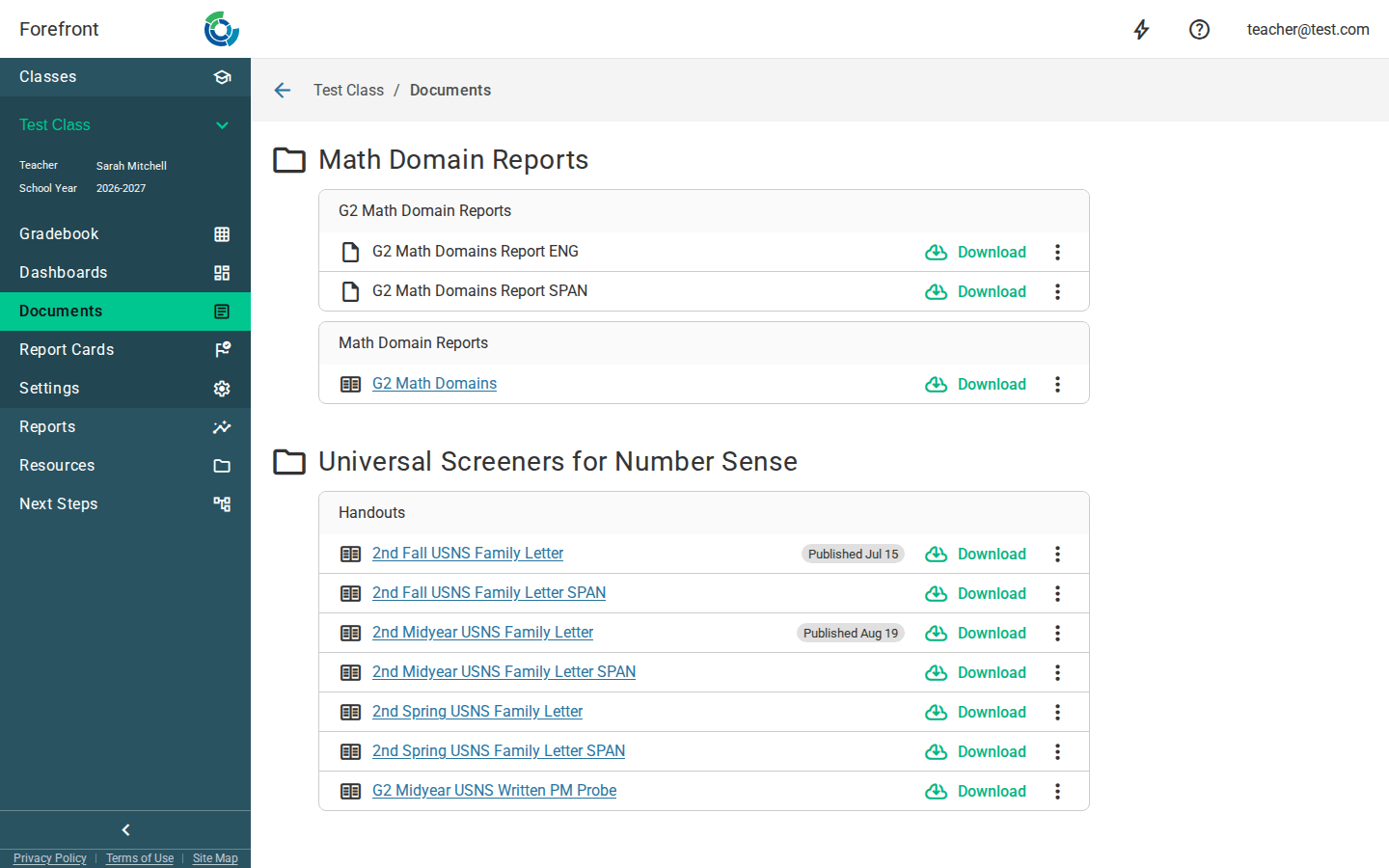
How documents are organized
Documents are grouped into folders and, within each folder, into subfolders. The folder name comes from the curriculum’s program (shown with a 📁 folder icon), and each subfolder groups the documents by their part of the curriculum. Every item shows a file-type icon and its name so you can tell at a glance what it is.
Opening a document
Each row has a Download button, and its options menu (⋮) adds an Open action. Open takes you to the document in the resources area; Download starts a download. For handouts, the name itself is also a link you can click to open it directly.
Downloading
Click Download on any row (or Download in the row’s menu). For a handout, you choose which of your students to make copies for, the margins and page options, and whether you get one PDF or one per student. See Downloading Handouts. For a Word document, see Downloading Printable Documents Without Word if you don’t have Word.
When you download a handout, the Language section of the download window sets the language it prints in. Pick Each student’s preferred language to print each student’s pages in their family’s language, so one download can hold Spanish pages for some students and English pages for the rest. A block with no translation in a family’s language prints in English. See Translating a Handout.
Parent Portal (handouts)
If your district has the Parent Portal enabled, handout rows include a Parent Portal section in their options menu:
- Publish: makes the handout available to families in the Parent Portal. You’ll confirm first. Families can see it as soon as you click Publish, and the row shows a Published chip with the date. Forefront doesn’t email families when you publish. If the handout can’t be published, you’ll see a message explaining why and the row stays unpublished.
- Unpublish: removes a published handout from the Parent Portal. The Published chip disappears, and families can no longer open or download the handout, even from a link they saved earlier.
- Preview a student: opens a preview so you can see the handout the way a specific student’s family would see it. It opens in that student’s preferred language, and the Language menu in the top bar switches it.
These actions only appear for handouts, and only when the Parent Portal (Guardians) module is turned on for your district.
When there are no documents
If the class’s curriculum has no attached documents, the page shows a “No Documents Are Available” placeholder. If something goes wrong loading them, you’ll see “Error Loading Documents” instead. Refresh the page to try again.
More about this page
- Downloading Printable Documents Without Word covers unmerging the download and the alternatives to Word.
- How to Access Printable Documents and Handouts
- Downloading Handouts, with every option in the handout download dialog.
- Adding Printable Documents or Handouts to Courses explains how a document gets attached to a curriculum in the first place.
- Handouts is the newer way to make the same kind of document without Word.