Forefront
Add Student Accounts Manually
If you only need to add a couple of students to Forefront or modify a few student records, add students …
If you only need to add a couple of students to Forefront or modify a few student records, add students manually by opening the Students page in the left-hand navigation pane. If you would prefer to upload many records at once, please consult the Roster File Contents article.
Note that only District Managers can create Student accounts. If you do not have this role assigned and need to add users to the program, please contact your IT department or submit a request to our support team at support@forefront.education to have this role added to your account.
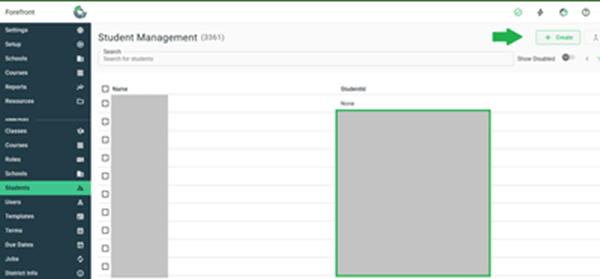
Step 1: Add the student record by clicking “Create” on the Students’ admin page and fill out the fields in the pop-up window.
At this point, the student exists in Forefront. A district manager can then follow the steps below to add the new student to a class.
Add a New Student Record to a Class (District Manager Role)
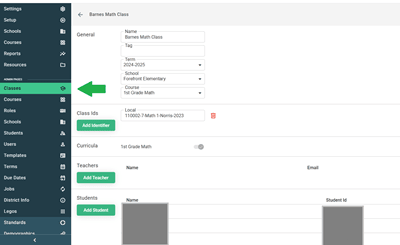
Step 1: Go to the “Classes” page by using the left navigation pane.
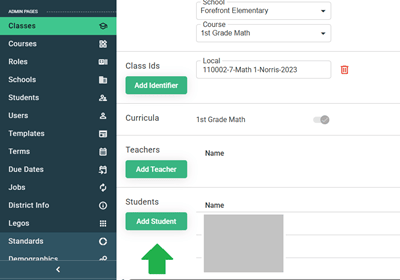
Step 2: Select the class the student needs to be added to. Then click the “Add Student” button.