 Forefront
Jobs
Monitoring background and import jobs.
The Jobs page is where you monitor the background work happening in your district (data imports, exports, document generation, and roster syncs), and where you kick off jobs on demand or on a schedule.
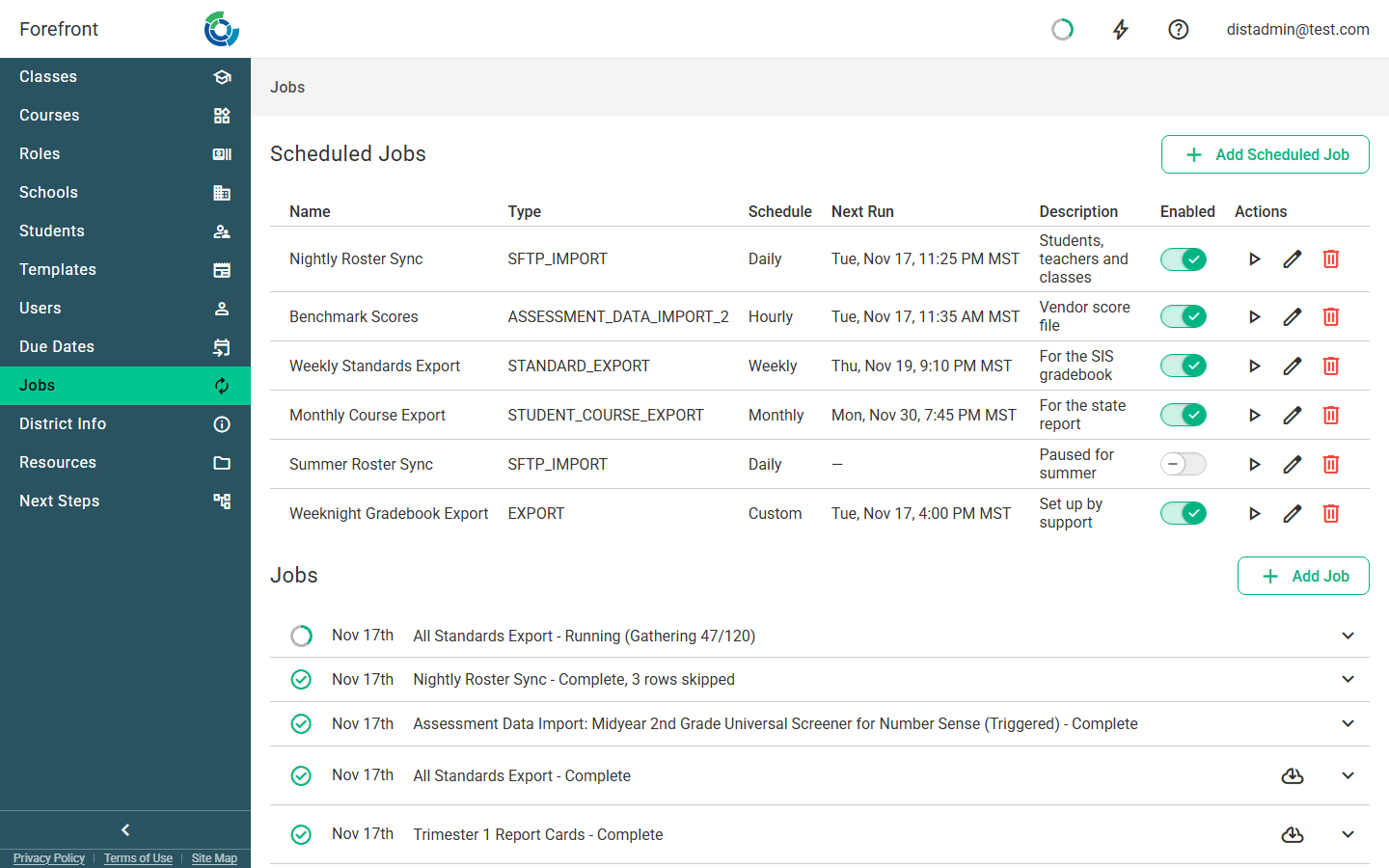
Scheduled Jobs
The Scheduled Jobs table lists the recurring jobs configured for your district, with columns for Name, Type, Schedule, Next Run, and Description. Schedule shows how often the job runs (Hourly, Daily, Weekly, Monthly, or Custom), and Next Run shows when it runs next, in your own time zone. Each row also has:
- An Enabled toggle: turn a scheduled job on or off without deleting it.
- A Run (▶) action: runs the schedule immediately. You’ll be asked to confirm (“Run this scheduled job now?”), and the resulting run appears in the Jobs list below.
- An Edit (✎) action: opens the schedule editor to change its settings.
- A Delete (🗑) action: removes the schedule after a confirmation.
Use Add Scheduled Job (top right of the section) to create one: pick a job template, then set its schedule in the editor. If nothing is scheduled yet, the section shows a No Scheduled Jobs placeholder.
Setting a schedule
In the schedule editor, give the job a Name, then choose how often it runs under How often: Hourly, Daily, Weekly, or Monthly. Weekly jobs run overnight going into Friday, and monthly jobs run overnight going into the 1st of the month. In US time zones that’s Thursday evening, and the evening of the last day of the month. For a daily, weekly, or monthly job, choose the hour it runs next to At, in your own time zone. Below the choices, Next runs lists the next three times the job will run, also in your own time zone. The job’s own settings, such as the file name for an export, come after that. Click Schedule (or Save when editing) to finish.
Choose an hour when the job depends on something that happens at a set time, such as your student information system uploading a roster file at 2:00 AM. Pick an hour after the file arrives. Forefront picks the minute within that hour so that districts’ jobs don’t all start at once. If you leave At as it is, a new job gets the quietest time overnight, between midnight and 8:00 AM UTC (7:00 PM to 3:00 AM Eastern). Hourly jobs get a quiet minute past the hour. Hover over the info icon next to Next runs to see the overnight window in your own time zone. The time stays the same when you edit the job, unless you change the hour or how often it runs.
Times are kept in UTC, so a job runs an hour earlier or later by your clock after daylight saving time starts or ends. Next runs always shows the actual times.
If a job needs to run at an exact minute, or on a different day of the week or month, contact Forefront support. Support can set it up as a Custom schedule. You’ll see Custom selected when you open it, with a note that support set it up. You can still change the job’s other settings and save it, and the time won’t change.
Jobs
The Jobs section is a running history of individual job runs, newest first. Each job is a card showing:
- A status icon: a spinner (with a progress ring for jobs that report progress, such as handout generation), a green check when complete, or a red error icon when it failed.
- The date it started and a label with the job name and status (for example “Complete”, “Running”, “Paused”, “Cancelled”, or the error message if it failed).
Click a card to expand it. The expanded view shows the run’s duration, started, and finished times, any type-specific details (such as skipped lines from a custom data import, student ID conflicts from a Clever import, or the assessment, file, and source for an assessment data import), and a red Delete button to remove the run from the list.
A roster import’s expanded card lists each file it read, how many students, teachers, classes and schools it created or updated, and the rows it skipped with the reason for each. Rows that imported but had a value Forefront couldn’t use are listed separately under rows imported with a warning. The most common one is a preferred language Forefront doesn’t recognize. That student still imported, and their language was left as it was, so fix the spelling in your roster file and the next import picks it up. See Roster File Contents.
Some jobs add action buttons to their card, such as Download File, Download Errors, or Go to export location, depending on the job type.
Use Add Job (top right of the section) to run a job once: pick a job template, then confirm its options in the run dialog. The new run is added to the top of the list immediately.
Use Load More at the bottom to page further back through the history; it’s disabled once you’ve reached the end.
Failed District Jobs (superuser)
Superuser and support staff viewing the cross-district Global Jobs view see an extra Failed District Jobs section at the top. It lists sync jobs that recently failed across districts, with columns for District, Job, Type, Status, and Failed (when it failed). The job name carries the error message as a tooltip, and the district name links to that district’s own Jobs page.
Two filters control the section:
- A time-window button group (24h, 48h, 7d, or 30d; default 48h) chooses how far back to look.
- A Pinned Only toggle limits the list to your pinned districts. If you have pinned districts, this defaults on.
Both filters are stored in the URL, so the view is shareable and bookmarkable. When nothing matches, the section shows No failed district syncs in this window. This section does not appear on a normal district’s Jobs page.