 Forefront
How to Access Handouts
How to find family letters, progress reports, and other personalized documents (handouts) in Forefront.
Not visible in your account? District managers can add family letters to courses for a number of preconfigured programs, Basic and Premium plan accounts can create new family letters from scratch, or you can contact support@forefront.education to have them added if they are part of your subscription plan.
From the Teacher Gradebook
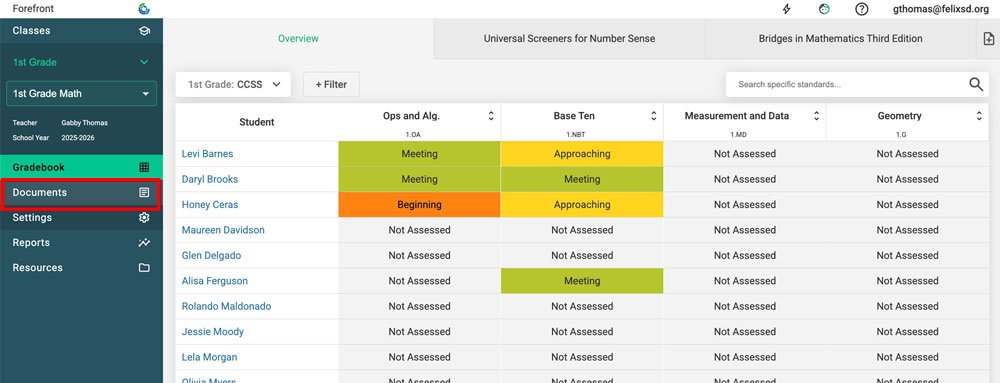
Step 1: Click “Documents” on the left side navigation pane.
Step 2: For Documents and Handouts: Click on the green cloud icon to open the download options.
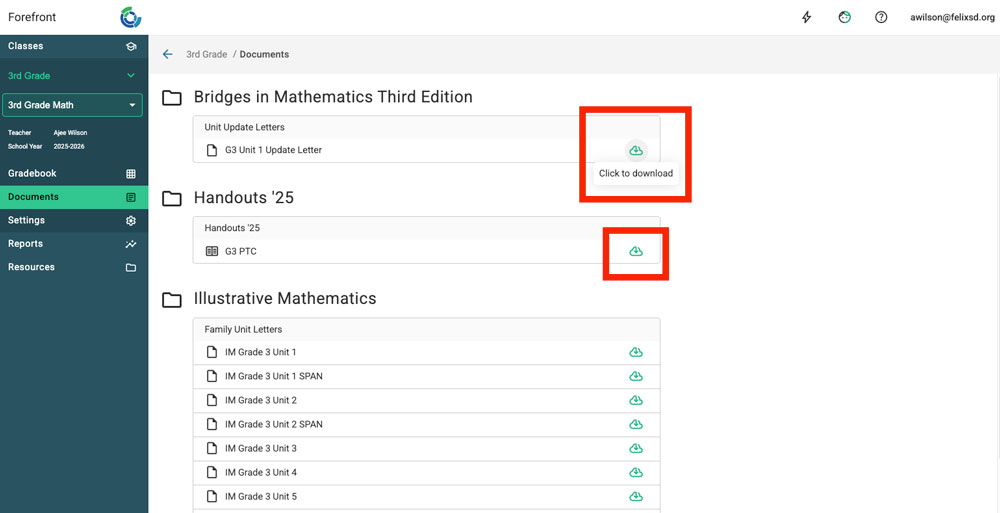
Step 3: Choose your options, then download.
For Handouts: Choose your students and options, then click “Download.” When it’s ready, the PDF opens in a new tab.
Every student in your class starts out selected. Expand the class to pick certain students, or add students from your other classes. You can also set the margins, turn on Force Even Page Count for double-sided printing, and get one PDF per student. Every download option is covered in Downloading Handouts.
For Documents: Select if you wish to download merged Word files (a single document) or need a zip file to open with another word processor.
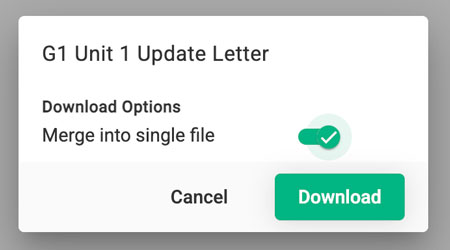
If your school uses Microsoft Word, the default download option, “Merge into single file,” will download a merged Word file for all the students in your class.
If you do not have access to Microsoft Word, toggle off the option, “Merge into single file,” to download a zip file that you may open in Pages, Google Docs, or another word processor. Read more about accessing documents without Word here. If your district does not have Word, we encourage you to reach out about exploring Handouts, updated and improved tech that is not Word-based.
Batch Printing from Resources (School or District Leaders)
Leaders can print a handout for a whole school or district at once from Resources.
Go to Resources and open the folder that holds the handout.
Right-click the handout and select Download.
Choose the term and the students to print for.
Adjust the margins if needed. Turn on Force Even Page Count for double-sided printing, and Page Numbers to number the pages.
Use the packaging dropdown to choose how the files are bundled and named. Add a school or class title page to make the stack easier to hand out.
Click Download. The button turns green once everything is set.
Every option in the download dialog is explained in Downloading Handouts.
Troubleshooting tips: Data not displaying as expected?
Confirm there is data in the assessment(s) that the report includes.
If the document is linked to a specific assessment, clones or alternative versions will not work with the document.