Forefront
How to Compare Bridges Pre- and Post-Test Data
A step-by-step guide to analyzing assessment trends and student growth in Forefront.
Step 1: Access the Assessment Tab
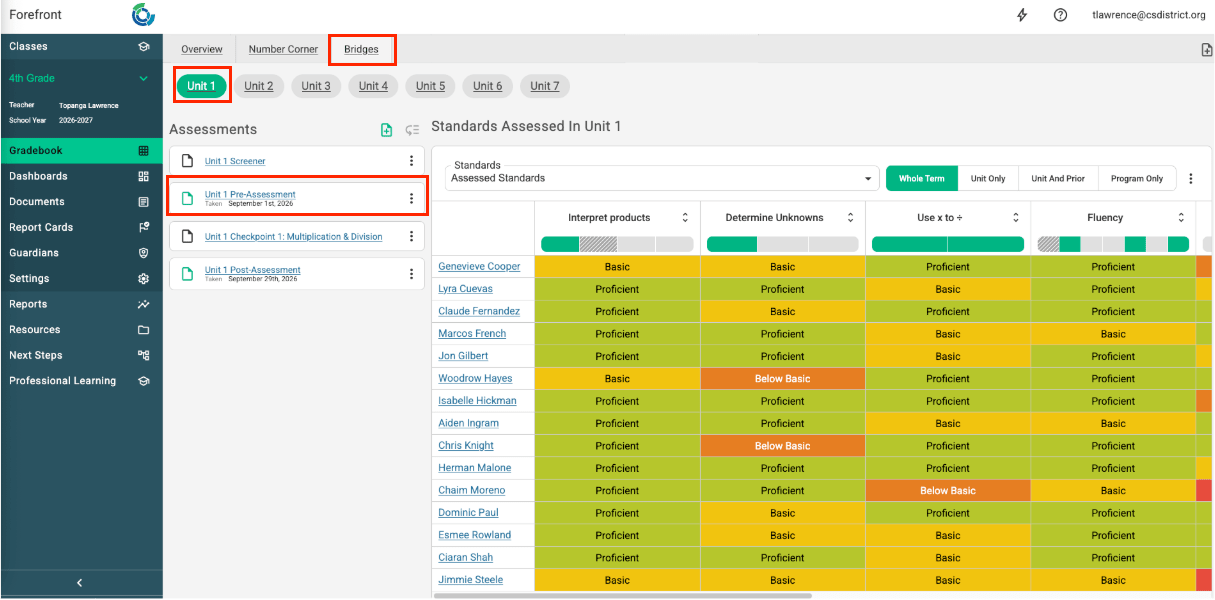
Open the Bridges Assessment Tab within Forefront to view your current unit assessments.
Step 2: Select the Primary Assessment
Choose the unit you wish to preview data for. Ensure both the unit screener/pre-assessment and post-assessment have been administered, then click into one of the assessments.
Step 3: Open the Reports View
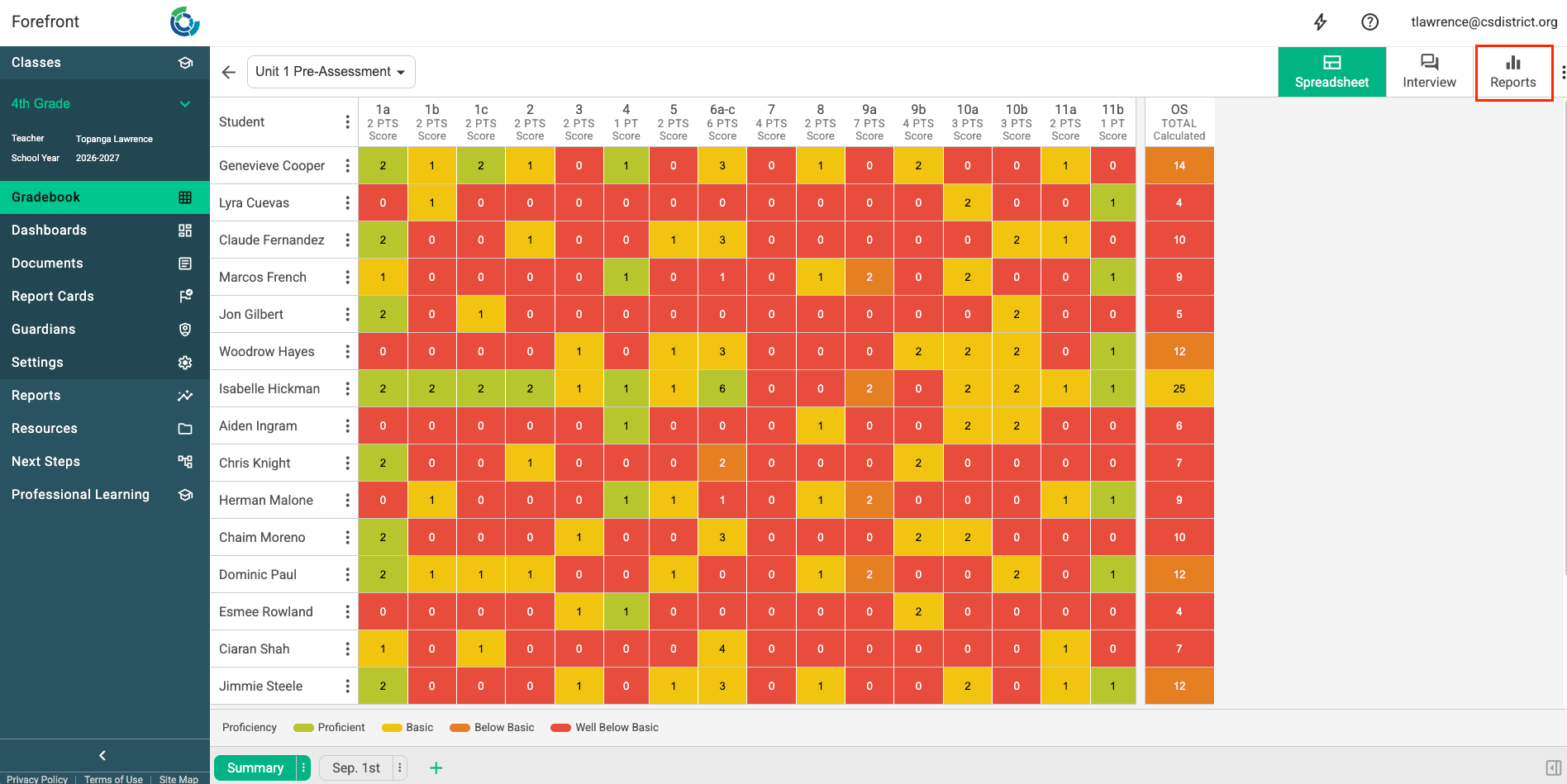
Navigate to the top right corner of the page and select the Reports tab.
Step 4: Add Additional Assessment Entities
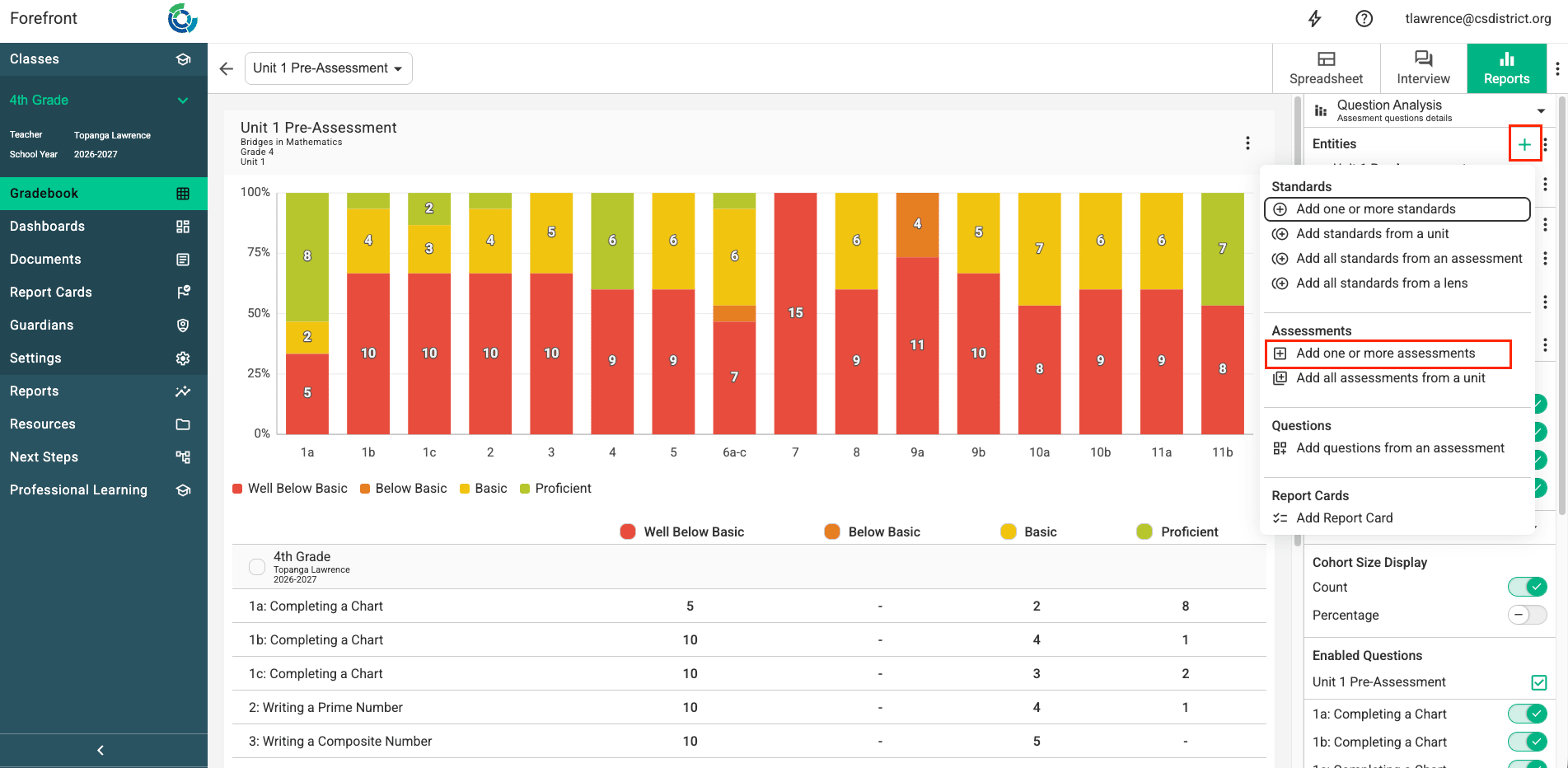
Click the + (plus) button beside Entities to add another assessment to the comparison view. From the dropdown menu, select Add one or more assessments.
Step 5: Locate and Add the Secondary Assessment
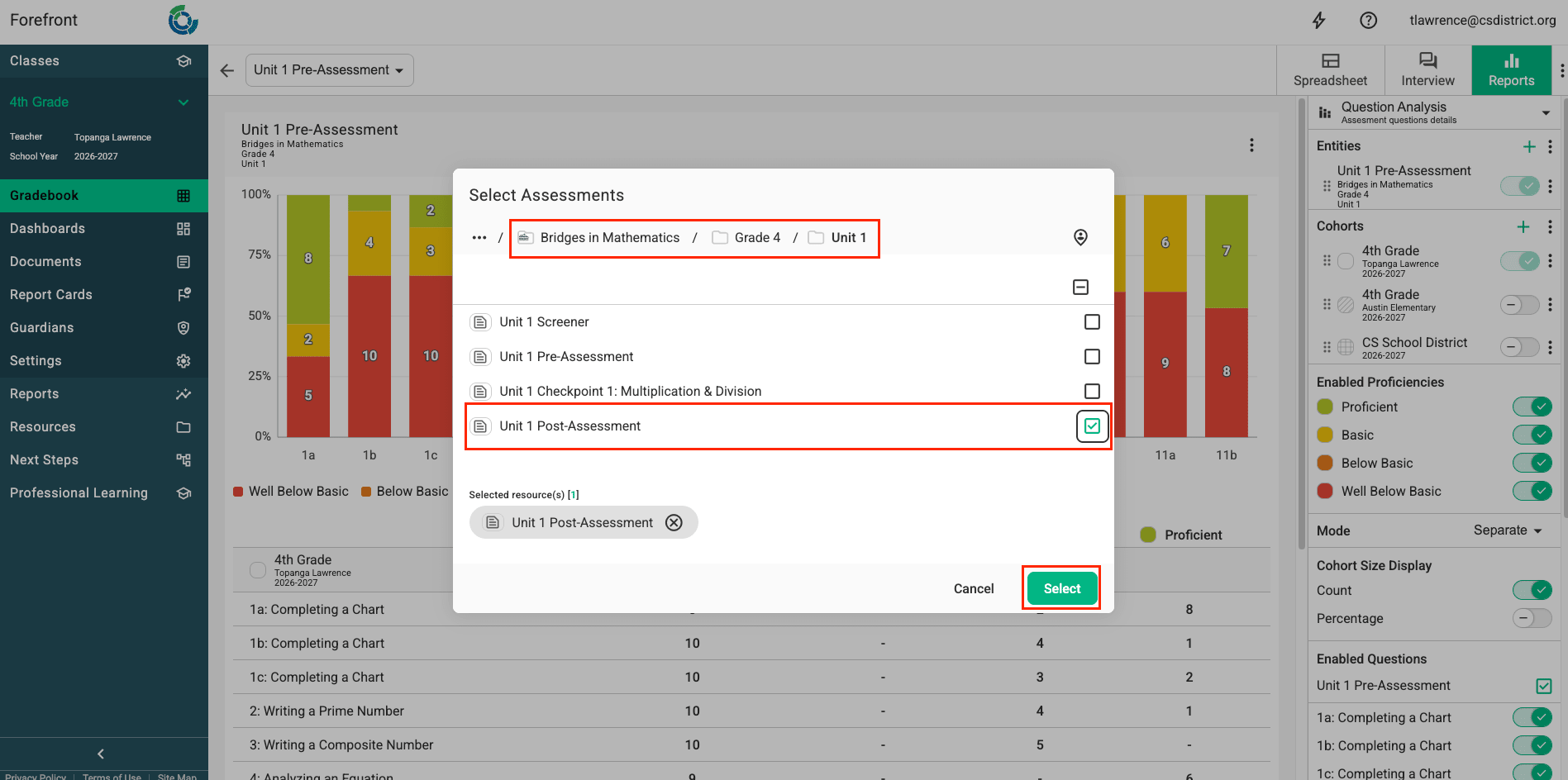
Open the Bridges in Mathematics folder, then your grade’s folder, then the folder for the unit you’re comparing. Click the Select button to add the corresponding assessment.
Step 6: Analyze Comparison Data
Scroll down the page to review detailed, question-by-question data comparing performance across both assessments.
Step 7: Track Student Trends
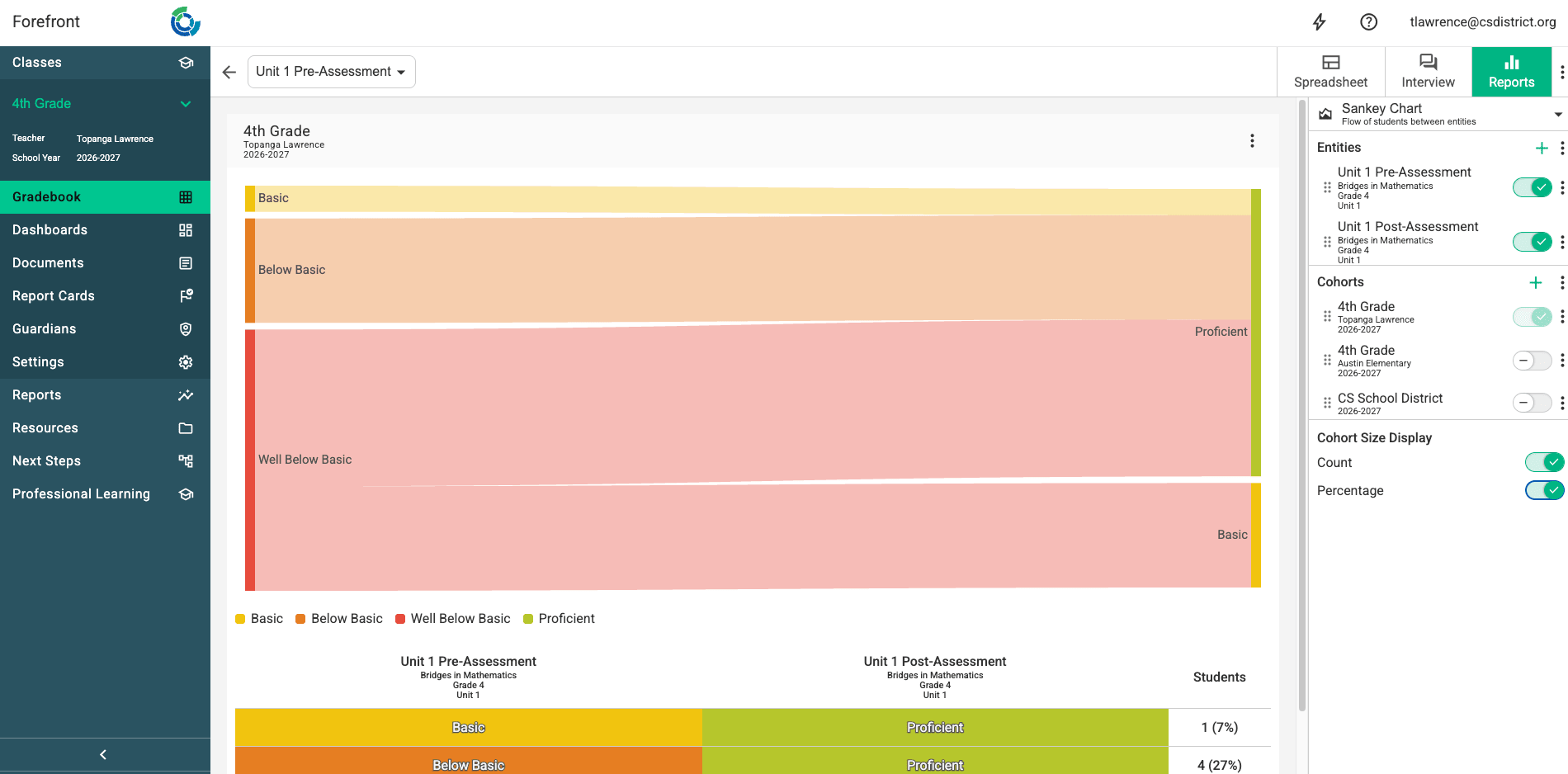
Utilize the Sankey chart to visualize overall student growth and movement trends from the pre-test to the post-test.