 Forefront
How to Create New Classes or Groups
How teachers and building leaders create a class or group from students they already have access to, then add students to it.
This article is not for managers doing an initial roster upload. For that, see Classes Management.
Both teachers and those with a “building leader” role may need to group students for interventions and other purposes. The first part of this article covers how those with the “teacher” role create a class. The second part covers interventionists, learning resource specialists, and special education teachers with site-level access.
How to Create a Class as a Teacher
If you have a “teacher” role in Forefront, you have access only to the students assigned to you at the time of rostering. If you need a peer’s students in your group, the classes those students are in will need to be shared with you first.
Step 1: Click “Classes” in the left sidebar, then click “Create New Class” in the upper right.
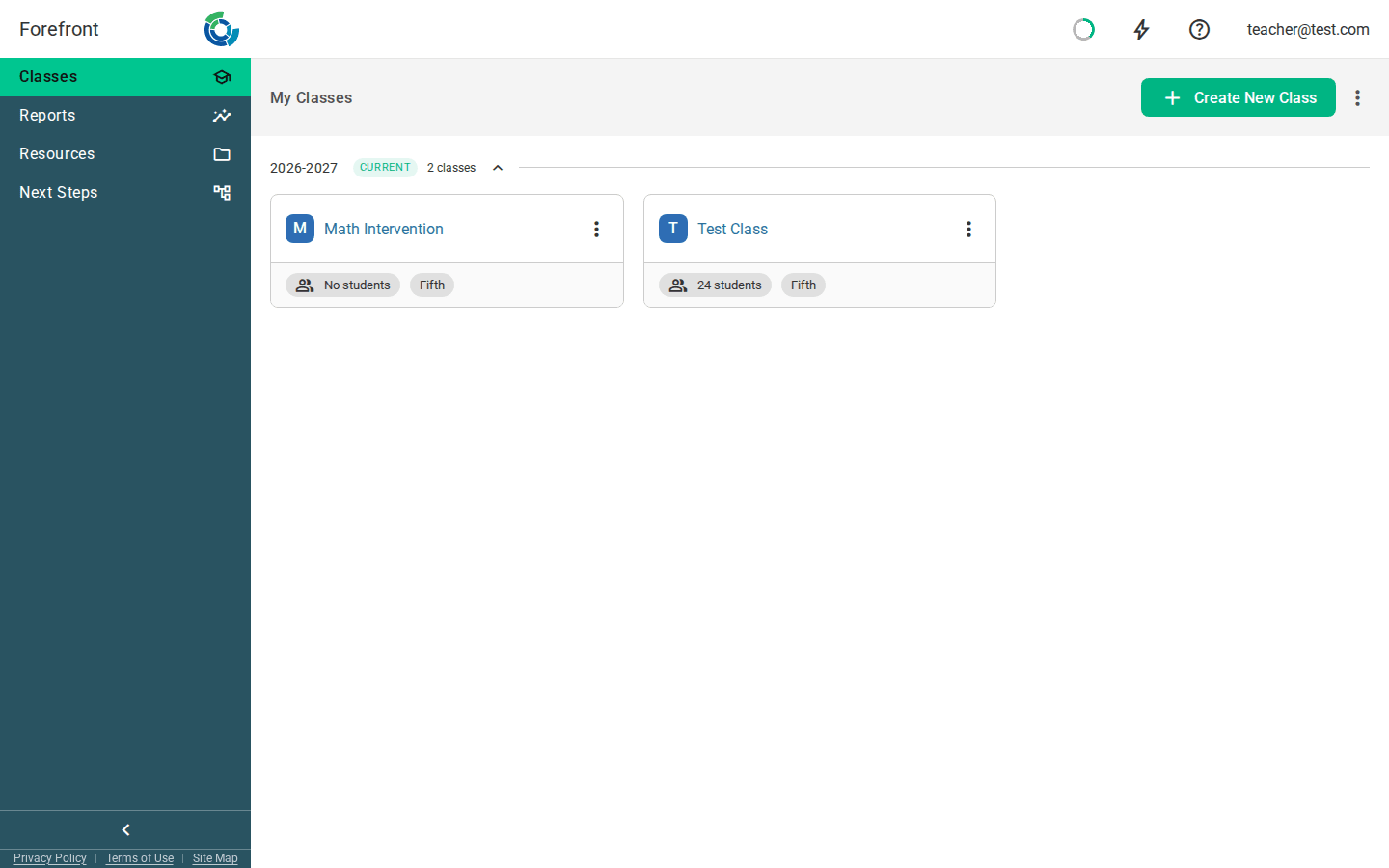
- Create New Class
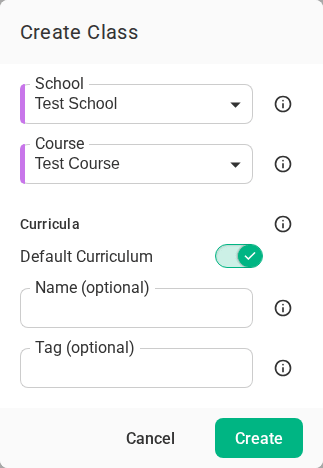
Step 2: Choose a school and a course, then click “Create.”
Your new class is in the current term, and you’re its primary teacher. Once you pick a course, its curricula appear with a toggle each. Turn off any that don’t apply to this class. A name and tag are optional. Without a name, the class uses the course’s name.
Step 3: Add students to the new class.
After you click Create, the new class opens. Click Add students now and search for each student you want in the class.
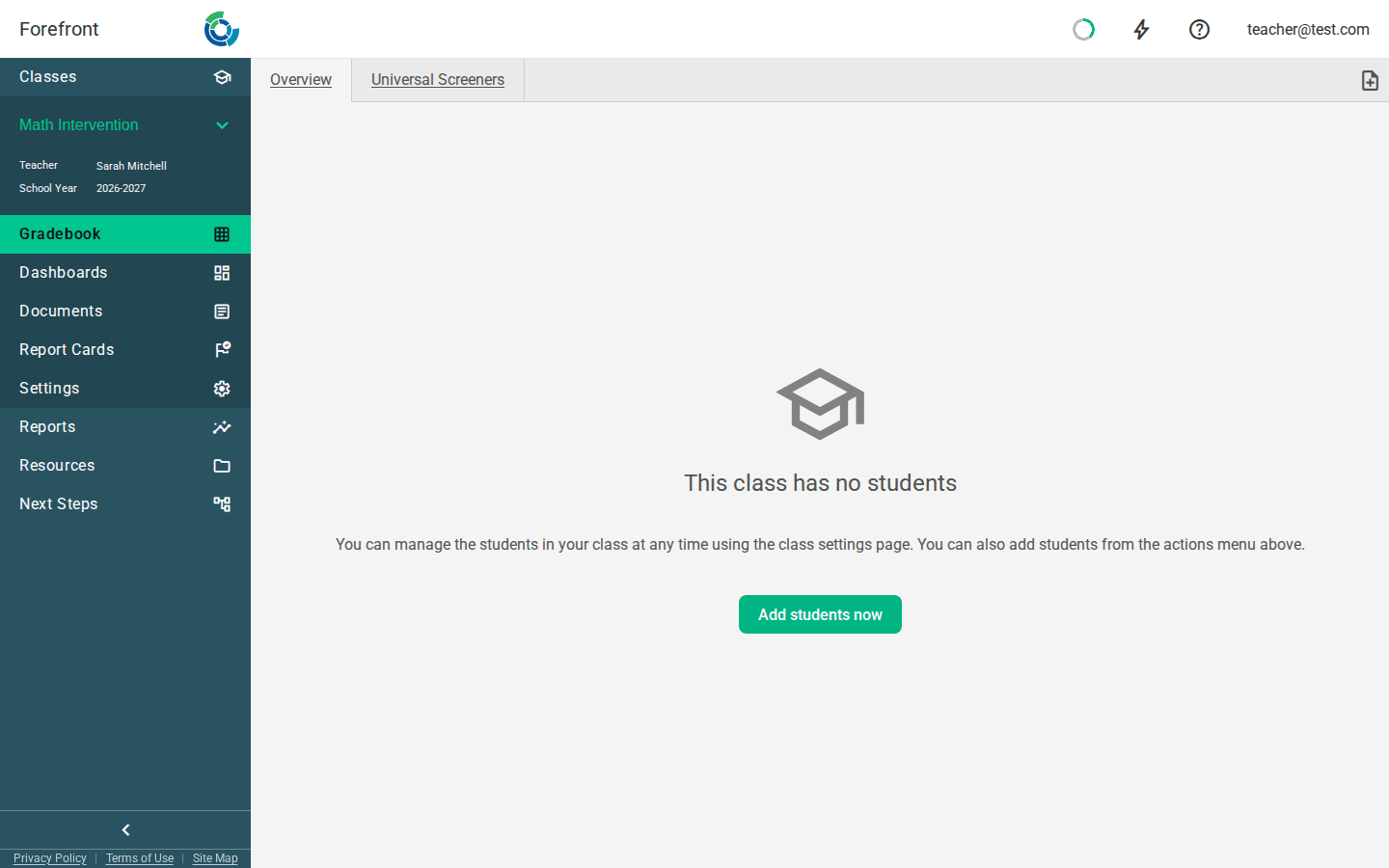
- Find and add students
Troubleshooting tip: Teacher users can only add students that are in their classes or are shared with them by another teacher.
Sharing Classes Across a Grade Level for MTSS Flex Groups
Many grade-level teams regroup students across classrooms for intervention and enrichment (for example, during WIN or flex time). Because teachers can only see students rostered to them, each teacher on the team first shares their class with their grade-level colleagues by adding them as a co-teacher. Once classes are shared, any teacher on the team can build their own flex groups from students across the whole grade level and adjust those groups as students move between tiers.
Step 1: Share your class with your grade-level team
Each teacher on the team opens their class, clicks the class settings tab on the left navigation, and clicks the “Add Teacher” button. Search for a grade-level teammate and add them. Repeat for each teacher on the team. For more detail, see How to Share Classes.
Tip: Every teacher on the team needs to share their class with every other teacher. Once everyone has done this, each teacher will be able to see and add data for all students in the grade level.
Step 2: Create your flex group
Follow the steps in “How to Create a Class as a Teacher” above to create a new class for each flex group you will teach. Use a clear name so the team can tell groups apart, such as “Gr 3 Tier 2 Fact Fluency (Smith).”
Step 3: Add students from across the grade level
Open the new class, click the “add students” button, and search for the students who will be in your group. Because your teammates’ classes are now shared with you, you can add students from any classroom in the grade level.
Step 4: Adjust groups as students move through tiers
After each round of progress monitoring or benchmark data, meet as a team to review results. Add students who need more support to the appropriate group, and remove students who have met their goals or are moving to a different tier. Because each teacher manages their own flex groups, groups can be updated as often as your MTSS process calls for. See How to Progress Monitor with Forefront and How to Identify Students in Need of Support for guidance on using data to make these decisions.
Troubleshooting tip: If you can’t find a student when adding them to a flex group, check that the student’s homeroom teacher has shared their class with you. Building and district leaders do not need classes shared with them to see students in their building.
Have a list of students to enroll at once? A building leader can import it from a file for you.
How to Create a Class as a Leader
In addition to site-level admins, interventionists, coaches, learning resource specialists, and special education teachers who work with students across several grade levels may have “Building Leader” access in Forefront.
Step 1: Click “Classes” in the left sidebar, then click “Create New Class” in the upper right.
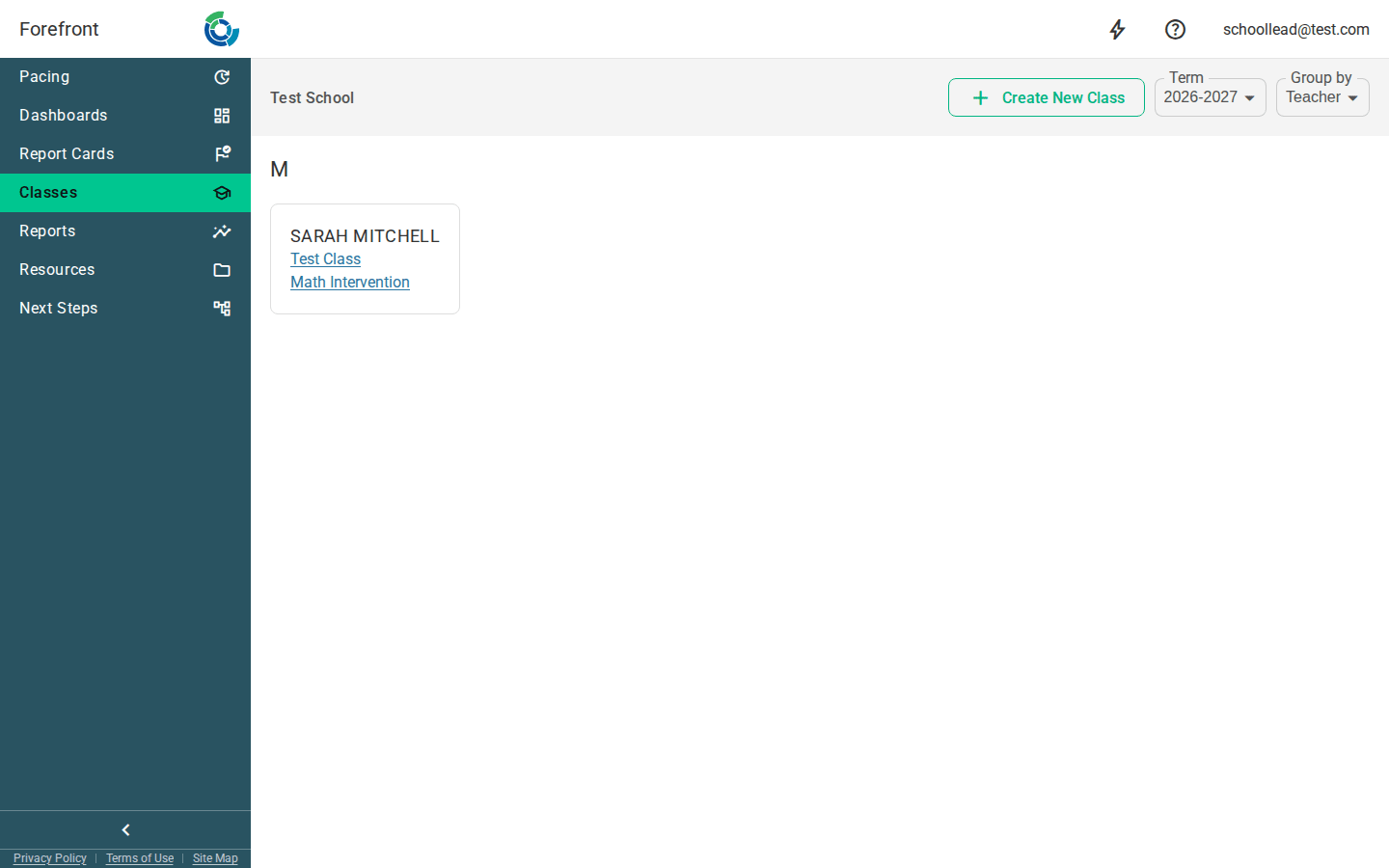
- Create New Class
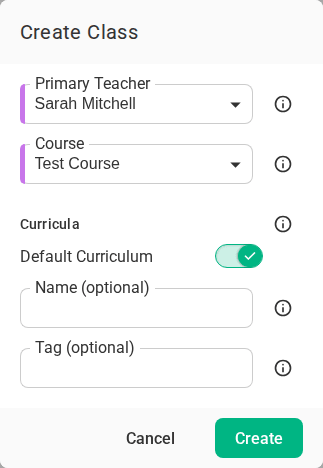
Step 2: Choose a primary teacher and a course, then click “Create.”
The class is created in the school and term you’re viewing. Turn off any curricula that don’t apply, and add a name or tag if you want one.
Step 3: Find the new class in the list and click its name.
Classes are grouped by primary teacher.
Step 4: Add students to the class.
Click Add students now to search for students one at a time, or Import from file to enroll a whole list from a CSV file.
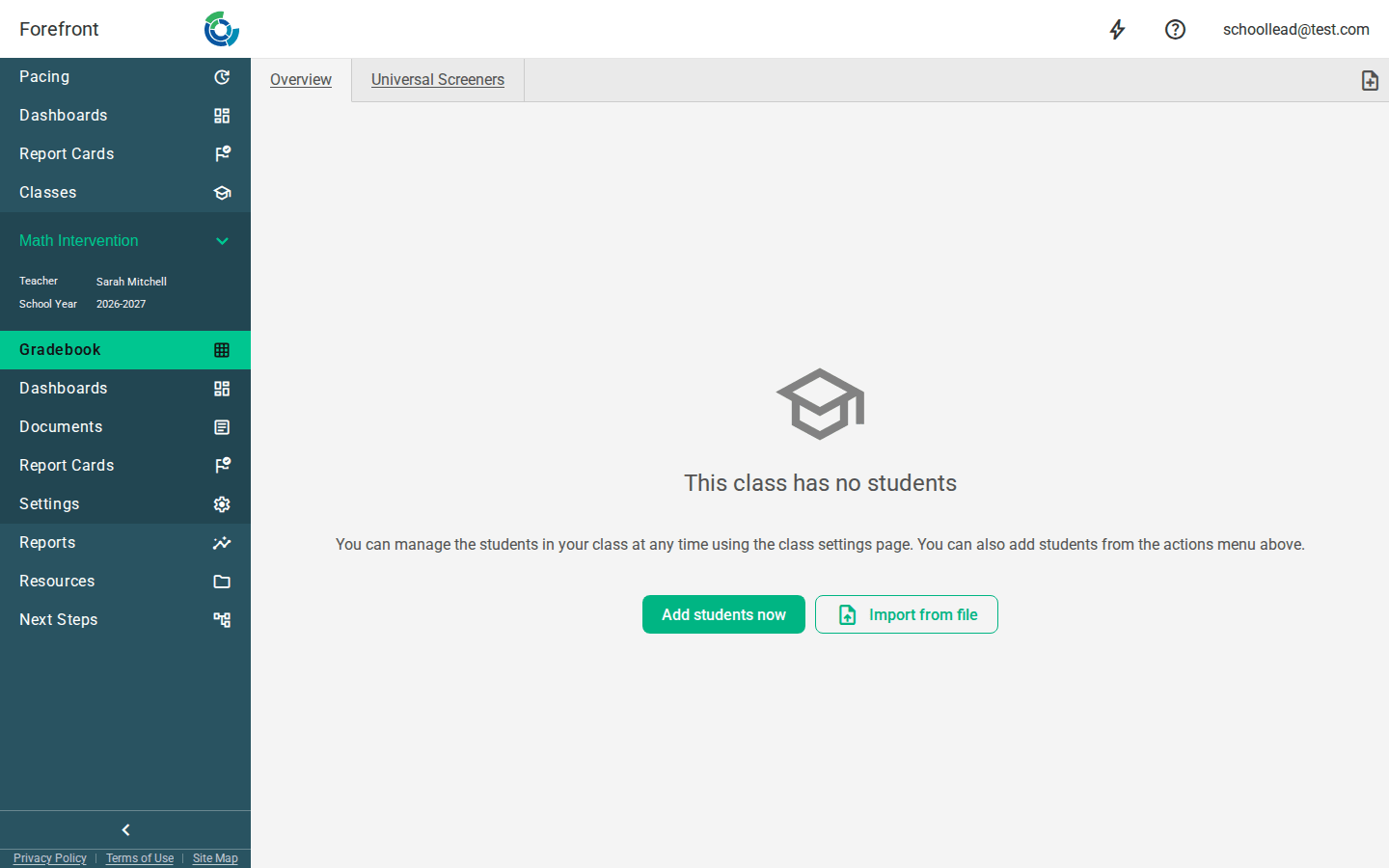
- One at a time
- A whole list from a file
You can also do both later from the Students section of the class’s settings. Class Settings walks through importing a file step by step.