Forefront
How to Use Dashboards
What a dashboard is, where to find one, and what to do with dashboards in Forefront.
What is a dashboard?
A dashboard brings your most meaningful data together on one page so you can explore it quickly. Besides reports, a dashboard can include guiding questions for PLC, MTSS or data meetings, links to resources, and images. You can also build and publish your own to the classes you teach. See Publishing Dashboards.
Most dashboards are dynamic: what you see depends on who you are. Two teachers who open the same dashboard each see results for their own students, and a building leader sees their own school.
Forefront also builds dashboards for certain assessments and programs. They’re available in Resources when ready.
Where do I find dashboards?
Where a dashboard appears depends on where it was published. A dashboard can be published at four levels: District, School, Class or Student. Each dashboards page has a Dashboard dropdown at the top so you can switch between the dashboards published there, and school and district pages also have a Term dropdown.
Dashboards for teachers (class dashboards)
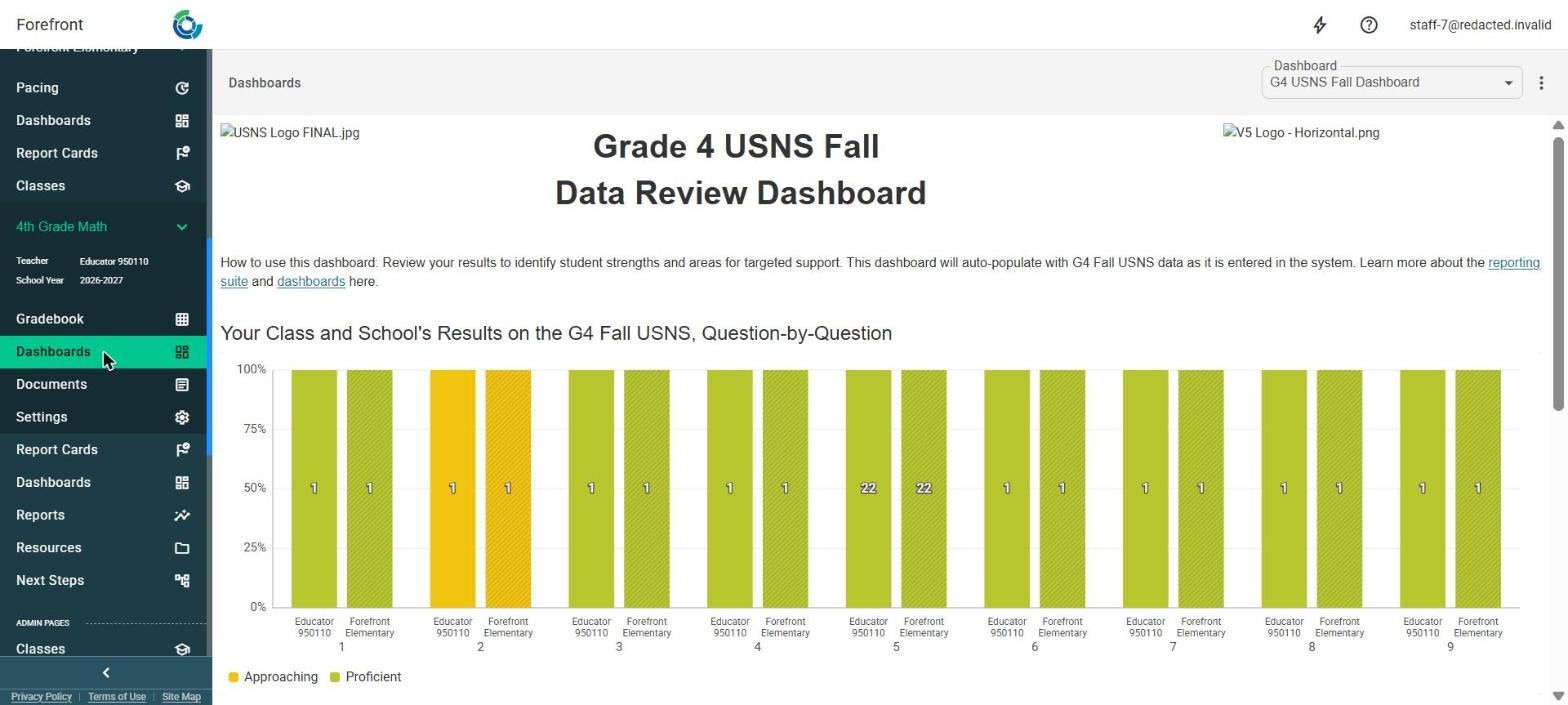
Open your class, then click Dashboards under the class name in the left sidebar.
Use the Dashboard dropdown at the top to switch between dashboards.
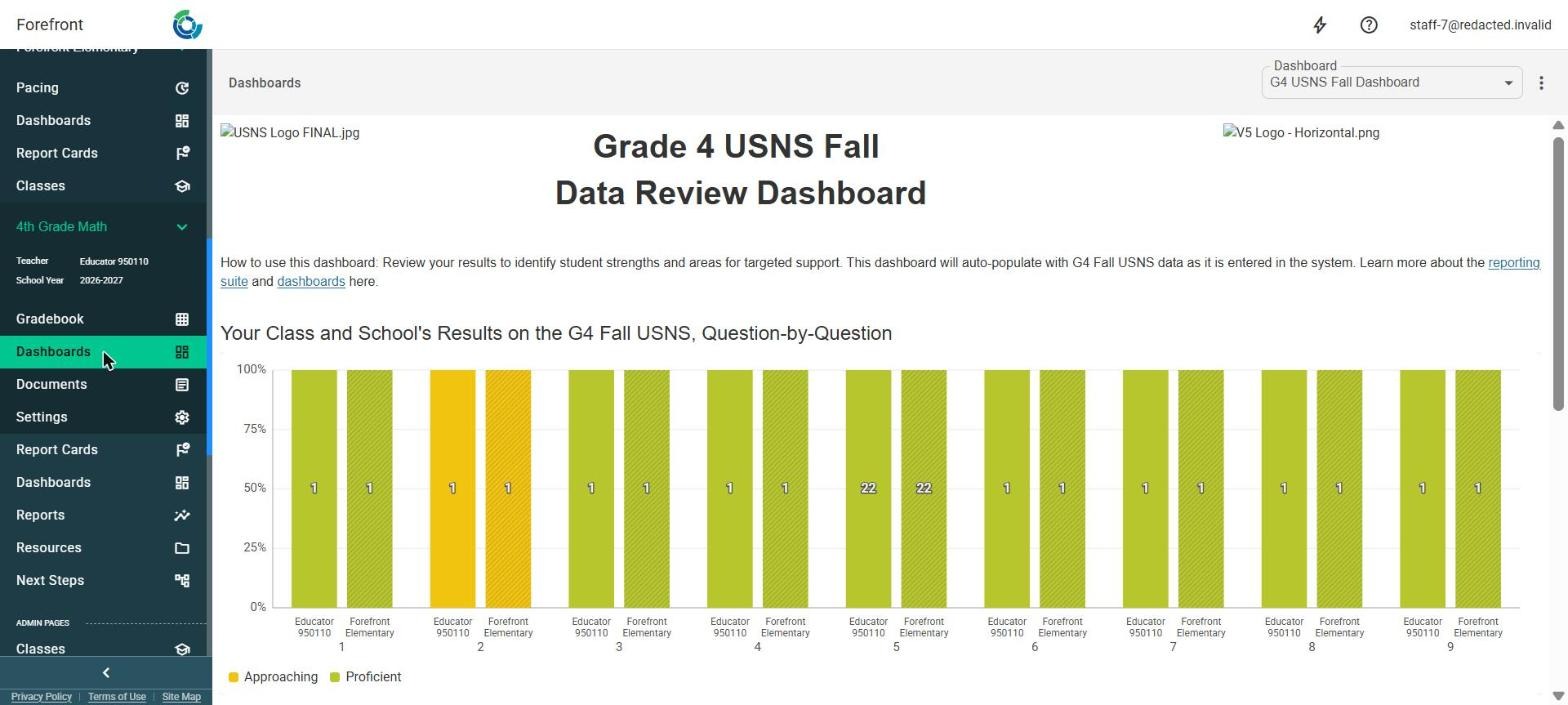
Note: Leaders can see any class’s dashboards the same way. Open the class (for example from the school’s Pacing page), then click Dashboards under the class name.
Dashboards for building leaders (school dashboards)
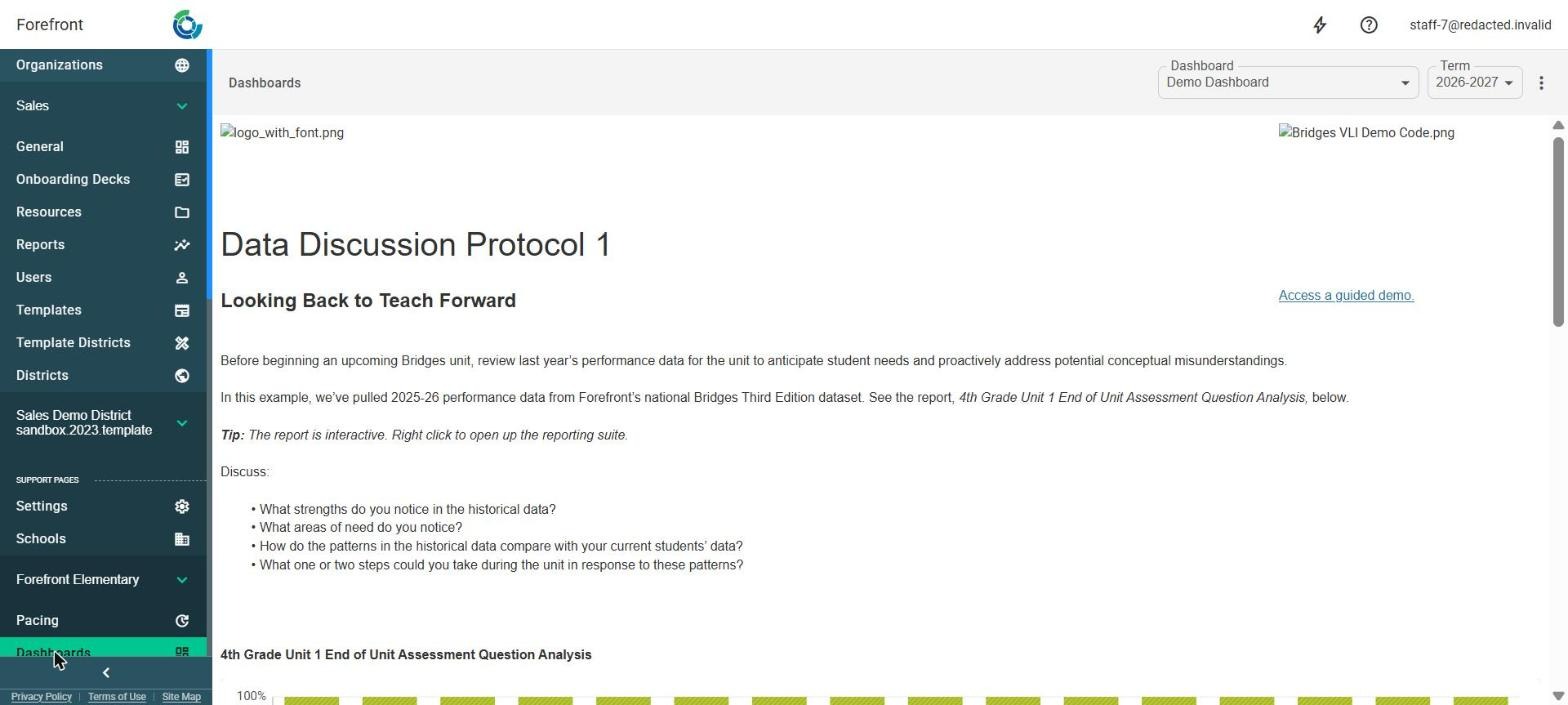
Click Dashboards under your school’s name in the left sidebar.
Use the Dashboard and Term dropdowns at the top to choose what to view.
Note: District leaders need to select a school first (from Schools in the left sidebar). Dashboards then appears under that school’s name.
Dashboards for district leaders
District leaders can view school and class dashboards as described above. District-wide dashboards are on the Dashboards page in the left sidebar. They are no longer under Reports, which now opens the report builder. Choose a dashboard and term from the dropdowns at the top. The ⋮ menu has Open Dashboard Details.
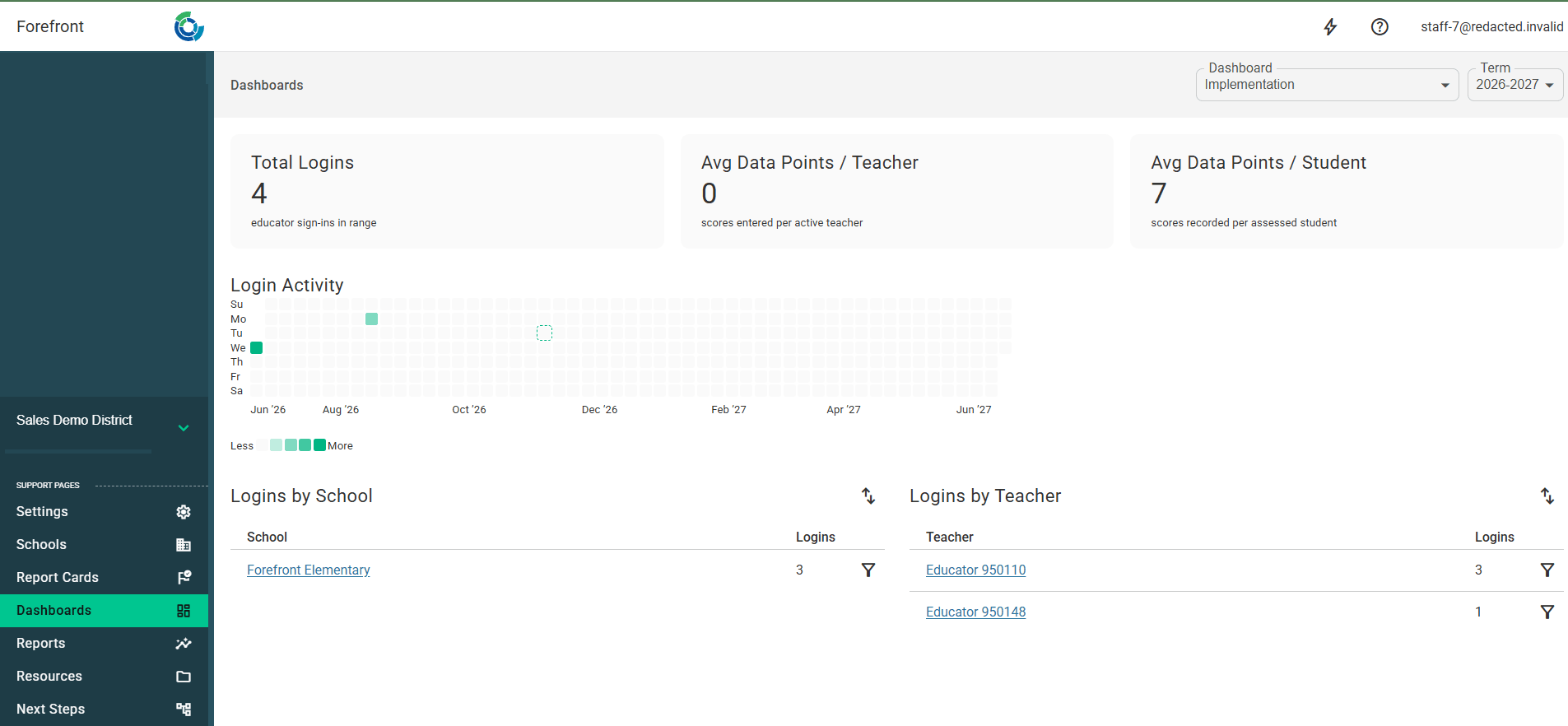
Dashboards in Resources
Teachers can open the dashboards Forefront creates and view them with their own class data, even if a leader hasn’t published them.
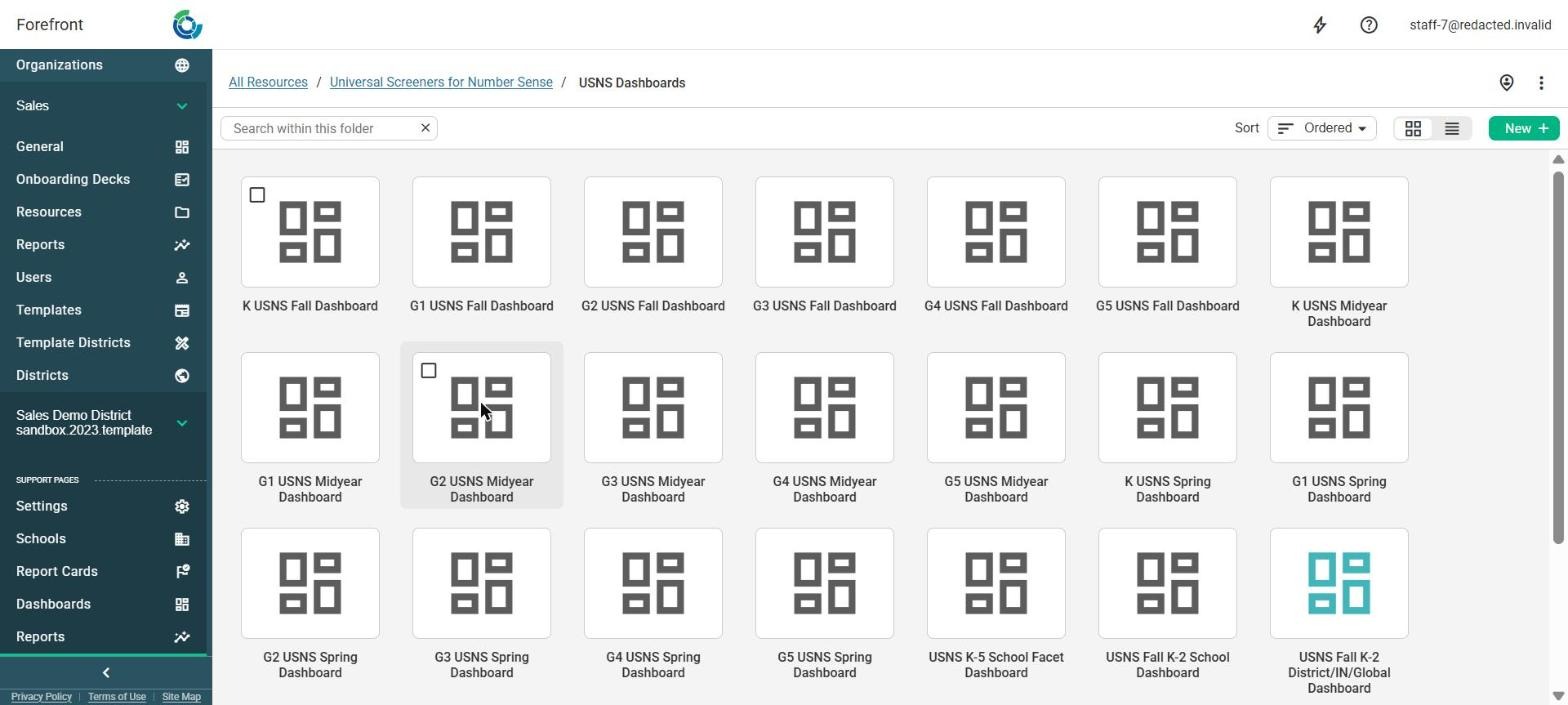
Click Resources in the left sidebar.
Find the dashboard. Click the Dashboards filter at the top of the page, type in Search within this folder, or open the folders. For example, open Universal Screeners for Number Sense, then USNS Dashboards.
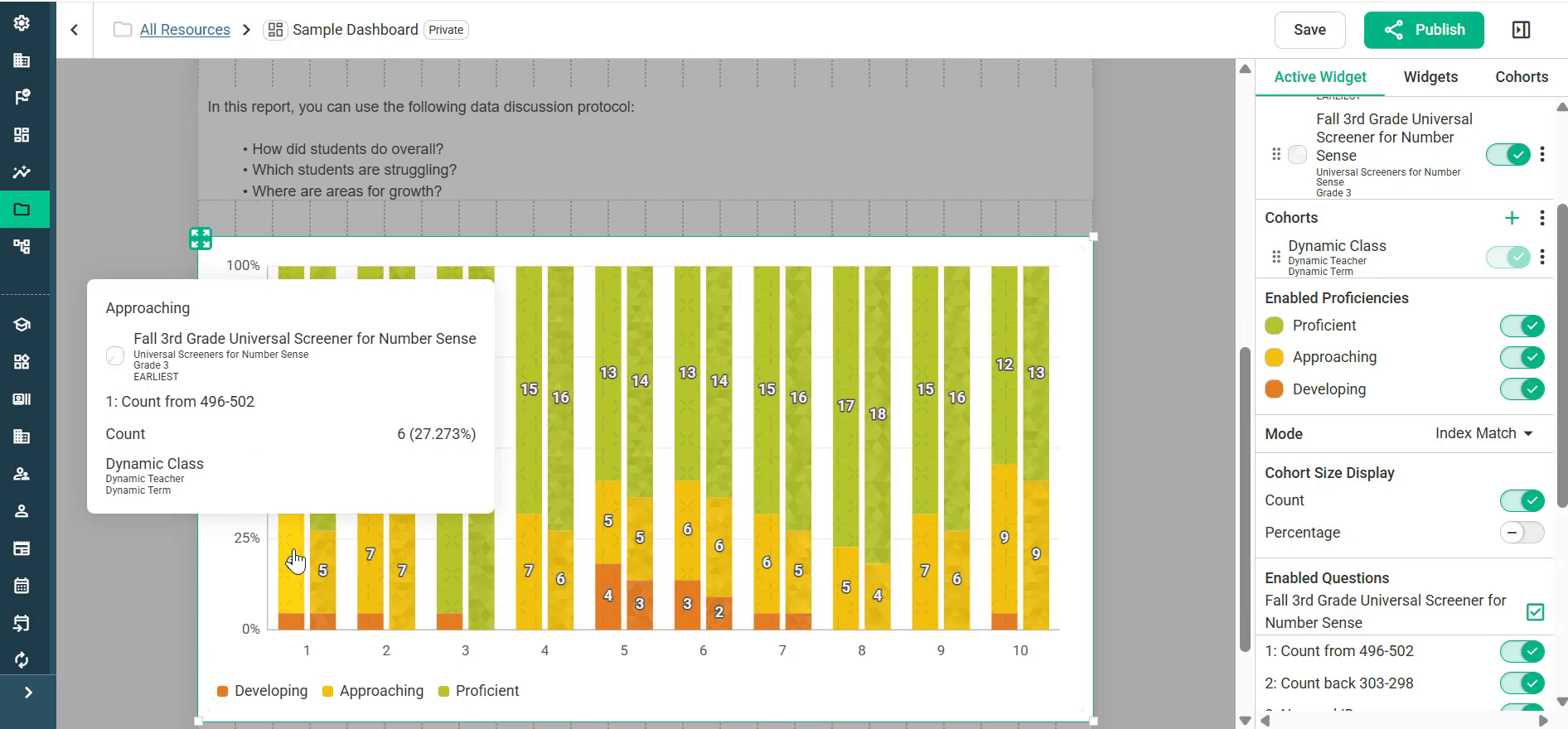
Open a dashboard. Report tiles show Configure Dynamic Cohorts until you choose a class.
In the right panel, open the Cohorts tab. Choose a Term, then search for and select your Class.
Use the dashboard just as you would a published one.
What can I do with a dashboard?
Dashboards show your most meaningful data in one click, and their reports are interactive.
Hover over any part of a chart to see details, such as the proficiency level, the assessment, the cohort, and the number and percentage of students.
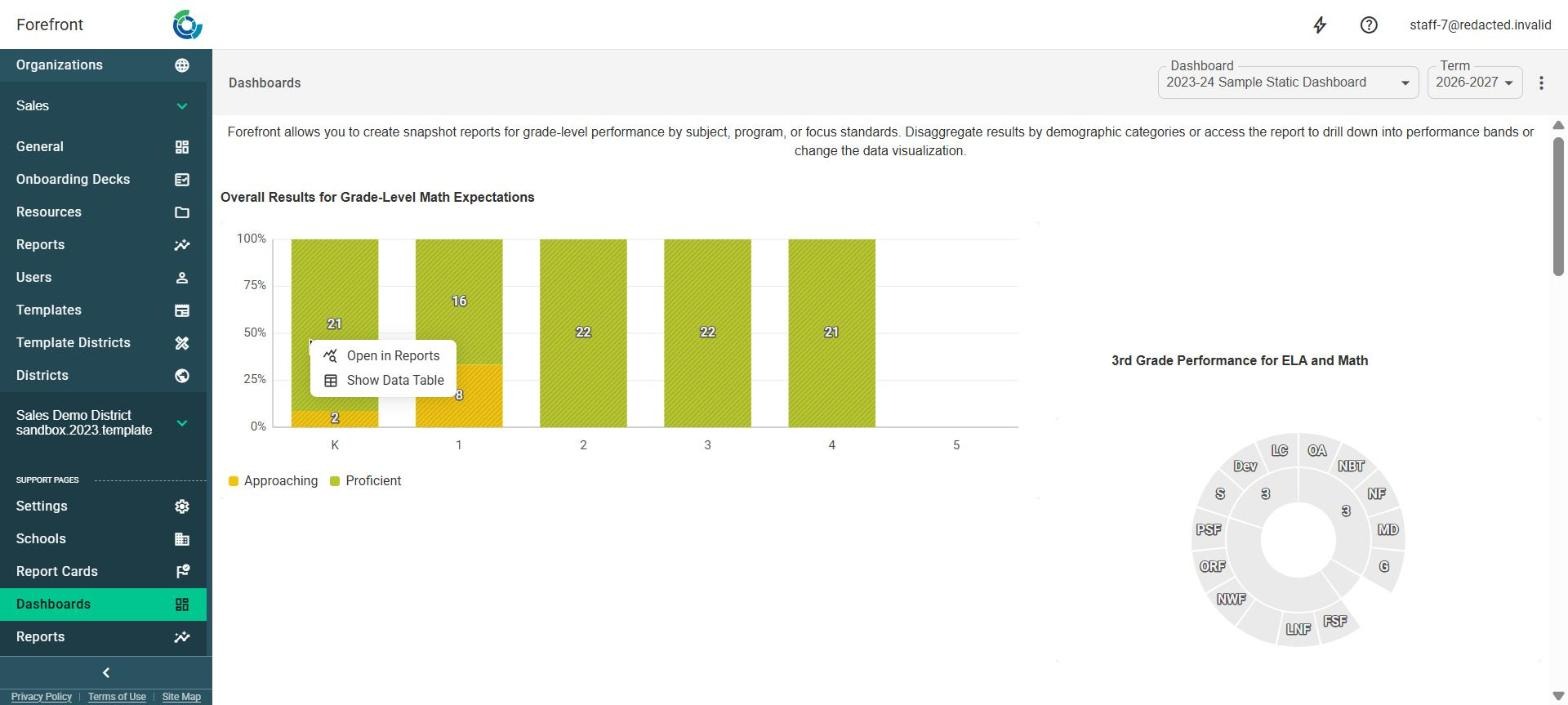
Right-click a report for more options:
Open in Reports: Open the report in the reporting suite to explore the data further.
Show Data Table: See the students included in the report.