Forefront
Teacher Report Card Overview
An overview of report cards for teachers: accept or override marks, add notes, and print report cards for a class.
Video Overview
Accessing your Report Card Gradebook
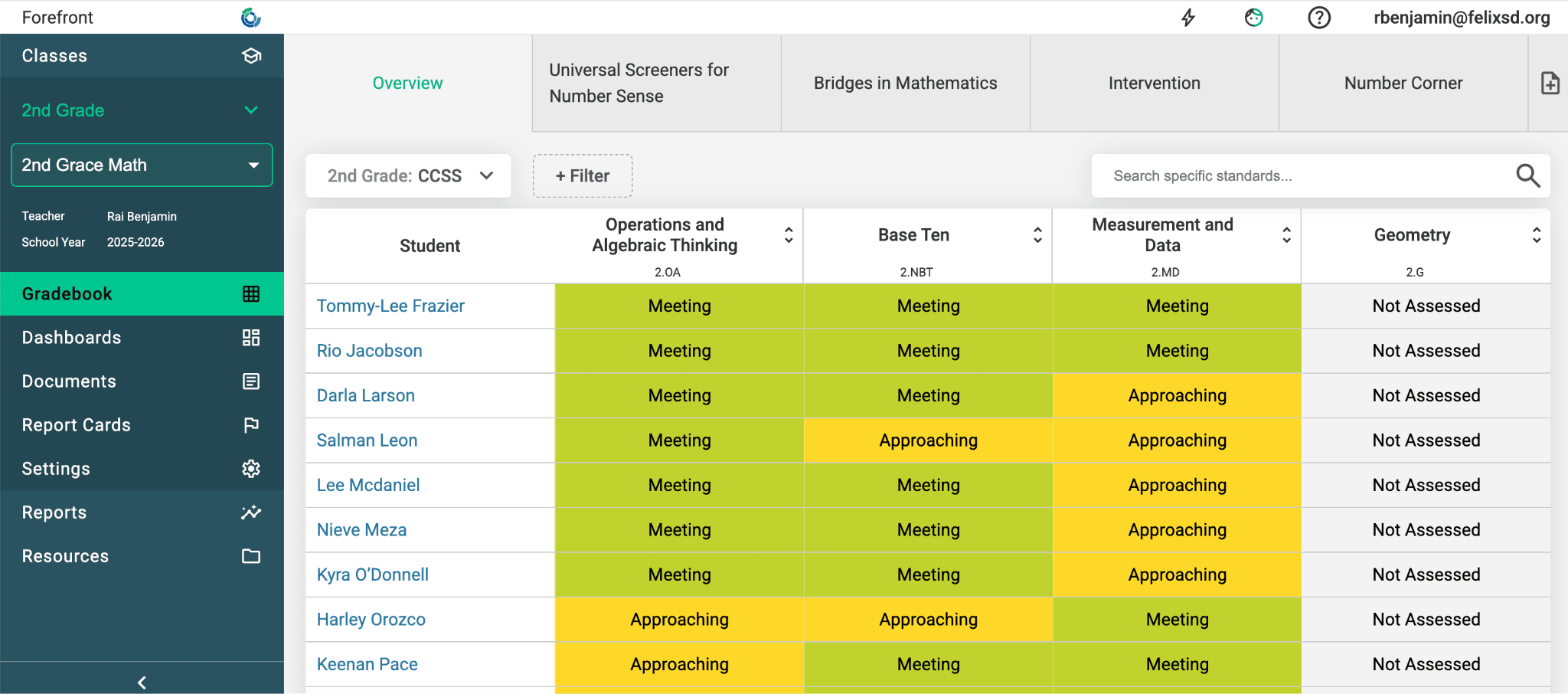
Step 1: Open Report Cards
Click Report Cards in the left-hand navigation pane to open your report card gradebook
Accepting and Overriding Grades
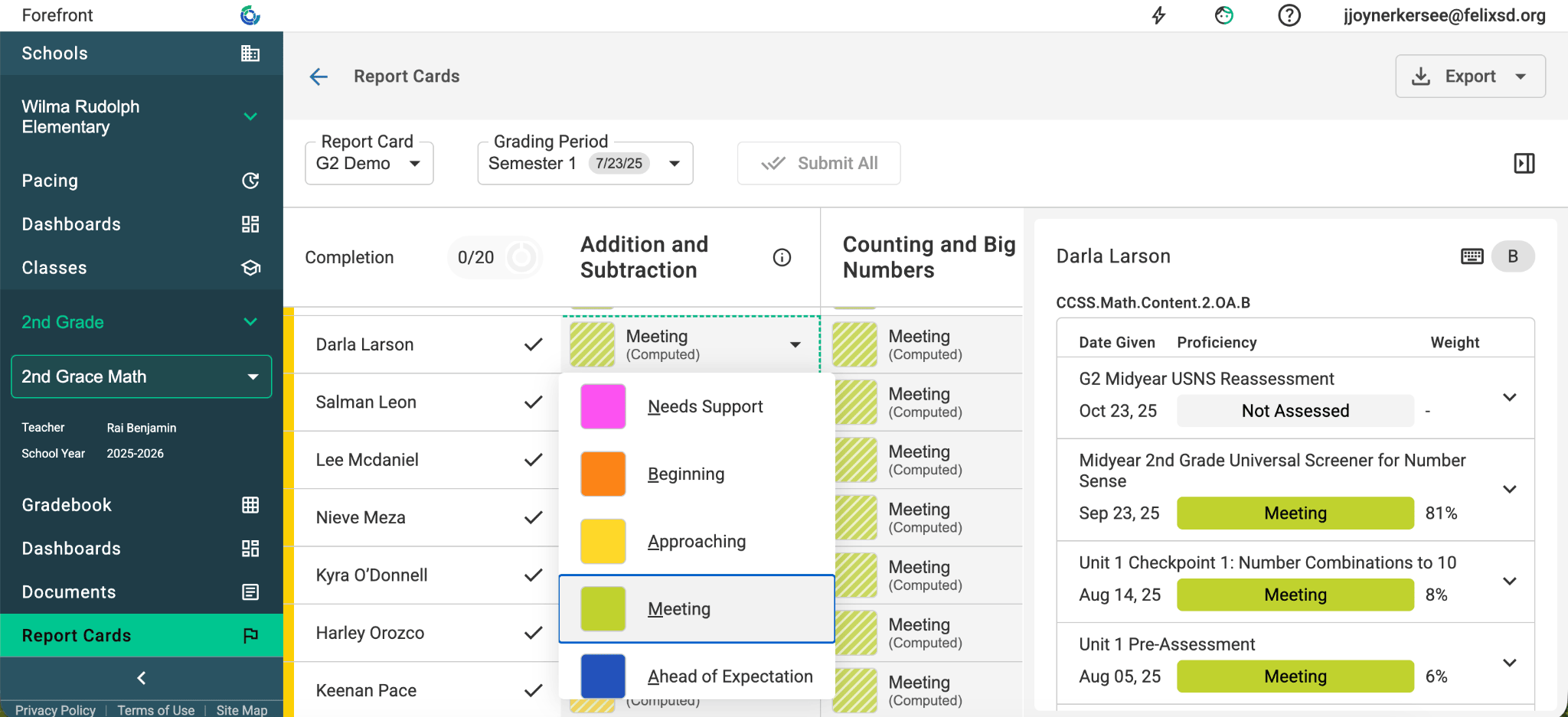
Step 1: Set each student’s proficiency
Select the dropdown and click the proficiency that reflects the student’s performance.
Tip: Use the computed proficiency and the body of evidence shown on the right to guide your decision-making.
Adding Notes
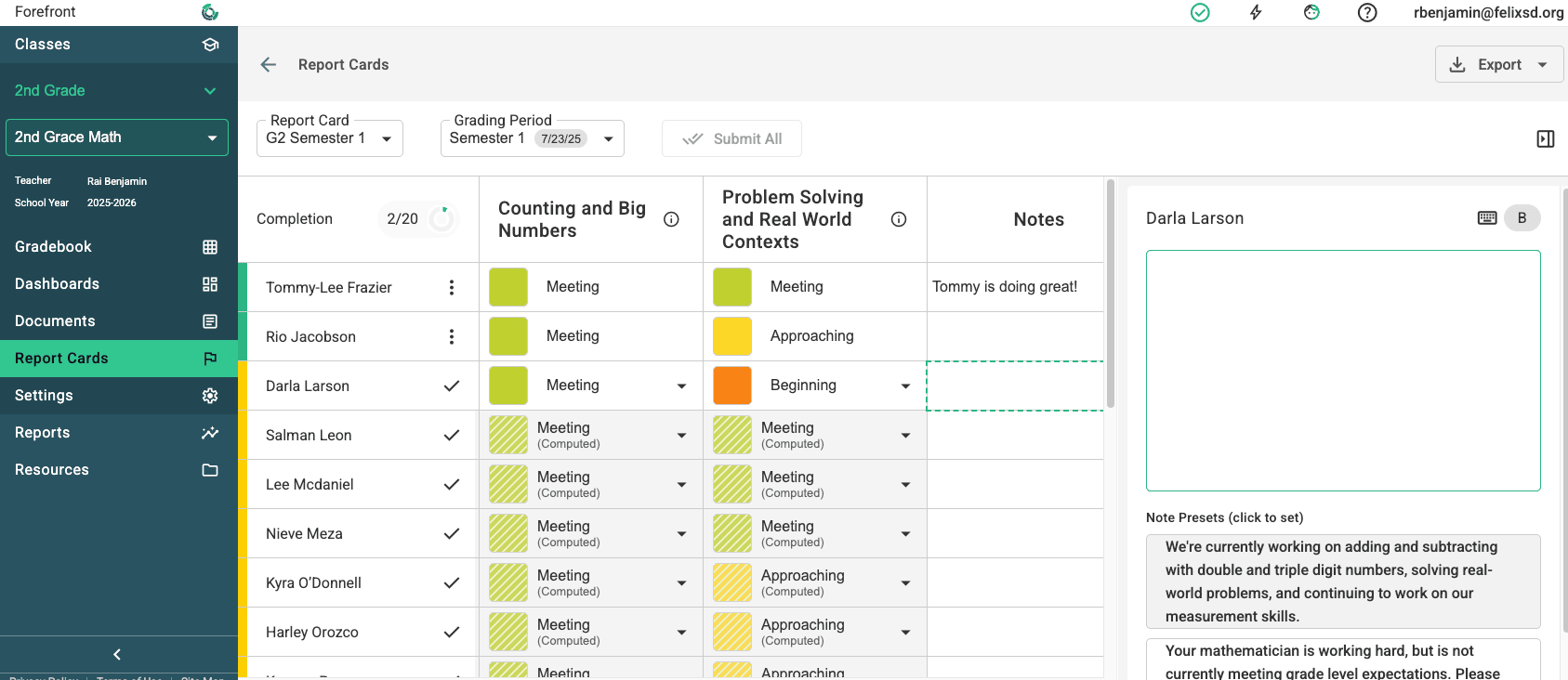
Step 1: Open the Notes cell
Click the Notes cell in the report card table
Step 2: Enter the note
Type in the text box on the right. If your district has set up presets, they appear under the text box in the Note Presets (click to add) list. Click one to add it to the note.
Each preset you click is added to the end of the note, so you can combine several presets and keep anything you’ve already typed. Edit the result in the text box like any other note. Your district writes the presets; see Report Card Note Presets.
Copying a Note to the Rest of the Class
If every student gets the same note, such as a paragraph about this quarter’s unit, write it once and copy it to the rest of the class.
Step 1: Write the note for one student
Click that student’s cell in the note column and type the note in the text box on the right.
Step 2: Copy it
Click Copy to 2 students without a note under the text box. The number shows how many students will get the note.
You can also click next to the column name and choose Copy the open note to students without one.
Step 3: Confirm
Check the count in the message and click Copy Note.
Only students with an empty note get the copy. A note you’ve already written for a student is never replaced, and submitted students don’t change. Each student gets their own copy, so you can edit one student’s note afterward without changing the others.
Tip: The copy button only appears when the open note has text and at least one other student’s note is still empty.
Printing Report Cards at the Class Level
Step 1: Open Documents
Click Documents in the left-hand navigation pane.
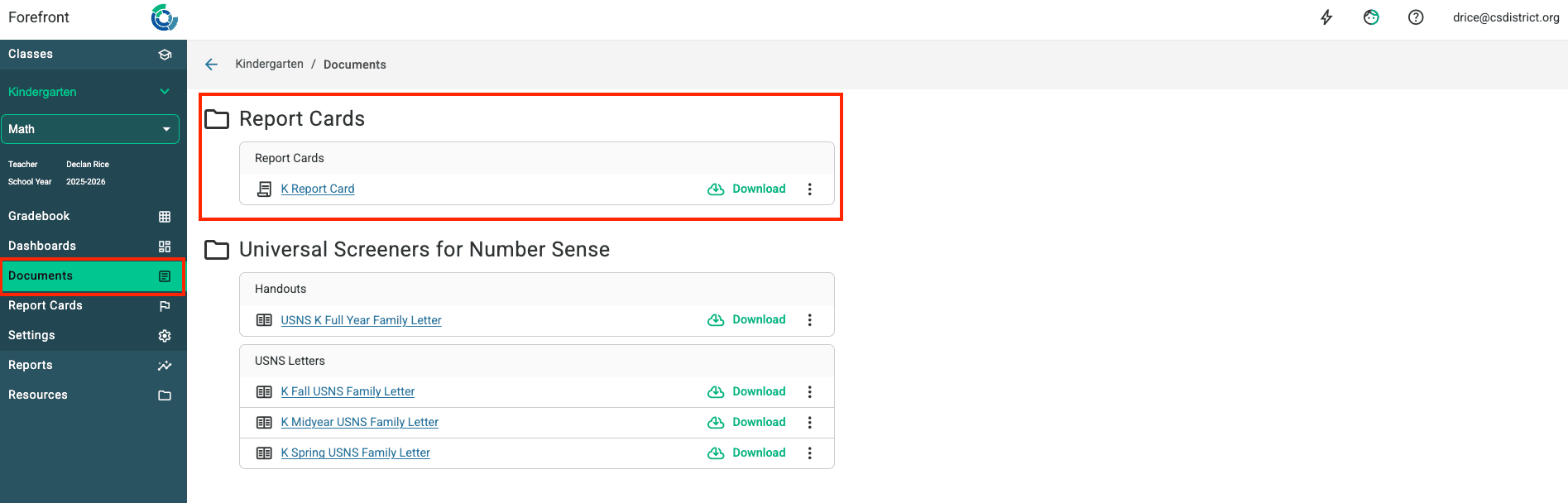
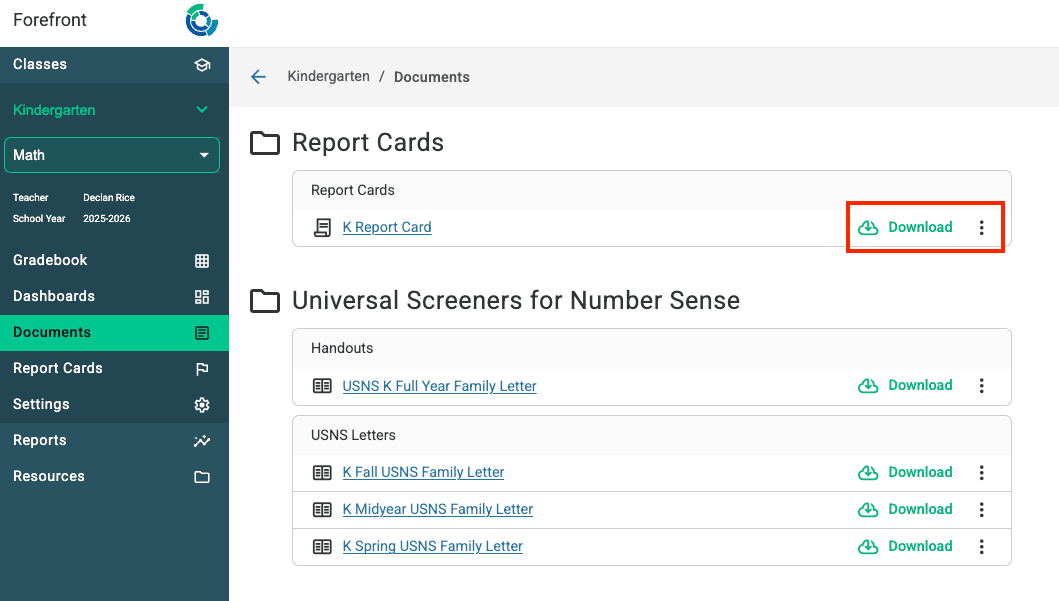
Step 2: Open the download options
Click the green cloud icon to open the download options.
Step 3: Select students and download
Use the toggle to select all students or specific students, then click Download.
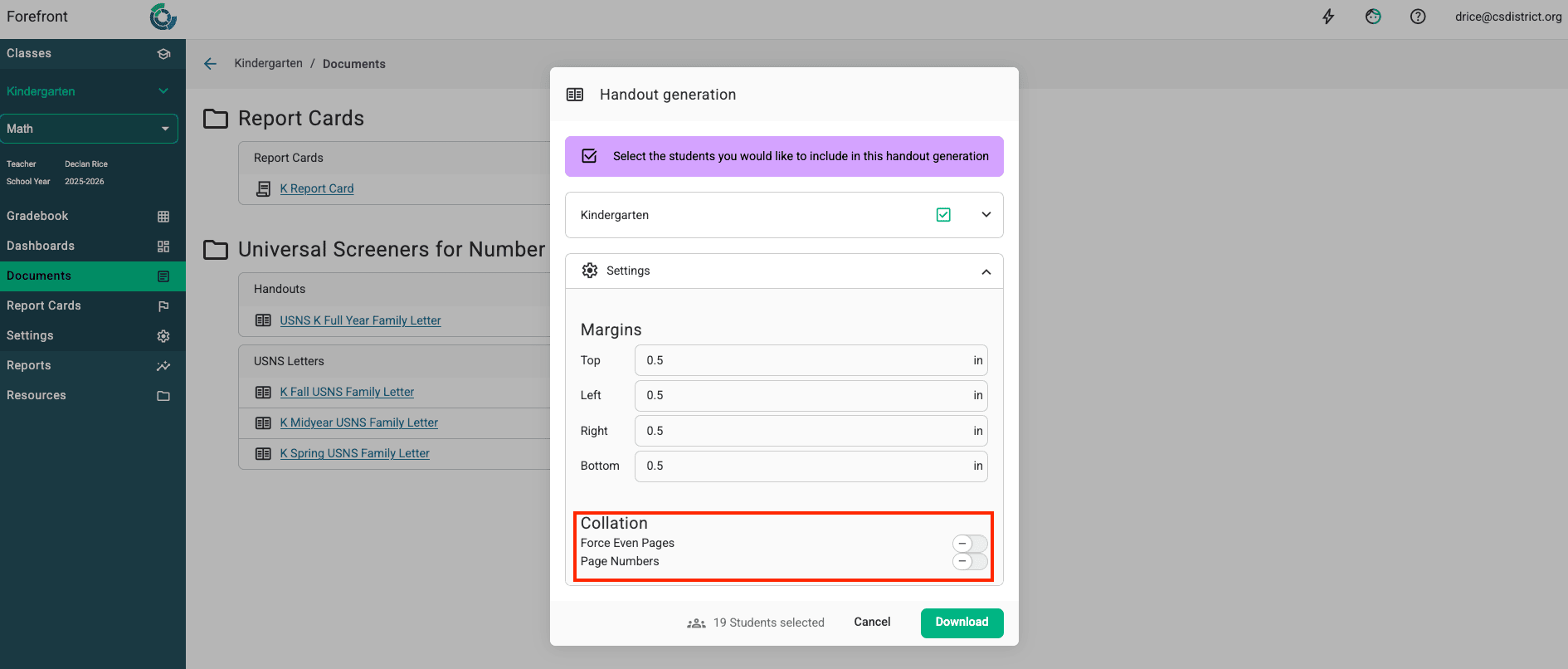
Force Even Pages: If a handout may run onto two pages, toggle this on so two-sided printing works correctly.