 Forefront
Assessment Spreadsheet
Entering and editing scores for an assessment in the spreadsheet grid.
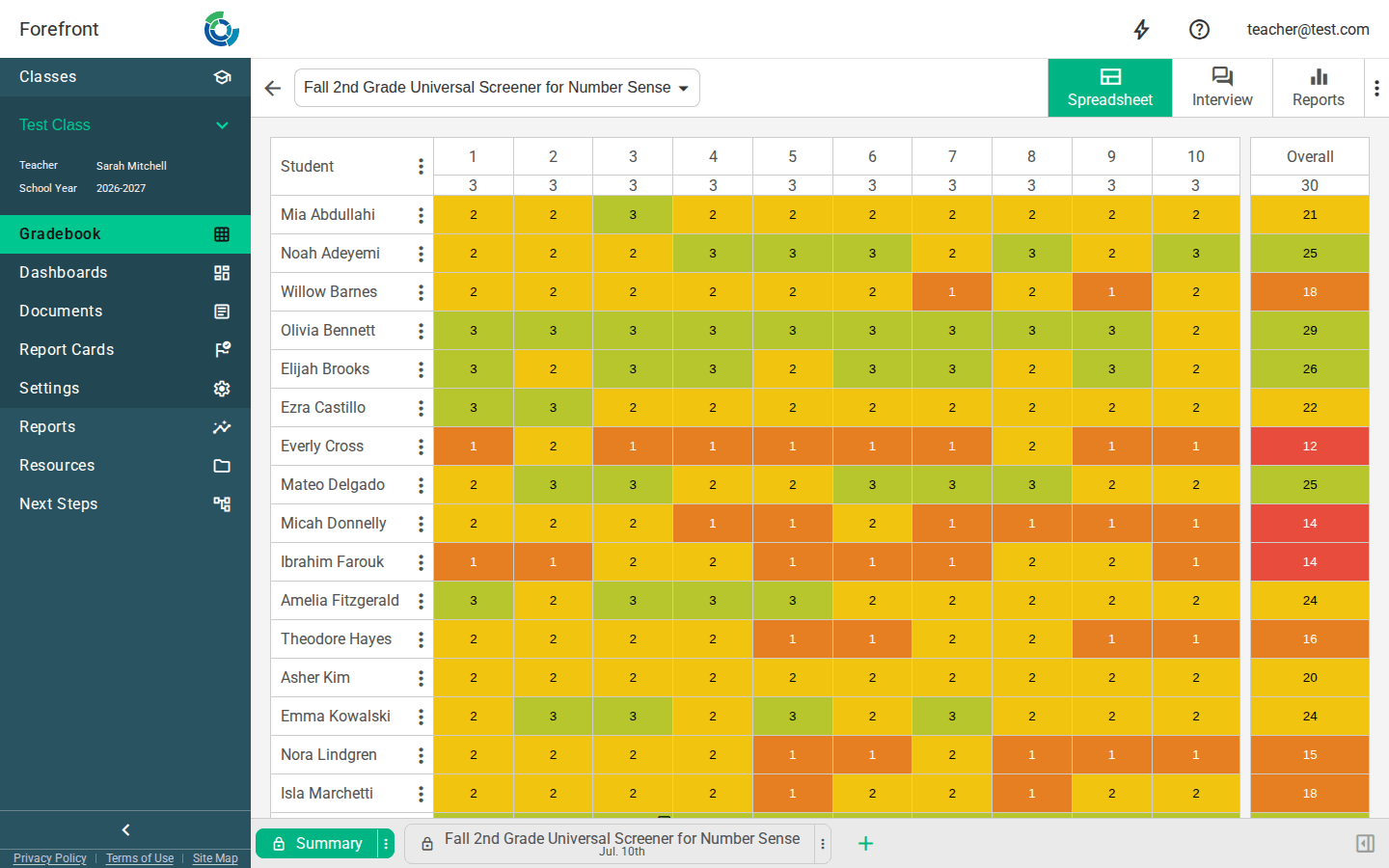
The Spreadsheet is where you enter and edit scores for an assessment. It’s a grid with your students down the side and the assessment’s questions across the top, so you can score a whole class quickly, one cell at a time.
Reading the grid
- Rows are students, columns are questions. Each question column is labeled by its number, and the row just under the header shows that question’s max score.
- Click a student’s name to open that student’s detail pages. A 💬 comment icon next to a name means the student has notes on this assessment.
- If a student has been assessed more than once and you’re on the Summary tab, an expand arrow appears next to their name. Click it to open the student’s individual assignment rows underneath the summary row.
Switching assessments and views
- The assessment selector at the top left lets you jump to another assessment in the same set without leaving the page.
- The view links switch between ways of working with the same data: Spreadsheet, Interview, Reports, and (when the assessment has them) Instructions. On narrow screens these move into the actions menu (⋮).
- The back arrow returns you to where you came from.
Entering scores
Click a cell and type to enter a score, then use Tab, Enter, or the arrow keys to move to the next cell. Scores save as you go. Cells that hold derived or imported values are read-only:
- Overall / calculated columns compute their value from the other questions, so they can’t be typed into.
- Read Only (imported) questions carry scores that came from a data import and can’t be hand-entered, but you can still read them.
Press N on a selected cell to add a note for that student and question. Scores can only be edited on assignments that belong to this class and that you have permission to modify; other rows are shown read-only.
Assignment tabs
The tabs along the bottom are the assessment’s assignments: usually one per date it was given, plus a Summary tab.
- Summary shows one consolidated row per student across all their assignments. Right-click the Summary tab to choose which assignment it reflects (Latest, Earliest, Highest, or Lowest) and to turn on Merge Across Assignments, which combines each student’s best answers across every date.
- Add a tab to record the assessment on a new date.
- Right-click an assignment tab (or open its menu) for its actions:
- Edit Tab: rename the tab and adjust its date.
- Proficiency exclusion: leave this assignment out of proficiency calculations (excluded rows are shown with a hatched texture).
- Move Student Data to: merge this assignment’s scores into another tab.
- Download as CSV: export the tab’s scores. You’ll be offered a point-total column when the assessment has no overall-score question.
- Delete: remove the assignment (you can bring it back later; see below).
When you click the date button next to the assessment name, you can change the selected assignment’s date.
The actions menu
The ⋮ menu (top right) collects assessment-level actions:
- Open Assessment Details: open the assessment itself in a new tab (to view or, with permission, edit it).
- Show Sum Column: add a running total column to the grid (shown only when the assessment has no overall-score question).
- Load All Assignments: include every assignment, not just the most recent ones.
- Restore Deleted Assignments: pick previously deleted assignments to bring back (appears only when there are deleted assignments to restore).
- On the Reports view, the menu also offers Open in Reports and Show / Hide Sidebar.
Sorting
- Click a question column header to sort students by their score on that question; click again to reverse, and once more to clear. An up/down arrow shows the active direction.
- Click the Sum header (when shown) to sort by point total.
- Right-click the Student header for name-sort options.
Stats row
When enabled for your district, a stats block appears below the grid, showing how many students (and what percent) fall into each proficiency level for every question.
Details panel
Selecting a cell or student can open a side details panel with more about that score or student. Use the panel toggle next to the tabs to show or hide it.
Printing
The spreadsheet includes a print-friendly grid with a header listing the assessment, date taken, grade, class, and teacher, so a printed copy is clearly labeled.
Permissions and empty states
- Editing controls (entering scores, adding and editing tabs, exclusion, delete) appear only on assignments you have permission to modify. On an assessment you don’t manage, you’ll see the scores read-only.
- If the page can’t load, you’ll see “Unable to load spreadsheet”, or “Not Authorized” if you don’t have access to this assessment.
More about this page
- Troubleshooting Locked Data Tabs explains why a tab is locked, and how to merge someone else’s data into yours.
- Entering Assessment Data in Forefront
- Should I Put a Zero In or Leave the Spreadsheet Box Blank?
- How to Import Data to a Preconfigured Assessment
- How to Access the Reporting Suite via Spreadsheet
- How Do I Record Fluency USNS Results in Forefront?