 Forefront
Checking a Handout for Issues
Find the parts of a handout that will print blank or wrong, from the Issues list in the handout editor.
While you edit a handout, Forefront checks it for problems that would make part of it print blank or wrong for students. A field with no data picked, a score that reads a deleted question, and a date range that runs backwards are all caught. You see what it found in the Issues list.
Issues are advice. Nothing on the list stops you from saving or downloading.
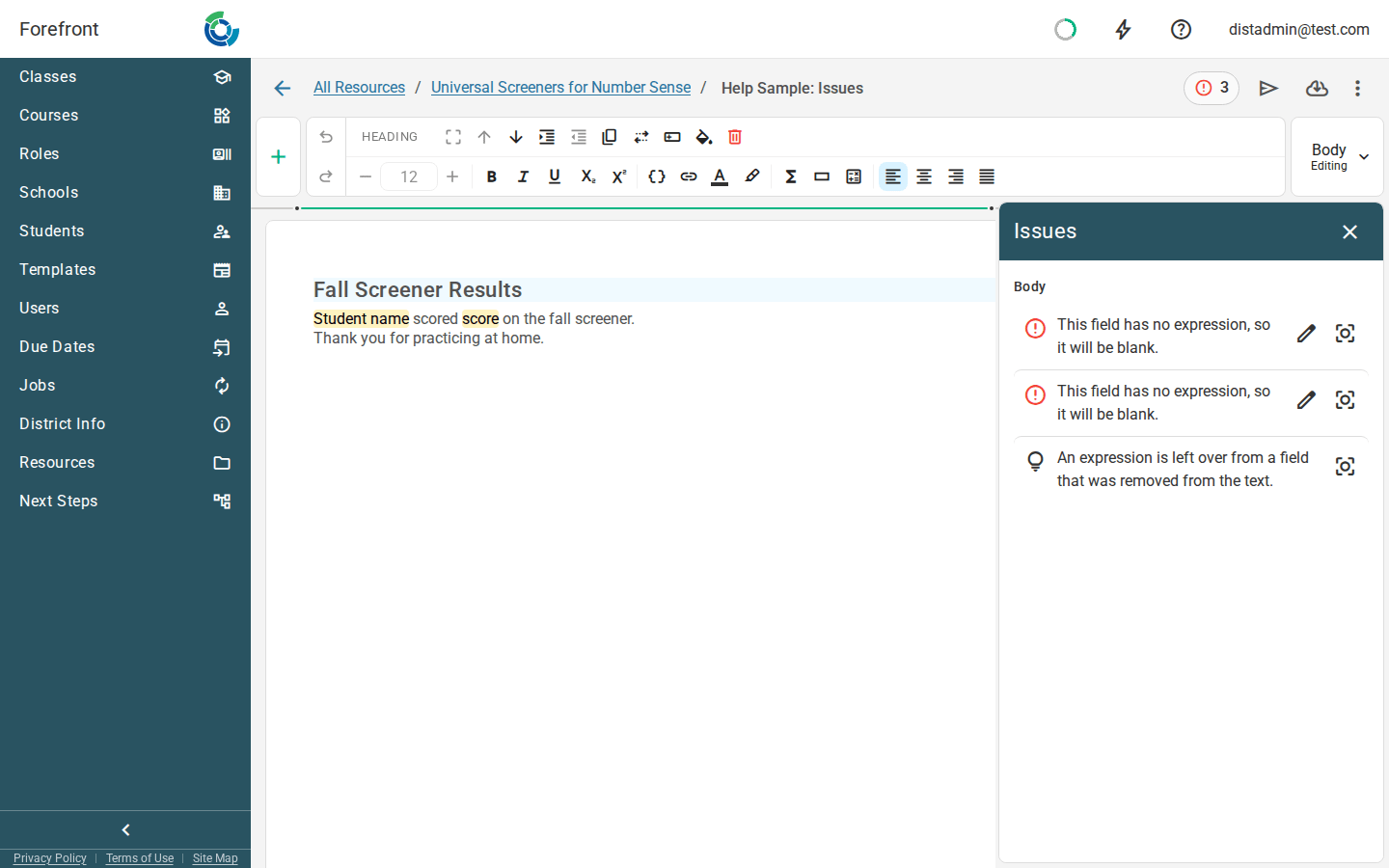
The Issues chip
The chip in the top bar shows how many issues the handout has. Its icon tells you the most serious one:
| Icon | Meaning |
|---|---|
| Red error | At least one part of the handout will be blank or wrong for every student. |
| Yellow warning | Something will be blank for some terms, or looks like a mistake. |
| Lightbulb | Works today, but worth a look. |
| Green check | No issues found. |
The check runs again a second after you stop typing, so fixing a problem clears it from the count while you watch.
The Issues list
Click the chip to open the list beside the handout. Issues are grouped by the part of the handout they’re in, such as Body, Header, Footer, or a report card fragment, with the most serious first.
- Hover an issue to highlight its block in the handout.
- Click an issue, or its Show in handout button, to scroll to that block and put your cursor in it.
- Click an issue’s edit button to open the setting it’s about: a field of dynamic text, when a block, table row, or table column is included, a table cell’s dynamic coloring, or a report card note’s settings. When you close the setting, you come back to the list.
Blocks with an issue also show a mark in the strip to the right of the block. Hover it to read the issue, or click it to open the list.
What gets flagged
Errors print blank or wrong for every student:
- A field of dynamic text with nothing picked for it.
- A field that reads a question, assessment, standard, or report card descriptor that has been deleted or no longer exists.
- A report card fragment that reads a descriptor from a different report card.
- A date range whose start comes after its end, for every school year.
- A report card fragment that has been deleted, which stops the report card from downloading at all.
Warnings print blank for some terms, or look like a mistake:
- A date range that runs backwards for some school years. This happens when a range starts at School Year Start and ends on a fixed date from last year. The issue names the terms it affects.
- A date range that reaches past the school years your district has, so it’s blank for every term.
- A table cell colored by one standard or descriptor while its text shows another, which usually means a copied cell was only half updated.
Hints work today but may not next year:
- A date range that mixes a fixed date with School Year Start or School Year End. It works for every term now, but later school years may fall outside it.
- Dynamic text left over from a field that was removed from the text. It doesn’t print anything. You can leave it.
When you download
The Download window lists the errors and warnings that apply to the term you picked, under a line such as 2 issues for 2026-2027. Click the line to read them. You can still download.
Report card fragments
Report card fragments are checked against the report card they belong to, so a fragment that reads a descriptor deleted from that report card, or a descriptor from a different report card, shows an error. This works both in the report card’s handout editor and when you open a fragment from the Report Card Editor.
If you delete a descriptor from a report card, open its fragments afterward to find any field or cell color that still reads it.