 Forefront
Downloading Handouts
Choose the students, margins, page options, and file packaging when you download handouts as PDFs.
Downloading a handout makes a PDF with a copy for each student, filled in with that student’s own data. You choose whose copies to make, how the pages are laid out, and whether you get one PDF or a zip of several.
There are two places to start:
- A class’s Documents page. Click Download on the handout’s row. The dialog opens with your class’s students already selected. See From a class’s Documents page below.
- Resources. Open the handout and click Download (the button at the top), or click Download on the handout’s tile. The editor has the same button. Here you choose the students yourself, from a class, a course at a school, or a list of students.
The download dialog
The settings are listed down the left side, with your current choice for each one under its name. Click a setting to change it. Your choices stay put when you move between settings, so you can check each one before you click Download.
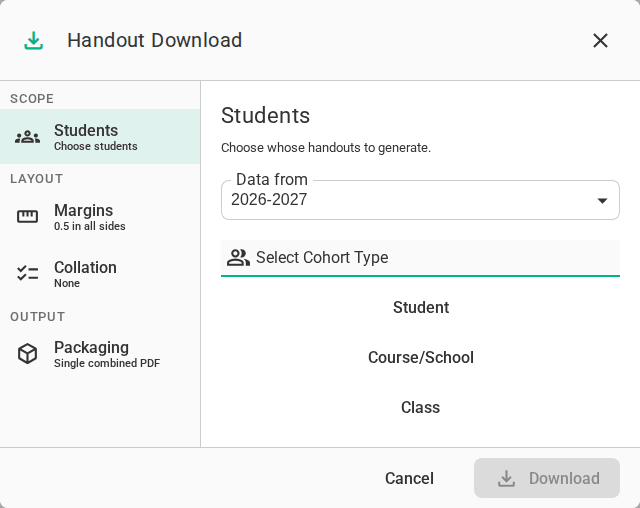
Students
Data from is the term whose scores, proficiency, and other data fill in the handout. It starts on your district’s latest term. Pick an earlier one to print last year’s results.
Then, under Select Cohort Type, choose whose handouts to make:
- Class makes a copy for every student in one class. The term beside the class search only changes which classes you can find.
- Course/School makes a copy for every student taking a course at a school. Pick the Course, the Term, and the School.
- Student lets you search for students by name and add them one at a time.
The count at the top shows how many students you’ve chosen. Open the menu beside it to Add Filter, such as keeping only the students with a certain demographic or assessment result, or to Reset and start again. If no students match, Download is unavailable.
Language
This setting only appears when the handout has been translated. Choose the language to print. Any block without a translation prints in English. See Translating a Handout.
Margins
Set the Top, Left, Right, and Bottom margins in inches. They start at the margins saved with the handout, or half an inch if it has none. Changes here apply to this download only.
Collation
- Force Even Page Count adds a blank page to the end of any student’s copy that has an odd number of pages. Turn it on when you print double-sided, so every student’s copy starts on a new sheet of paper.
- Page Numbers prints “1 of 3”, “2 of 3”, and so on at the bottom right of each page. Each student’s copy is numbered on its own. A one-page copy, and the blank page added by Force Even Page Count, get no number.
Packaging
Package as decides how many files you get:
| Choice | What you get |
|---|---|
| Single combined PDF | One PDF with every student’s copy |
| One PDF per school | A zip with one PDF for each school |
| One PDF per class | A zip with one PDF for each class |
| One PDF per student | A zip with one PDF for each student |
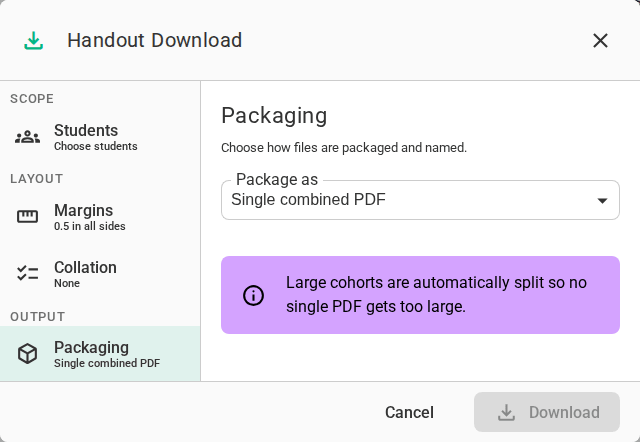
With one PDF per student, File name format sets how each file is named: by the student’s name (Last, First or First Last), by an ID (SIS ID, Local ID, or State ID), or by the name followed by an ID, such as Last, First (SIS ID). Names follow your district’s setting for preferred names.
With one PDF per class or per student, Folder structure sets how the files are arranged inside the zip:
- No folders puts every file at the top of the zip.
- School folders puts each class’s PDF in a folder for its school. This is offered with one PDF per class.
- Folder per class puts each student’s PDF in a folder for their class.
- School › class folders puts each student’s PDF in a class folder, inside a folder for the school. These last two are offered with one PDF per student.
When you choose students with Course/School, you can also add title pages. School Title Page adds a page with the school’s name before each school’s handouts. Class Title Page adds a page before each class’s handouts with the class name, the school, and the teacher’s name and email.
A very large download comes as a zip of smaller PDFs, even when you ask for a single combined PDF, so that no one file gets too big.
From a class’s Documents page
Clicking Download on a handout’s row opens Handout generation. It has the same Language, Margins, and Collation settings, and a shorter version of the others.
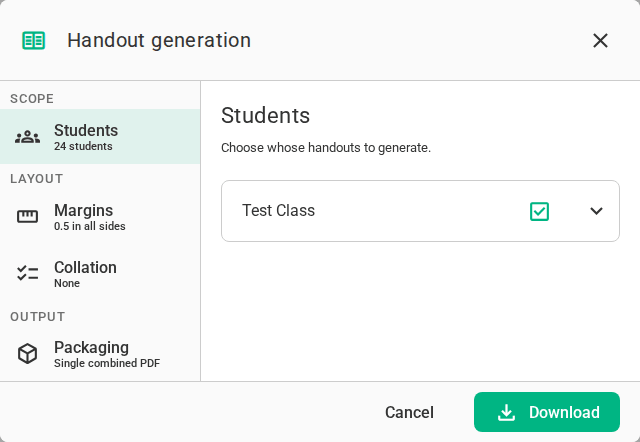
Students lists the class you opened the page from, with every student selected. Uncheck the class to clear it, or expand it to pick students one at a time. Your other classes from the same term are listed under Other Classes, so you can make handouts for several classes in one download. The handout uses data from the class’s term.
Packaging offers Single combined PDF or One PDF per student, with the same File name format choices as above. There are no folder or title page options here.
After you click Download
The dialog closes and a message tells you the job is queued. While the handouts are being made, the jobs button at the top of the page shows the progress. A download of more than 200 students can take a while, and the dialog says so beside the Download button.
When the job finishes, you’ll see Job Complete and the PDF or zip opens in a new tab. If your browser blocks the new tab, click the jobs button and then Download File on the Generate Handout job.
To check one student’s copy before you download for a whole group, open the handout in Resources, click Preview (the button beside Download), and choose a term and a student.