 Forefront
Heading Block
Add section titles to a handout in three sizes, and turn headings into text or lists and back.
A heading block is a section title. Headings come in three sizes, so a handout can have main sections with smaller sections inside them.
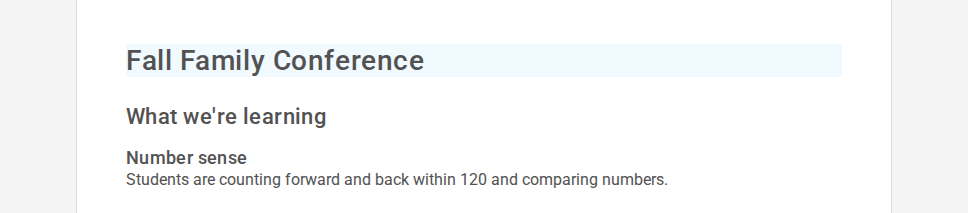
| Heading | Size | Shortcut |
|---|---|---|
| Heading 1 | Large section title | # then a space |
| Heading 2 | Medium section title | ## then a space |
| Heading 3 | Small section title | ### then a space |
Adding a heading
- Choose Heading 1, Heading 2, or Heading 3 from the + menu, the right-click Create menu, or the / menu.
- Or type the shortcut at the start of an empty text block.
Press Enter at the end of a heading to start a text block below it.
Formatting
Headings use the same formatting controls as text: bold, italics, underline, color, highlight, links, math, dynamic text, and alignment. See Text Block.
There’s no font size control for headings. Each heading’s size is set by its level, so every heading of a level matches across the handout. To make a heading bigger or smaller, change its level.
Changing the level
Use Turn Into in the ribbon or the right-click menu to change a heading to another level. Turn Into can also make it a text block or a list item. Turning text into a heading removes any font sizes in it.
In print and email
Headings look the same in Forefront, on paper, and in email. On a printed page, a heading always stays on the same page as the text that follows it, so a heading is never left alone at the bottom of a page.
Where you can use it
Headings can go anywhere: in a table cell, a column, a stack layer, and in every template and editor. They’re also one of the blocks you can translate. See Translating a Handout.
For the other kinds of block, see Handout Blocks.