 Forefront
Link (QR Code) Block
Add a web address to a handout as a QR code and a link, so readers on paper can scan it and readers on screen can click it.
A link block turns a web address into a QR code with a link beside it. Families reading a printed copy scan the code. Families reading on screen click the link.
Adding a link
- Choose Link (QR Code) from the + menu, the right-click Create menu, or the / menu.
- Type or paste the web address.
- Select Add.
Forefront shortens every address to an ffqr.link link, and the QR code
points to that. Short links make simpler QR codes, which are easier to scan
from paper. The link text starts out as the full address you typed.
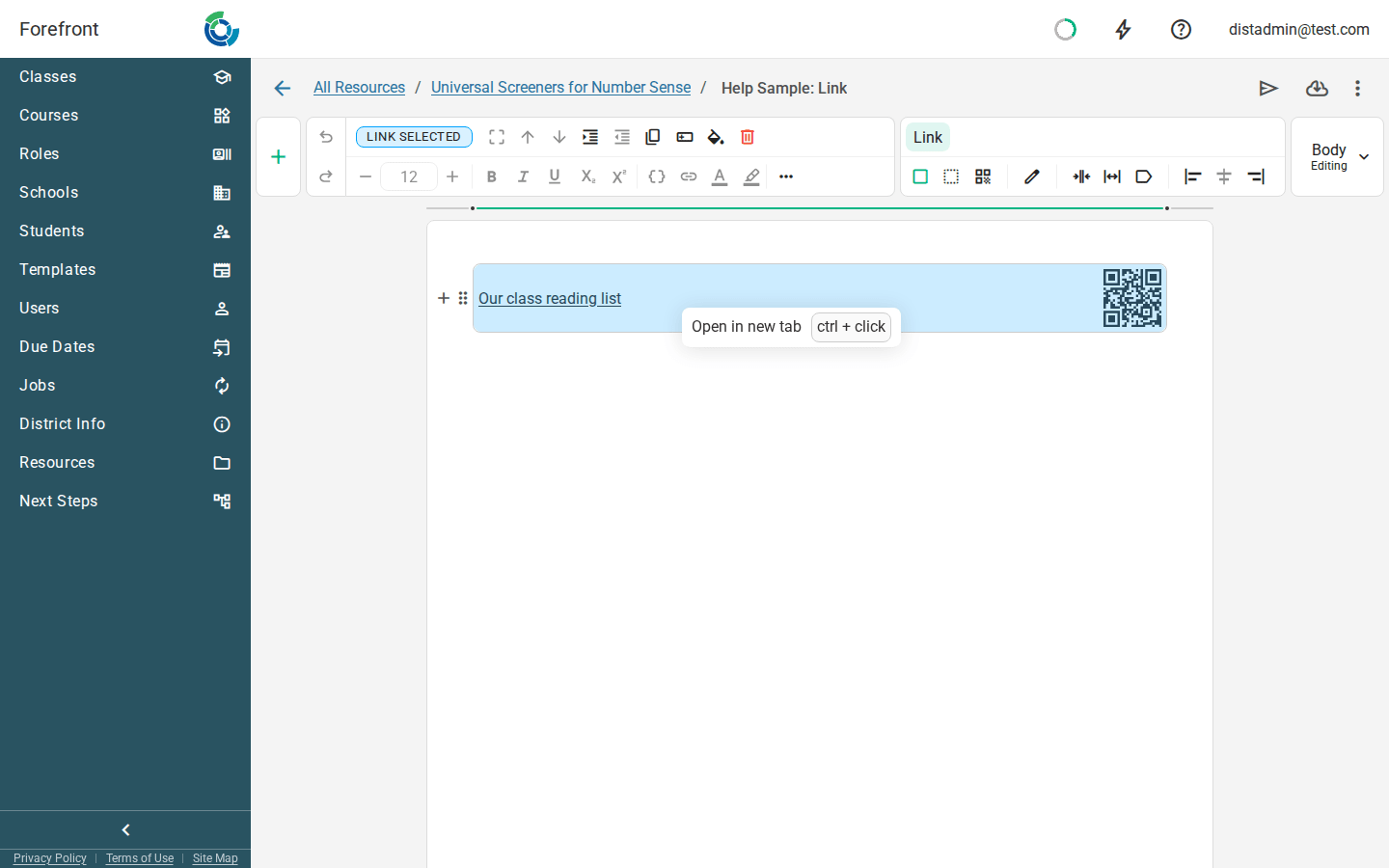
To open the link from the editor, hold Ctrl (or Cmd on a Mac) and click it.
Link settings
Select the block to open the Link tab in the ribbon.
Appearance:
| Option | Looks like |
|---|---|
| Stroked (the default) | The QR code and link inside an outlined box |
| Borderless | The QR code and link with no box. This is the default inside a table. |
| QR Code Only | Just the QR code, with no text |
Url: Edit url changes where the link goes. The new address is shortened too. If the link text was the old address, it’s updated to match. Text you wrote yourself is kept.
Label:
- Use short url for label shows the
ffqr.linkaddress as the link text. - Use full url for label shows the full address.
- Edit display text lets you write your own wording, such as “Our class reading list”. It isn’t available with QR Code Only.
Alignment: Align QR Left and Align QR Right choose which side of the text the QR code sits on. Align QR Center is only available with QR Code Only.
You can also color the block and set its margins. See Working with blocks.
In print and email
The QR code and link look the same in Forefront, on paper, and in email.
Where you can use it
Link blocks can go anywhere in a handout, including in a table cell, a column, and a stack layer. They’re also available in assessment instructions and district templates.
To invite families to make a Forefront account, use the Guardian Invite Link Block instead. It makes a different code for each student.
For the other kinds of block, see Handout Blocks.