 Forefront
Number Line Block
Draw a number line in a handout, set its range and tick marks, and mark it with points, rays, intervals, skip-count jumps, and fill-in blanks.
A number line block draws a number line across the page. You choose its range and how often it’s labeled. Then you add line tools to mark it up: a point to plot, a ray for an inequality, a jump for each skip count, or a blank box where a student writes the missing number.
Adding a number line
Choose Number line from the + menu, the right-click Create menu, or the / menu. The number line goes in running from 0 to 10, with a point at 5, and the Configure block panel opens beside the page.
Your changes show on the page as you make them. Close the panel with its Close button or Esc. To open it again later, double-click the number line, or select it and press Enter.
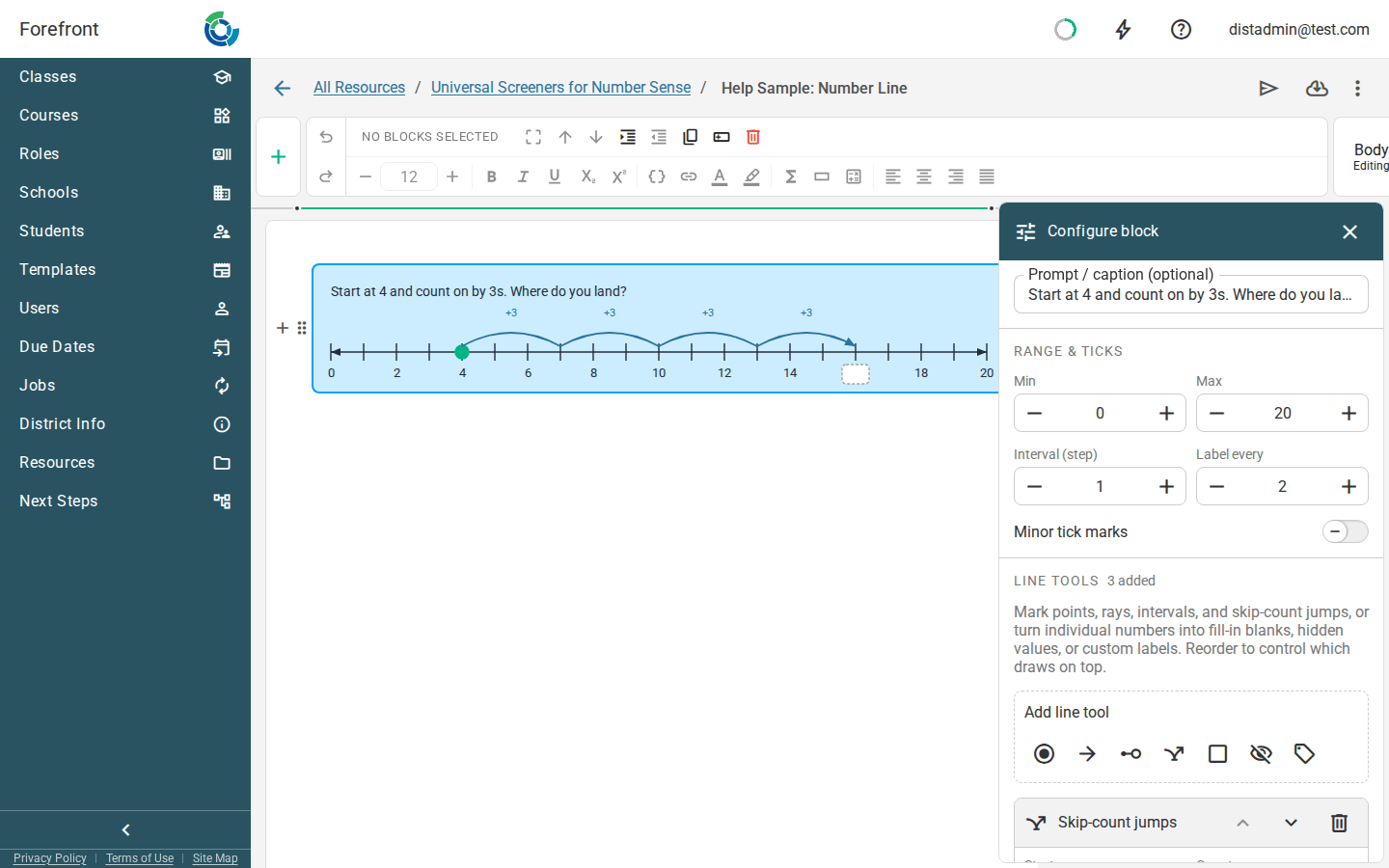
Range and ticks
| Setting | What it does |
|---|---|
| Prompt / caption (optional) | Text printed above the line, such as “Fill in the missing numbers.” |
| Min and Max | The numbers at each end of the line |
| Interval (step) | The distance between tick marks: 1 for whole numbers, 0.5 for halves, 0.25 for quarters |
| Label every | How many ticks apart the numbers are written. 1 labels every tick; 2 labels every other one. |
| Minor tick marks | Adds a small tick halfway between each pair of ticks |
Use the − and + buttons to change a number, or click the number and type. Decimals are fine.
Line tools
Under Line tools, select a tool’s button to add it. Each tool you add gets its own card, in its own color, where you set it up:
| Tool | What it marks | You set |
|---|---|---|
| Point | A dot at one number | Position, Dot (Closed or Open), an optional Label, and Color |
| Ray / inequality | A ray from one number to the end of the line, as in x > 3 | Start, Endpoint (Closed or Open), Direction (◄ Left or Right ►), and Color |
| Interval | The stretch between two numbers | From, To, whether each end is Closed or Open, and Color |
| Skip-count jumps | A row of equal hops along the line | Start, Count (how many hops), Jump by (a negative number hops backward), Show +n to write the size on each hop, and Color |
| Fill-in slot | Replaces a number’s label with an empty box for students to complete | At number |
| Hidden number | Removes a number’s label, with no box | At number |
| Custom label | Writes your own text in place of a number’s label, such as ½ or π | At number and Show text |
Tools are drawn in list order, and the tool at the top of the list is drawn on top of the others. Use Move up and Move down on a card to change the order. To take a tool off the line, select Remove on its card.
In print and email
The number line prints and shows in Forefront exactly as it looks in the editor, stretched to the width of the page.
Number lines aren’t available in email templates. Many email programs, including Gmail and Outlook, can’t show them.
Where you can use it
Number lines can go in a column. They can’t go in a table cell, a stack layer, assessment instructions, or the email templates in district templates.
For the other kinds of block, see Handout Blocks.