 Forefront
Report Card Note Block
Print the note a teacher wrote for a report card descriptor, with an optional label, in the report card's layout.
A report card note block prints the note a teacher wrote for one of a report card’s note descriptors. Each student’s report card shows that student’s own note, with its formatting and lists. The block is only available in a report card’s layout.
Adding a report card note
- Open the report card’s layout and switch to one of its fragment views. The block isn’t offered in the Header, Preamble, Spacing, or Footer views, or in regular handouts.
- Choose Report Card Note from the + menu, the right-click Create menu, or the / menu. The Report Card Note panel opens beside the page.
- Choose the Descriptor whose notes print here. Only note descriptors are listed. If there’s only one, it’s already chosen and the list is grayed out. If the report card has none, the panel says No note descriptors.
- Choose the Due Date. The first one is picked to start with.
- Optionally, type a Label (optional), such as “Teacher comments”. It prints above the note.
- Select Save.
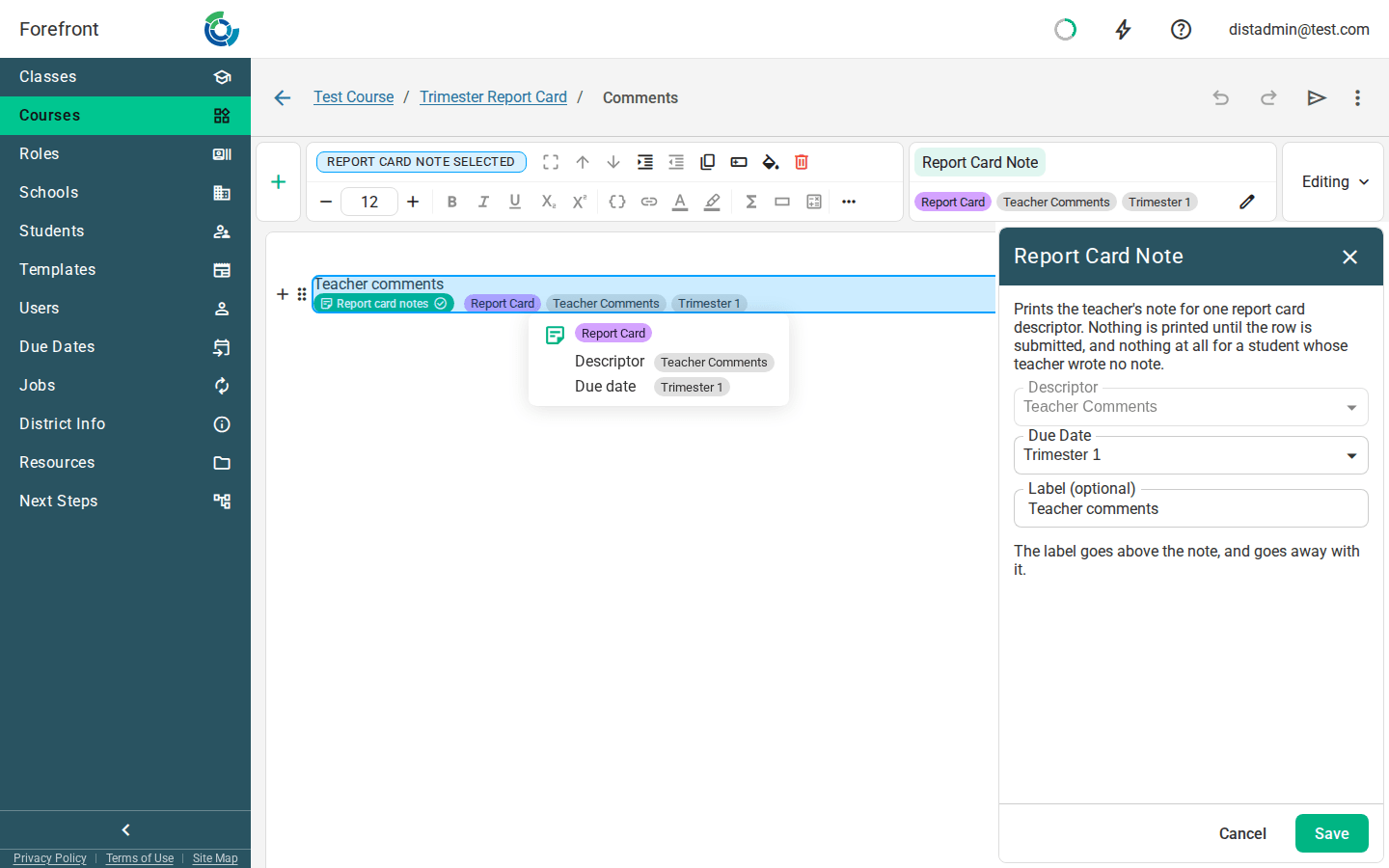
In the editor, the note shows as a green Report card notes label, with your label above it. Every student’s note is different, so the editor doesn’t show one. Hover over it to see which descriptor it prints. In a narrow spot, such as a small table cell, it shortens to Notes, then to just the icon.
Until you choose a descriptor, the block reads No descriptor chosen, with a Choose descriptor button. In a narrow spot that becomes a smaller Set up button. To change the descriptor later, double-click the block, select it and press Enter, or use the edit button on the ribbon’s Report Card Note tab.
Notes and dynamic text
Dynamic text can’t print a teacher’s note. If you set up dynamic text on a report card whose only descriptors are notes, the Text Replacement panel says This report card only has note descriptors. If the report card has other descriptors too, the Descriptor list leaves out the ones without options, because those are notes, and a line under the list says so.
The Descriptor list always shows which descriptor the dynamic text prints. When only one descriptor fits, it’s chosen for you and the list is grayed out. Check it before you save, since the one left may not be the one you wanted.
Select Replace with a Report Card Note block in that panel to swap the dynamic text for this block. The block goes where the dynamic text was, or right after the text around it, and its panel opens with the Due Date you picked. If the report card has only one note descriptor, that’s chosen for you too.
Dynamic text that already prints a note keeps working, as plain text. Its panel offers the same Replace with a Report Card Note block button, and the block starts out printing that same note.
Formatting the note
Select the block, then use the regular text controls in the ribbon:
- Alignment (left, center, right, or justify) applies to the whole note and its label. It replaces the alignment the teacher used. Center works well for a short note in a table cell.
- Font size sets the size the note prints at. Any text the teacher resized keeps the size they chose.
If you don’t set either one, each note prints the way the teacher wrote it. To format the notes in several table cells at once, select the cells.
What prints
Each student’s report card shows the note their teacher wrote for that descriptor. Notes made from a preset print the same way, and any dynamic text in the preset is filled in for that student. See Report Card Note Presets.
Nothing prints, not even the label, when:
- the teacher hasn’t submitted the row yet,
- the teacher wrote no note for that student, or
- no descriptor has been chosen.
The label goes away along with the note, so a report card never shows a heading with nothing under it.
You can also color the block, which colors the label, and set its margins. See Working with blocks.
Where you can use it
Report card notes can go in a table cell or a column. They can’t go in a stack layer or inside a list.
To set up a report card’s layout and fragments, see Report Card Editor. To give teachers ready-made comments for their notes, see Report Card Note Presets. For the other kinds of block, see Handout Blocks.