 Forefront
Stack Block
Layer blocks on top of each other in a handout and place each one exactly where you want it, such as text over a picture.
A stack lets blocks overlap. Each block in a stack sits on its own layer, which you drag to exactly where you want it and resize. Use a stack to put text over a picture, or a QR code in the corner of a certificate.
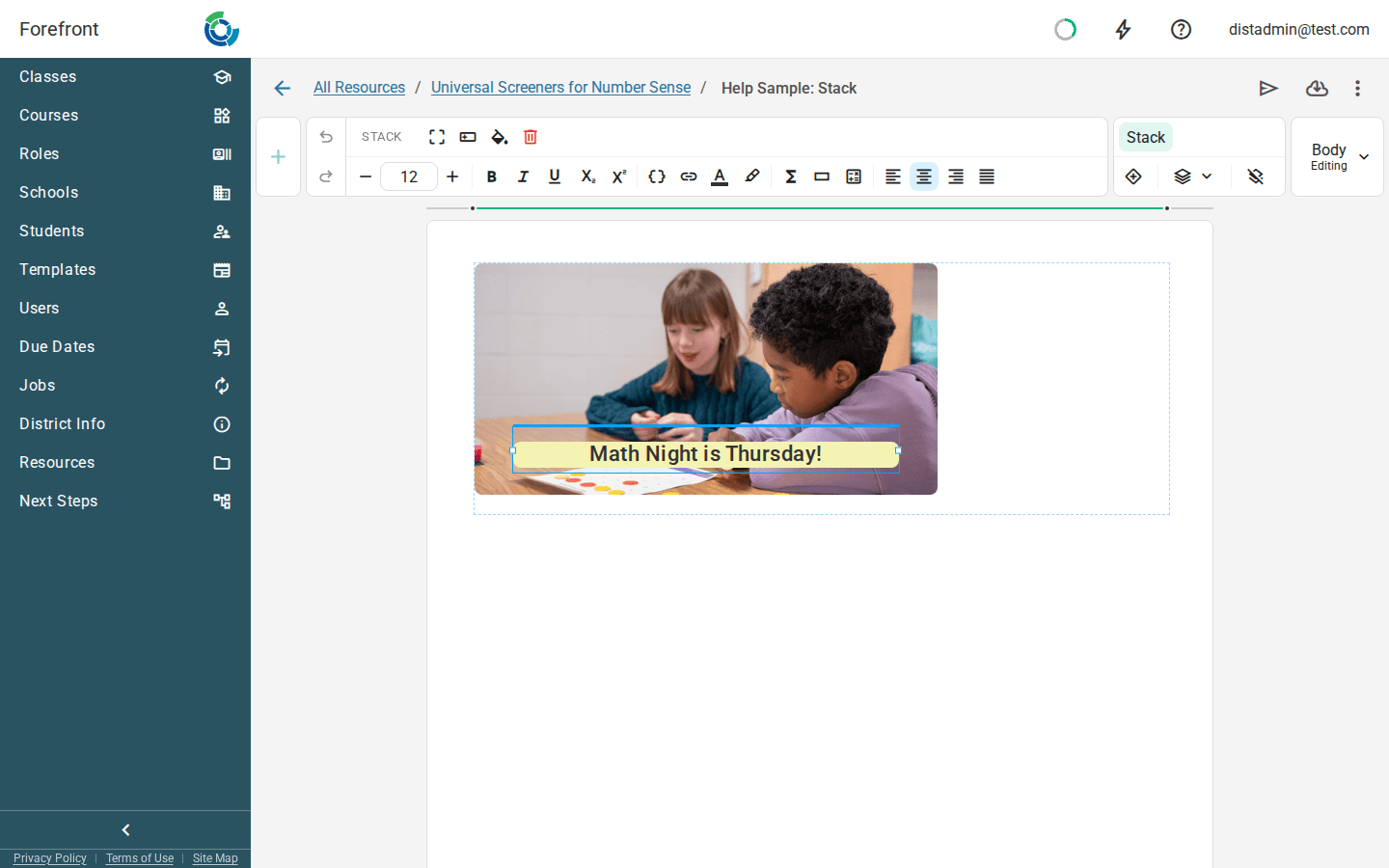
Adding a stack
Choose Stack from the + menu, the right-click Create menu, or the / menu. A new stack is empty, and shows a short guide to getting started.
Adding layers
Choose Add Layer on the Stack tab in the ribbon, then pick what the layer holds: a text block, a heading, a list, a table, a divider, an image, a link (QR code), or a guardian invite link. You can also right-click the stack and choose Create Layer, or select the stack and press /.
Each new layer starts in the top-left corner, as wide as the stack. Layers are named for what they hold, such as “Text Layer 1” or “Image Layer 2”.
Placing layers
- Move a layer by dragging the bar along its top. Image layers move by dragging the image itself.
- Resize a layer by dragging its left or right edge. Tables and lists can also be resized from the bottom. Image layers resize from any edge or corner, keeping their shape. The image always fills its layer, so it lines up with the other layers the same way in the editor, in Forefront, and on paper.
Only one layer can be changed at a time. Click a layer to work on it, or choose it from the layer list on the Stack tab if another layer covers it.
Layer order
The layer list on the Stack tab shows the layers in order, with the front layer at the top. Use Move Forwards and Move Backwards to bring a layer in front of another or send it behind.
Unwrapping a stack
Unwrap stack takes every layer’s content out of the stack and puts it back on the page as ordinary blocks, in layer order. The layers’ positions and overlap are lost, so Forefront asks before it does this.
Size limit
A stack can’t be taller than one page. Layers stop at the bottom of the page when you drag them, and you can’t add more content to a layer that’s already at the bottom. If you run out of room, remove or shrink something in the stack, or use Unwrap stack.
In print and email
- On paper and in PDFs: a stack stays on one page, exactly as you laid it out. Anything that sticks out past a layer’s edges is cut off.
- In Forefront: on a narrow screen, layers get narrower to fit, but stay at the same height on the page.
- In email: stacks aren’t available, because email programs can’t place blocks on top of each other.
Where you can use it
Stacks can go in a handout or report card, including its header and footer, and in the guardian page templates. They can’t go in a table cell, a column, or another stack, or in email templates or assessment instructions.
A layer can’t hold a file, a video, a number line, a page break, a report card note, or two columns.
For the other kinds of block, see Handout Blocks.