 Forefront
Table Block
Add a table to a handout, resize and rearrange its rows and columns, merge cells, add borders and backgrounds, and show rows or columns to only some students.
A table lays content out in rows and columns. Each cell holds its own blocks, so a cell can have a heading, a list, an image, or a QR code as well as text.

Adding a table
- Choose Table from the + menu, the right-click Create menu, or the / menu. The new table has two rows and two columns.
- Or paste a grid copied from a spreadsheet. If what you paste has at least two rows and two columns, it becomes a table. A message offers Paste as text if you’d rather keep it as text.
- Or drag a .csv file from your computer into the handout. Files over 200 rows ask before they go in, because very long tables are slow to edit and print across many pages.
To build a table of each student’s proficiency on chosen standards, see Adding a Standards Table to a Handout.
Moving around a table
- Tab and Shift+Tab move to the next and previous cell. Tab in the last cell leaves the table. It doesn’t add a row.
- The arrow keys move between cells too.
- To select several cells, hold Shift and click another cell, or hold Shift and press the arrow keys.
The table tabs
With your cursor in a table, the ribbon has four tabs.
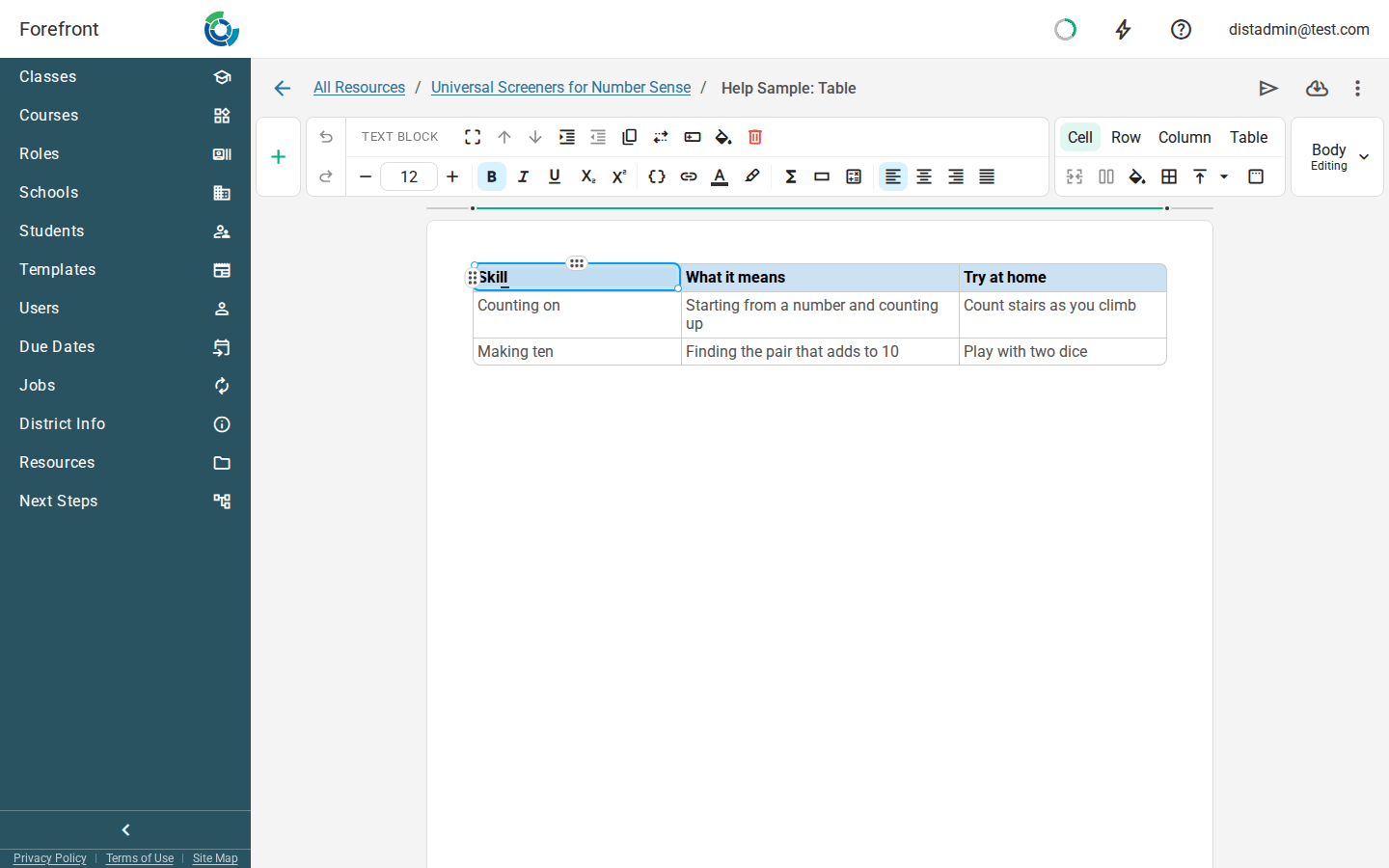
Cell
- Merge Cells joins the selected cells into one. The content of every cell is kept, gathered into the top-left cell.
- Unmerge Cell splits a merged cell back apart.
- Modify cell background fills the cells with a color. Proficiency Colors uses your district’s proficiency level colors. Dynamic Coloring picks the color for each student, for example by their score. In a report card’s layout it can use a descriptor’s option colors. If none of the report card’s descriptors have colors, the panel says No descriptors with colors.
- Modify cell borders sets which borders to draw (all, inner, outer, or a single side), and their thickness, color, and style (solid, dashed, or dotted). Clear borders removes them.
- Cell vertical alignment puts the content at the top, center, or bottom of the cell.
- Cell padding sets the space inside the cell, in inches.
Row
Insert row above, Insert row below, Duplicate row, Move row up, Move row down, Delete row, and Modify row inclusion. New rows copy the look of the row they were made from.
Column
Insert column left, Insert column right, Duplicate column, Move column left, Move column right, Delete column, and Modify column inclusion. A table can have up to 20 columns.
Table
- Resize columns opens Column Widths, where you type each column’s width as a percentage. The widths have to add up to 100%, and each column needs at least 5%.
- Evenly distribute columns makes every column the same width.
- Delete removes the whole table.
You can also drag a column’s right edge to resize it, or a row’s bottom edge to make it taller. To reorder rows or columns, drag the handle that appears beside a row or above a column when you point at it.
Right-click a cell for the same actions, plus Clear contents for a row or column.
Showing rows and columns to only some students
Modify row inclusion and Modify column inclusion decide which students' copies include a row or column. Choose Include or Exclude, then describe the students it applies to. Students it doesn’t apply to get a table without that row or column.
A row or column with a rule is marked with a thin bar just outside the table: to the left of the row, or above the column. The bar is always showing, so you can spot a conditional row without pointing at anything. Point at the bar to see the rule, and click it to change the rule.
To do the same for a whole table, use Modify Inclusion. See Showing Content to Only Some Students for the rules you can set.
What can go in a cell
Almost any block. A cell can’t hold another table, two columns, a stack, a number line, or a page break.
In print and email
A long table continues onto the next page, but each row stays together on one page. Tables have no header row, so the first row isn’t repeated on the next page.
In email, tables look the same, except that Outlook shows square corners where other programs show rounded ones.
For the other kinds of block, see Handout Blocks.