 Forefront
Text Block
Write paragraphs in a handout, format them, add links, math, and dynamic text, and type shortcuts that turn a line into another block.
A text block is one paragraph. Most of a handout is text blocks: press Enter at the end of any paragraph, heading, or other block and a new text block starts below it.

Adding a text block
- Press Enter at the end of a block.
- Or choose Text Block from the + menu, the right-click Create menu, or the / menu.
An empty text block says “Write or use markup to change block type…”. Type a shortcut at the start of the line to turn it into a different block:
| Type, then a space | Turns the line into |
|---|---|
# | Heading 1 |
## | Heading 2 |
### | Heading 3 |
1. | Ordered List |
* | Unordered List |
--- (no space needed) | A divider, added above the line |
Any text already on the line is kept. These shortcuts work in text blocks only, not in headings or lists.
Formatting text
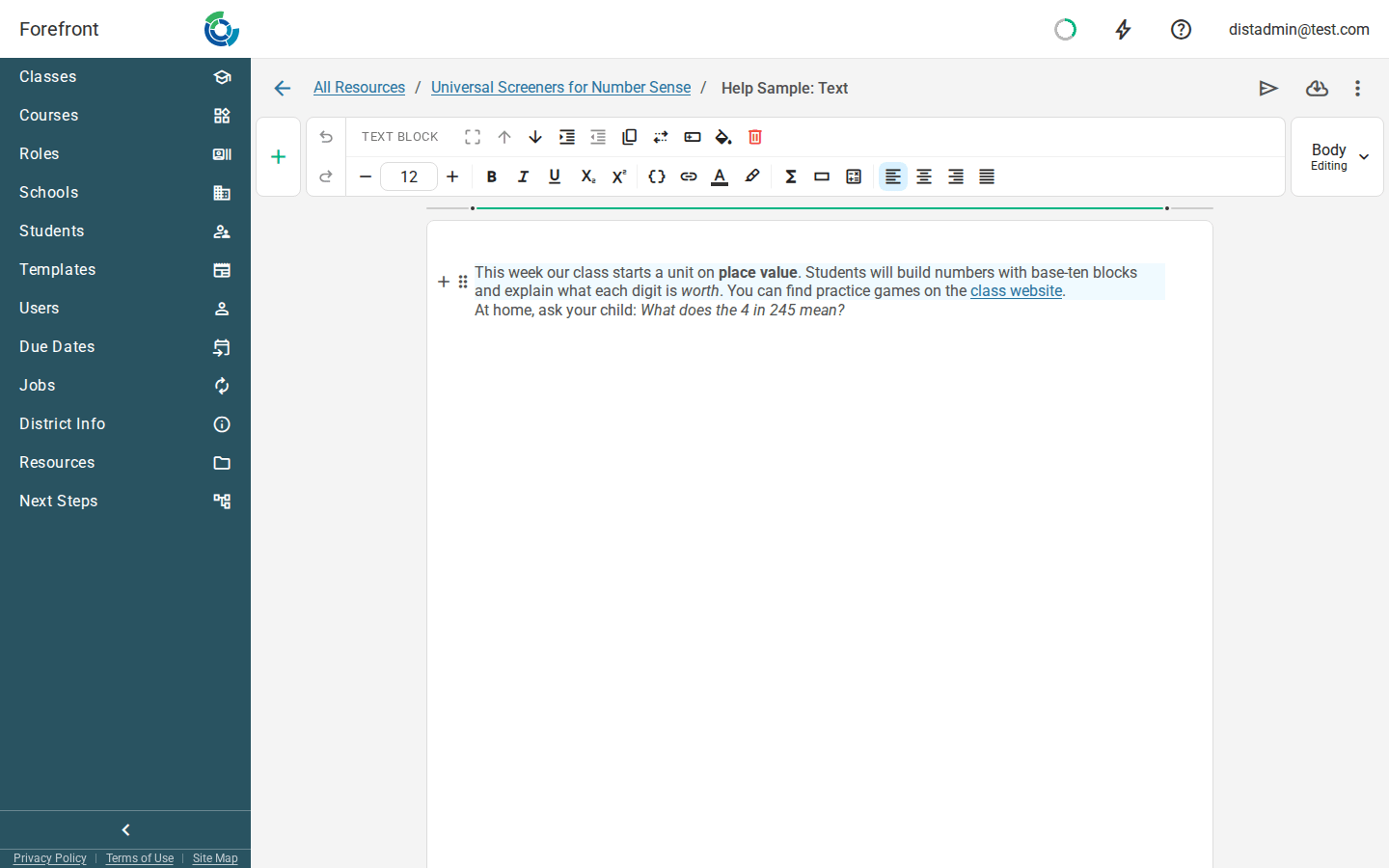
The formatting controls sit at the left of the ribbon whenever your cursor is in text. They work on whatever text you’ve selected, or on what you type next.
- Font size: pick a size from the list (8 to 96 points; the default is 12), or use the − and + buttons to step down or up.
- Bold, Italicize, and Underline: Ctrl+B, Ctrl+I, and Ctrl+U.
- Subscript and Superscript: Ctrl+, and Ctrl+.
- Text color and Highlight color the selected words. Each has a reset button at the top of its palette.
- Alignment: Left Align, Center Align, Right Align, and Justify apply to the whole paragraph.
On a Mac, use Cmd in place of Ctrl.
To color a whole paragraph or give it a background, use Colors instead. See Working with blocks.
Links
Select some text and choose Convert selection to a link, or press
Ctrl+L. Then type or paste the address in the Link tab. The shorten
button turns the address into a short ffqr.link link.
For a link that prints as a QR code, use a Link (QR Code) Block instead.
Math
- Insert equation opens the Equation window, where you build an equation and select Insert.
- Start equation lets you type an equation straight into the line.
- Insert math symbol opens a grid of symbols, such as ÷, ≤, and π.
You can also add fractions, exponents, square roots, long division, and symbols from the / menu. See Slash Commands.
Dynamic text
Dynamic text is a placeholder that’s filled in differently for each student,
such as their name, their teacher, or a score. Select some text and choose
Convert selection to dynamic content, or press Ctrl+M. You can also
type {{ to start one. Then set it up in the Dynamic Text tab.
In the editor, dynamic text shows as a placeholder. Preview the handout and choose a student to see it filled in.
Pronouns
To use a pronoun inside a sentence, choose Student Info, then Pronoun, and pick the word in the Word list. Each prints the right word for the student:
| Word | she/her | he/him | they/them |
|---|---|---|---|
| he/she | she | he | they |
| him/her | her | him | them |
| his/her | her | his | their |
| his/hers | hers | his | theirs |
| himself/herself | herself | himself | themselves |
To print the student’s whole Pronouns field, such as “she/her” or “she/they”, pick Pronouns on file. It prints the field the way your district entered it, whether that’s one form or several. A student without pronouns on file gets nothing in that spot.
For example, “Continued practice will help him/her meet this standard” prints “Continued practice will help her meet this standard” for a student with she/her pronouns. A pronoun at the start of a sentence is capitalized, so “he/she worked hard.” prints “She worked hard.”
The single words always print something. For a student with no pronouns on file, they use the student’s Gender demographic, and “they” forms if there isn’t one.
A verb that follows the pronoun has to agree with it: “she is” but “they are”. Add a Verb field after the pronoun and pick the pair in its Words list: is/are, has/have, was/were or does/do. It prints the first word for she and he, and the second for they. For any other verb, pick Other words and type your own pair in the With he or she and With they boxes, such as “works” and “work”.
Pronouns print in English. A translated handout uses the same English words.
In a report card’s layout, dynamic text can print a descriptor’s mark for each student. A teacher’s note prints with a separate block instead. See Report Card Note Block.
Turning it into another block
Turn Into changes a text block into a heading or a list without retyping it. See Heading Block and List Block.
Where you can use it
Text blocks can go anywhere: in a table cell, a column, a stack layer, and in every template and editor. They’re also one of the blocks you can translate. See Translating a Handout.
For the other kinds of block, see Handout Blocks.