 Forefront
Two Columns Block
Put blocks side by side in a handout, choose how wide each column is, and swap or unwrap the columns.
A two columns block splits part of the page into a left and a right column. Each column holds its own blocks, so you can put an image beside a paragraph, or two lists side by side.

Adding two columns
There are three ways:
- From the menu: choose Two Columns from the + menu, the right-click Create menu, or the / menu. Both columns start the same width. Your cursor goes in the left one, and the right one is empty.
- From blocks you’ve already written: select two or more blocks and choose Make two columns in the ribbon. The blocks go into the left column, and the right one starts empty. To select several blocks, drag across the page background beside them.
- By dragging: drag a block by its ⋮⋮ handle and drop it on the left or right edge of another block. The two blocks end up side by side, with the one you dragged on the side you dropped it.
An empty column shows a placeholder inviting you to click to add a block or drag one in. Click it to choose a block for it.
Column settings
With your cursor in either column, the ribbon has a Layout tab:
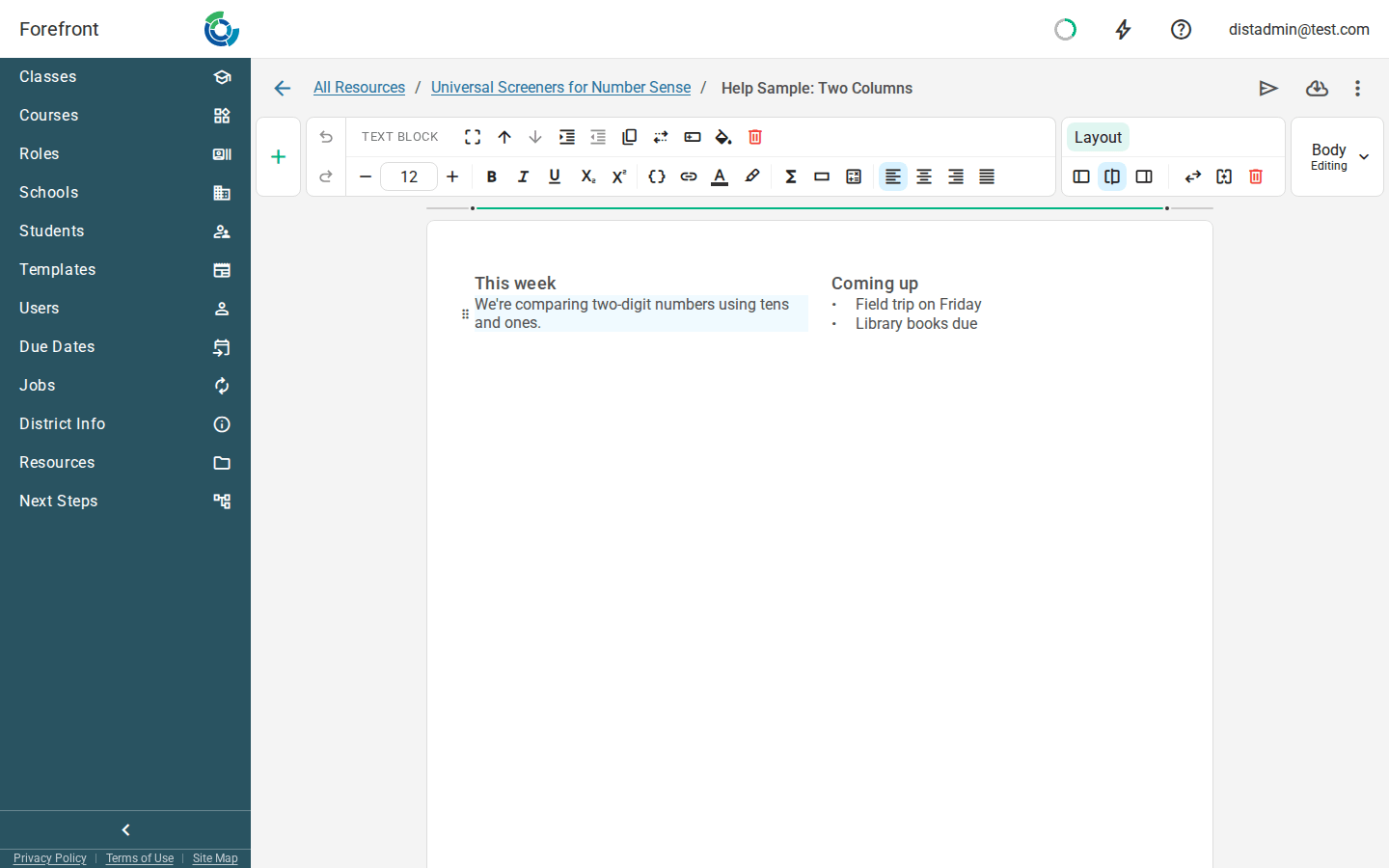
- 30 / 70, 50 / 50, and 70 / 30 set how the width is split between the left and right columns.
- Swap columns trades the two columns’ content, and flips the split to match.
- Unwrap columns takes the content out of the columns and puts it back on the page, the left column’s blocks first.
- Delete columns removes the block and everything in it. A message offers Undo in case you didn’t mean to.
What can go in a column
Almost any block. A column can’t hold another two columns block, a stack, or a page break.
In print and email
The columns stay side by side everywhere: in Forefront, on paper, in email, and on a phone. On paper, a long two columns block can carry on to the next page, with both columns breaking at the same line.
A numbered list doesn’t carry its numbering across from one column to the other.
Where you can use it
Two columns can go anywhere in a handout or report card, including its header and footer, and in assessment instructions and district templates. They can’t go inside a table cell, a stack layer, or another column.
For the other kinds of block, see Handout Blocks.