 Forefront
Video Block
Embed a YouTube or Vimeo video, link to a video your district hosts, or upload one, and choose what printed copies and email show instead.
A video block plays a video right in the handout when families view it in Forefront. Paper and email can’t play a video, so you choose what they show instead. The usual choice is a picture from the video with a QR code that opens it.
Adding a video
Choose Video from the + menu, the right-click Create menu, or the / menu. The block starts empty, with two buttons:
- Paste link asks for a Video link. You can use:
- a YouTube link, including youtu.be and Shorts links. A start time in the link is kept.
- a Vimeo link, including unlisted ones.
- a direct link to an .mp4, .webm, or .mov file, such as a video your district hosts.
- an embed code copied from a video site.
- Upload video takes an .mp4, .webm, or .mov file from your computer, up to 250 MB. If the video can’t play in a web browser, you’ll be asked to export it as MP4 (H.264) and try again.
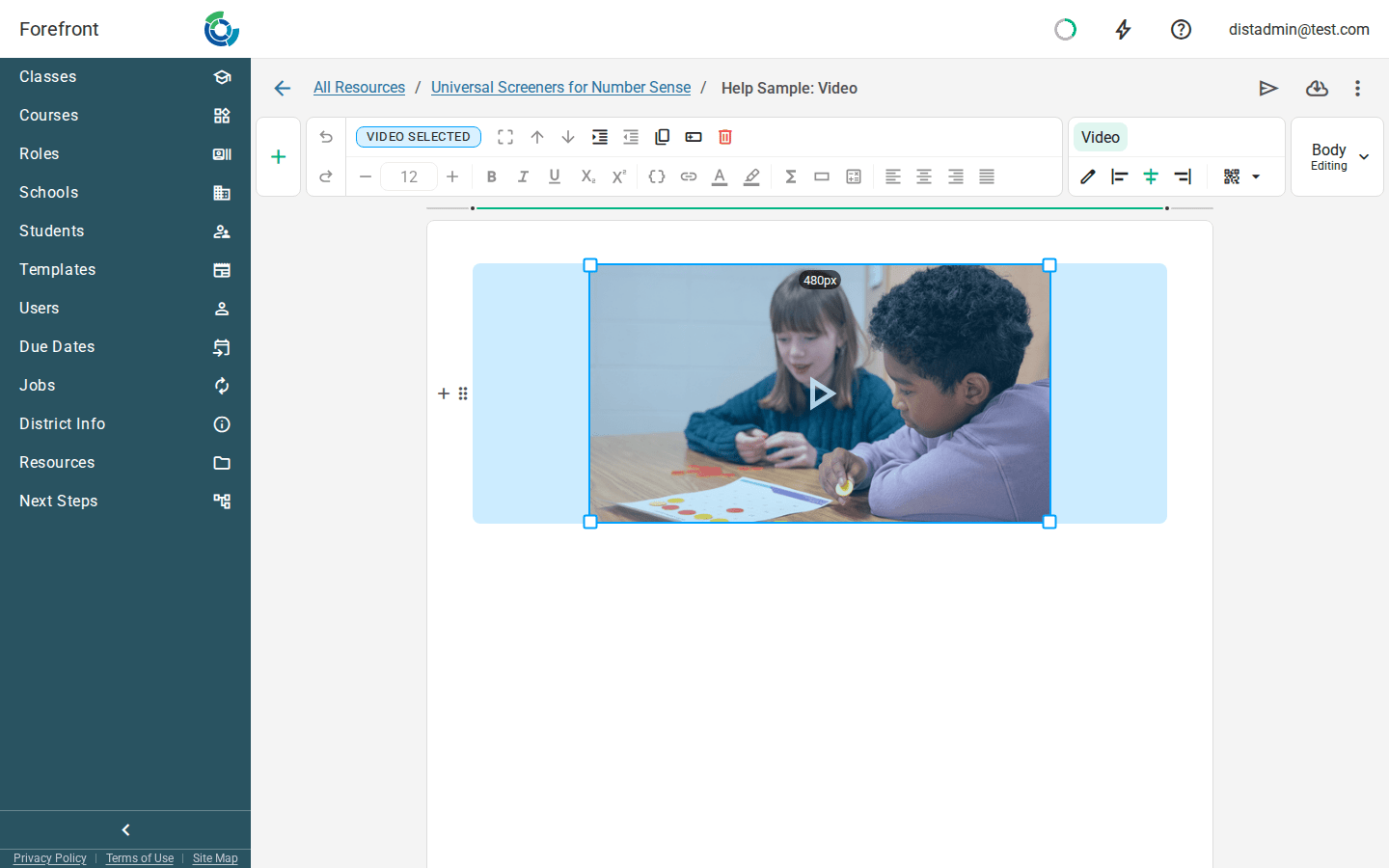
A new video is 480 pixels wide and centered. Drag its corners to resize it.
Video settings
Select the video to open the Video tab in the ribbon:
Replace video link swaps in a different video and keeps the block’s size and settings.
Align Video Left, Align Video Center, and Align Video Right move the video across the page.
Email & print chooses what shows where the video can’t play:
Option Shows The thumbnail, with a QR code (the default) A picture from the video, with a QR code that opens it A link to the video A link to the video Nothing (leave the video out) Nothing. The video is left out. Label sets the wording of that link. The default is “Watch the video”. Screen readers also use it to name the video.
The thumbnail
- YouTube and Vimeo: the video’s own thumbnail.
- Uploaded videos: a frame from about one second in.
- Direct links: a plain tile with a play symbol, because Forefront can’t take a picture from them.
In print and email
- In Forefront: the video plays in the handout.
- On paper and in PDFs: with the default setting, the thumbnail prints with a QR code in its corner.
- In email: the QR code sits beside the thumbnail, with a link to watch the video.
Where you can use it
Videos can go in a table cell or a column, and in district templates. They can’t go in a stack layer or in assessment instructions.
For the other kinds of block, see Handout Blocks.