 Forefront
Accessing and Running Non-Scheduled Export Jobs
How to find and run jobs that export data from Forefront.
If you need a nightly sync, connect with support@forefront.education to get a job scheduled.
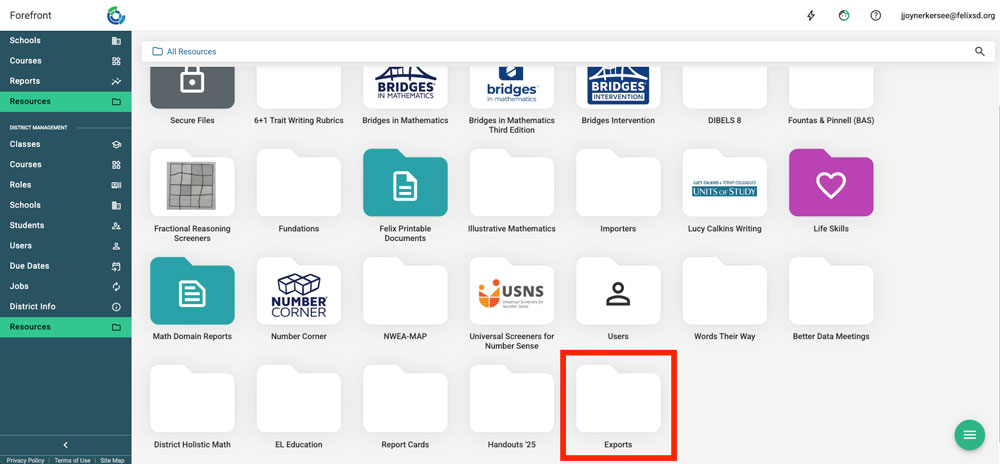
Step 1: Navigate to and open the Exports folder in resources.
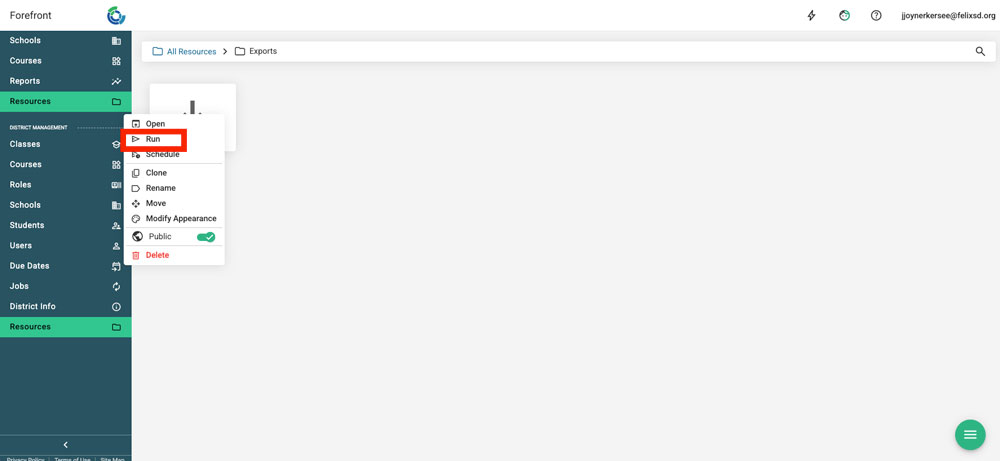
Step 2: Right-click the export job and select “Run.”
Step 3: Clicking “run” will open a modal. In that, you can define the export and then click “Run.”
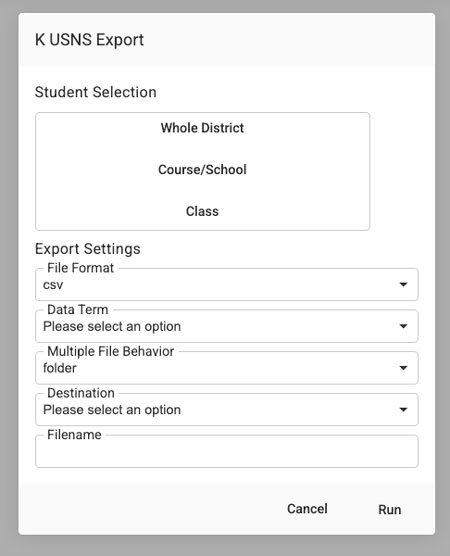
Student Selection: Define what group of students and term the job is being run for.
File Format: Define the file type that will be exported.
Data Term: Define the term the data will be downloaded from.
Multiple File Behavior: Define whether multiple files are delivered as a .zip or as separate files.
Destination: Define whether the file will be downloaded to the computer or sent to the SFTP server.
Filename: Define the file name.