 Forefront
Student Dashboards
Dashboards for an individual student.
The Dashboards page shows saved dashboards focused on a single student, so you can see that student’s data laid out across the reports built for their class, course, or school, all in one place.
Choosing a dashboard
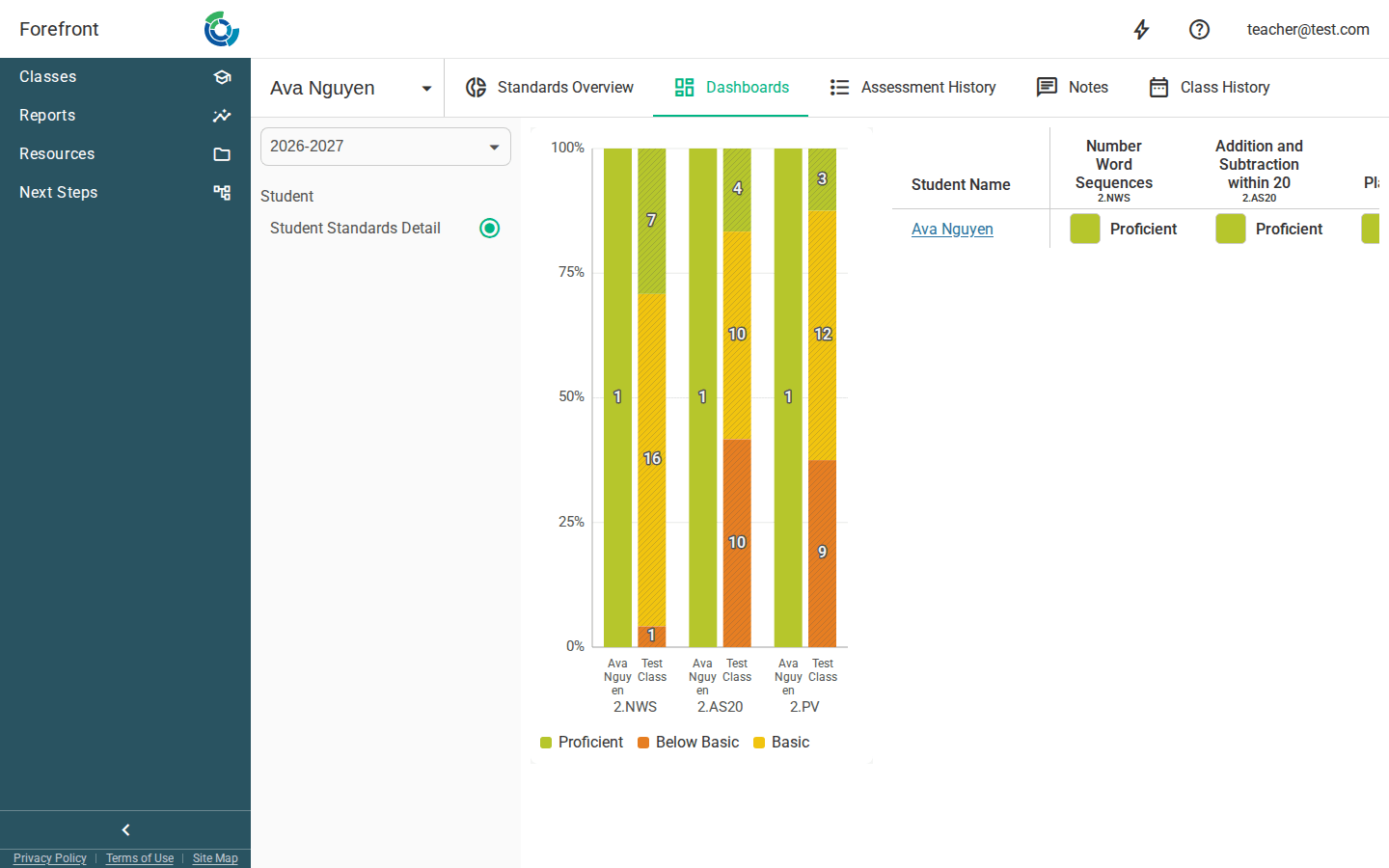
Every dashboard published to this student is listed in the Dashboard picker at the top of the page; selecting one loads it into the main area. On a narrow screen the picker folds into the menu at the end of the top bar.
A dashboard whose reports are built around a class appears once per class it covers for that student, each showing that class’s slice of their data. One that doesn’t ask for a class appears once. See Publishing Dashboards for how a dashboard reaches a student, including narrowing it to a particular cohort of them.
Changing the term
Use the term selector at the top to pick which school term the dashboards report on. Switching terms reloads every dashboard with data from the term you choose. The page opens on the current term.
The selector offers the current term and any earlier one this student has a dashboard in. A dashboard published to a group of students is listed under the year that group was drawn from, so one sent to last year’s class stays there rather than following the student into this year.
Reading a dashboard
The selected dashboard fills the rest of the page. Each dashboard is built from report cells that have been scoped to this student, so the numbers and charts you see are already narrowed to them for the term you’ve selected, with no extra filtering needed.
When there are no dashboards
If nothing has been published to this student for the term you’re on, the page shows a “No dashboards have been published for this term.” placeholder. Check the term selector for an earlier year before concluding there is nothing: the tab only appears at all when the student has a dashboard in some year.