 Forefront
What's New
Recent changes and improvements to Forefront.
November 19, 2026
New
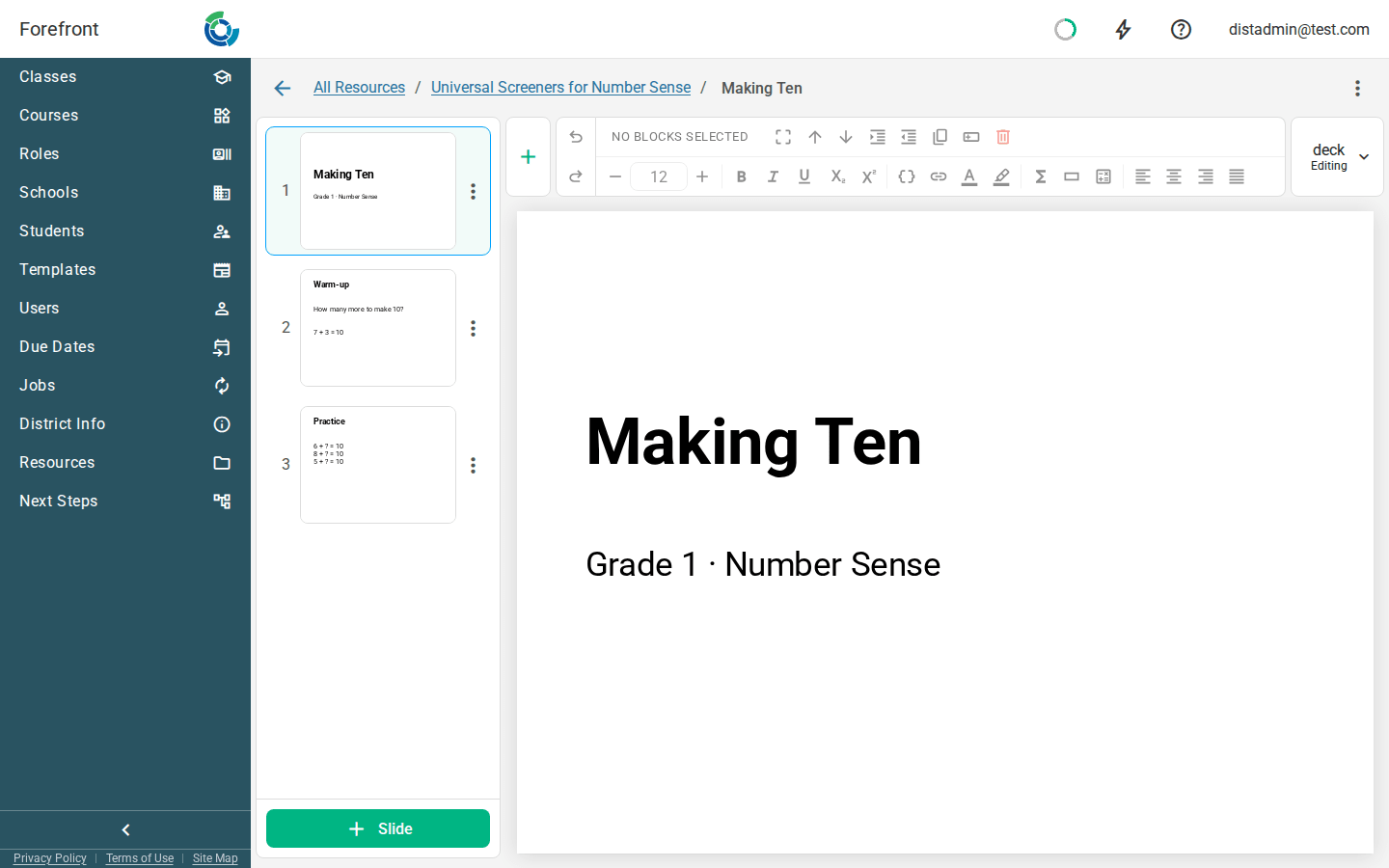
Build and play slide decks in Forefront. In Resources, choose Create Slides from New + to start a deck from a blank slide or from a PowerPoint file, with its click animations kept. Play it full screen in class without downloading anything. A Next Steps item can hold a deck too. Slides
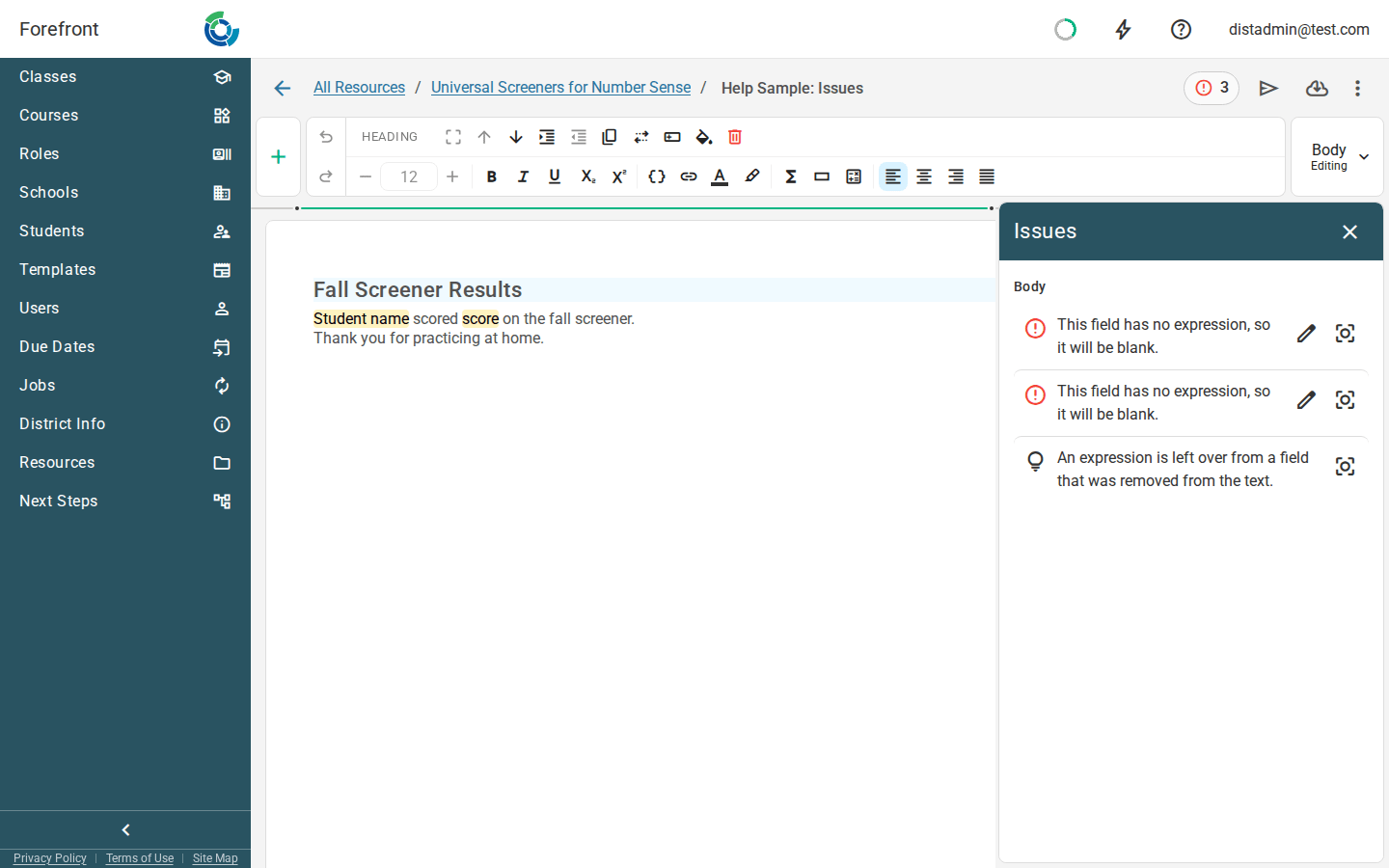
The handout editor points out problems before you print. A count in the top bar opens a list of anything that would print blank or wrong, such as dynamic text with nothing chosen, a question that has been deleted, or a date range that ends before it starts. Click a row to go to the setting. The download window shows the count for the term you pick, and nothing stops you saving or downloading. Checking a Handout for Issues
Student pronouns in handouts. A student’s record has a new Pronouns field, filled in by hand or from your roster. In a handout, dynamic text can print the right pronoun inside a sentence (“Practice will help her”) or the whole set as entered. Students Management · Text Block
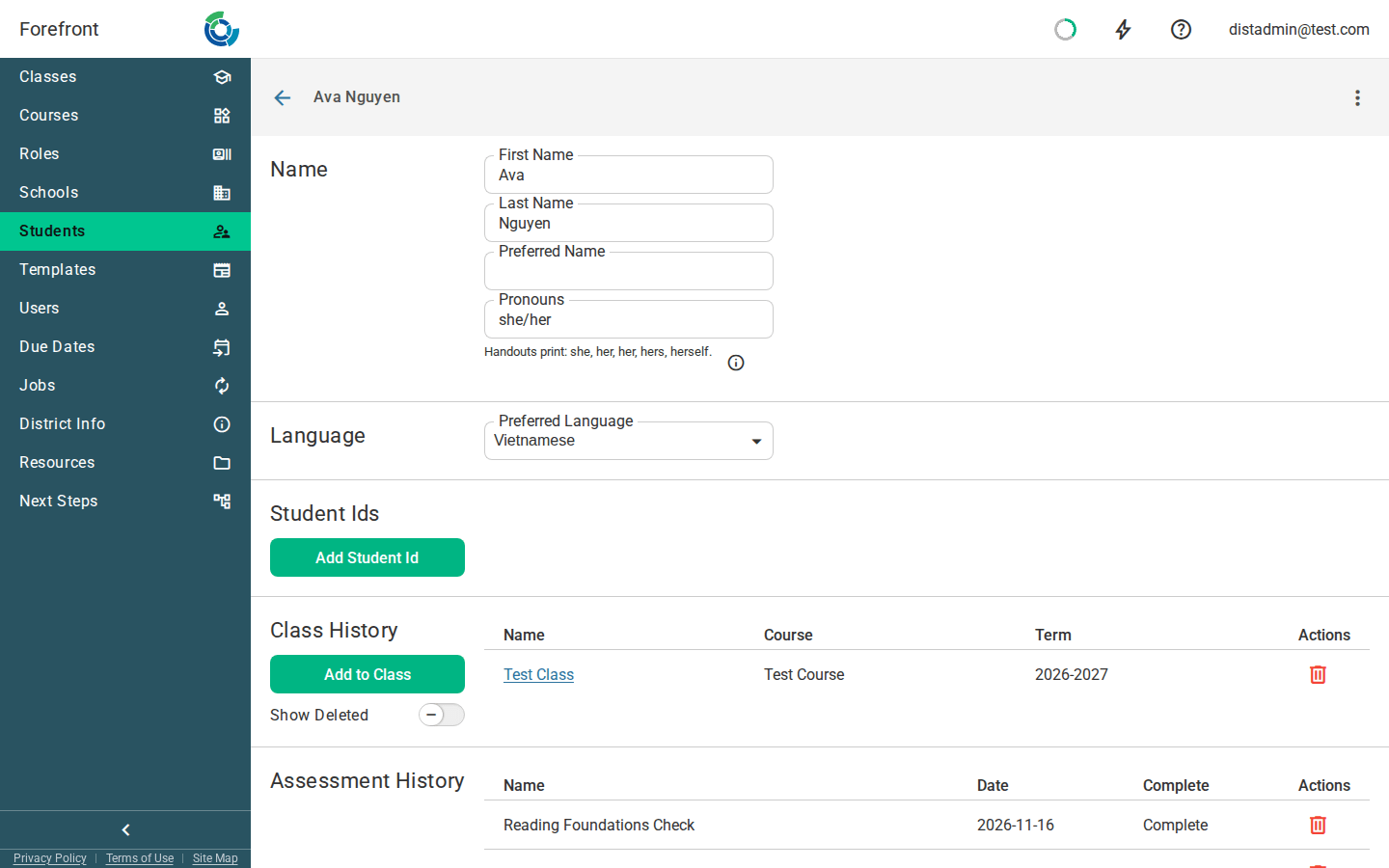
Handouts go home in each family’s language. Each student now has a preferred language, from your roster or Clever or set on their record. Download a translated handout with Each student’s preferred language and every student’s pages print in their family’s language. Families see the same in the Parent Portal, and a guardian can pick their own language in their settings. Translating a Handout · Students Management
Translate handouts into Dari, Lingala and Tigrinya. All three can now be added as translation languages. Translating a Handout
Copy a report card note to the rest of the class. Write a note once and click Copy to N students without a note under it. Students who already have a note, and submitted rows, are left as they are. Teacher Report Card Overview
Rate a help article. Every article now ends with Was this article helpful? Click a thumb to tell us, and add a comment if it missed the mark.
New help article on downloading handouts. It walks through every option in the download windows, including downloading from a class’s Documents page. Downloading Handouts
New help article on report card note presets. It covers setting up presets for a notes descriptor and how teachers use them. Report Card Note Presets
New help article on blocked downloads. If your browser stops a download or a report from opening, it shows how to find the browser extension responsible in Chrome, Edge, Firefox and Safari. Why Are My Downloads Being Blocked?
Improved
- Schedule a job by how often it runs. Choose Hourly, Daily, Weekly or Monthly and the hour, and Next runs shows the next three times it will run. The Jobs table has a new Next Run column. Jobs · How to Create a Custom Data Export Job
- Clearer choices when you change a report card option that has scores. One window shows how many scores and which handouts use the option, and lets you choose Add New Option or Edit Option. A mark whose option has changed since it was entered shows an info icon and reads as it was given. Descriptor Editor
- Table rows and columns with inclusion rules are always marked. A thin bar beside the row or above the column shows without hovering. Click it to open the rule. The drag handles are smaller and sit clear of the bars. Table Block
- Next Steps filters scroll on their own. On the search page the filter column scrolls separately from the results, with Clear all kept at the top. On a narrow screen the filters sit above the results. How to Access Next Steps Materials
- Lexile and Quantile values need no mapping in an import recipe. Values such as 850L or 5Q are recognized on the recipe page, so the question no longer shows a warning.
- Small labels and gray text are easier to read. Small uppercase labels look the same across the app, and gray text is a little darker.
Fixed
- Stacks fit their layers. A stack in a handout or report card no longer overlaps the content below it, including after adding a translation language. Report cards that were already affected display correctly without being edited. Stack Block
- The editing banner no longer adds a second scrollbar. In the report card and template editors, the banner naming who is editing stays at the top of the page as you scroll.
- The side panel stays clear of a selected table cell. On a narrow screen the handout page makes room for the side panel, and the ribbon fits.
- Publishing a document to the Parent Portal shows the right status. Families can see it as soon as you click Publish, and a publish that fails no longer shows the Published chip. Class Documents
- Every part shows in the gradebook. A part whose name contains quotation marks no longer hides the parts after it, and program and part tabs keep the same order every time.
- Proficiency Totals line up with their questions. With Show Sum Column turned on, the totals under the spreadsheet sit under the right columns.
- Scores under a deleted report card option still count. Reports, cohort filters and custom exports include marks entered with an option that was later deleted.
- Leaders keep editing assessments they move into a district folder. Moving a folder of your own assessments into a district folder leaves them editable by you.
- File sizes show correctly in Secure Files. Sizes read in KB or MB, exports show their real size, and files attached to a handout show when they were uploaded.
- Every Secure Files folder opens over SFTP. A folder that was listed but wouldn’t open in an SFTP client now opens.
- Pie charts fill small dashboard tiles. When a tile is too small for both, the legend gives way to the chart. Point at a slice to see what it is.
- District leaders find Next Steps in the sidebar. It sits below Resources when your district has Next Steps.
- Spelling fixes on the Reports and Course Management pages. Including Data Pairing Mode and Course Management.
November 12, 2026
New
- Archive a report card your district no longer uses. Choose Archive Report Card from the card’s row menu on its course. Teachers stop seeing it, its scores are kept, and you can unarchive it later. A report card with scores can’t be deleted, so archive it instead. Report Card Editor · Configuring Report Cards for your District
- New help article on showing content to only some students. It walks through building an inclusion rule for a block, a table row or a column, how conditions combine, and how to check a rule with a student preview. Showing Content to Only Some Students
Improved
- Creating an intervention group from a report confirms it. A message shows the group’s name and how many students are in it, with View class to go straight there. Students are added in the same step, so a group is never left half-filled. Create Intervention Groups from Reports
- Updated article on creating classes and groups. It now covers how teachers and building leaders each make a class or group and add students, with new screenshots. How to Create New Classes or Groups
- Help article screenshots point things out more clearly. Controls a screenshot calls out are outlined and numbered, with a matching list under the image.
Fixed
- Remove one condition from a Multiple Conditions rule. Click the trash icon at the end of a condition’s row. When one condition is left, it goes back to being a single condition. Handout Blocks
- Dynamic text on a report card with only notes no longer gets stuck. The Text Replacement panel explains that notes come from the Report Card Note block, and can swap one in where the dynamic text was. Report Card Note Block
- Images in a stack look the same everywhere. An image layer fills its layer, so a stack lines up the same way in the editor, the preview and the printed report card. Stack Block
- Correlation Statistics labels a new report correctly. With Proficiency turned on, a report you’ve just opened shows proficiency on its axes from the start.
- Values mapped to Ignored stay out of an import. A value such as N/A that your recipe maps to Ignored is skipped. It no longer imports as -1.
- Curriculum imports that add a new assessment work again. An import that creates an assessment, or the folder it goes in, finishes without an error.
- Table rows and columns offer inclusion only where rules work. The right-click Row and Column menus match the ribbon and leave out Modify row inclusion and Modify column inclusion on pages without inclusion rules.
- Deleting a download leaves nothing behind. After you delete the last job in the jobs panel, the panel and its status icon close together, in the parent portal too. The open panel also updates as jobs finish.
November 5, 2026
Improved
- One person edits a report card fragment at a time. When you open a fragment from a course and someone else already has it open, a banner says who is editing and the fragment is read-only for you. Select Take Over Editing if you need to make a change. Report Card Editor
Fixed
- Report card fragment edits stick. A change made to a fragment from a course now shows up in the report card handout’s layout, and editing it there no longer brings back the old text. If the fragment changed somewhere else while you had it open, it reloads with the latest version so you can make your edit again. Report Card Editor
- Report cards from past terms show the descriptors you graded. When your district replaces descriptors for a new school year, last year’s report cards keep their old columns and marks. A descriptor that has since been deleted is tagged Deleted and can be read but not changed. Class Report Cards · Report Card Editor
- Sorting the assessment spreadsheet keeps scores in the right rows. After you sort by a column, the order holds while you enter scores, save and switch tabs, so each score lands on the student you meant. Students with no score sort to the bottom. Assessment Spreadsheet
- Long class names fit in the sidenav. A class name with no spaces no longer makes the menu scroll sideways.
October 29, 2026
New
- Enroll a class from a file. Building and district leaders can add a whole list of students to a class at once with Import from File on the class’s settings, or from the gradebook. Upload a CSV, check who each row matched, and confirm. Class Settings
- Bring report card options in line with your district’s defaults. Choose Apply Defaults to Descriptors from a report card’s menu to give many descriptors your district’s names and colors for each proficiency level in one step, and to put their options in the same order. Descriptors whose wording you changed by hand are left alone unless you pick them. Report Card Editor · Descriptor Editor
- Preview a Next Steps activity the way teachers see it. Click Preview in the activity editor, or in the menu on its row in a library, to open the teacher’s page in a new tab with your unsaved changes included. An unpublished activity shows a Draft preview banner, and teachers see an activity once it’s published. How to Create (or Modify) a Custom Assessment
- More ways to set up a checklist question. Grid items can be lined up in a set number of columns, any response state can show an icon, and state colors come from your proficiency colors or a set of named colors. A preview in the editor lets you mark items and check the score before teachers use it. Question Types
Improved
- Checklist marking shows your progress. A bar across the top of a checklist fills in as you mark items, with the score beside it, and Mark all and Clear all marks sit in the menu next to the score. Question Types
- Open a dashboard’s details from the dashboard. The menu at the top of a district, school, class or student dashboard now has Open Dashboard Details, so you can get to the dashboard you’re looking at without searching through Resources.
- Saving a cohort from a report confirms it. A message now tells you the cohort was saved and which folder it went to.
- Making a Next Steps folder is easier to spot. Click New folder at the bottom of the Save to list, type a name and press Enter. The folder is made with the activity already saved in it. How to Access Next Steps Materials
- Libraries shared with your district open read-only. When you manage your district’s Next Steps libraries, the libraries and tag groups Forefront provides open for reading, and your own libraries keep their editing tools. Edit library has moved into the menu at the top of a library’s list of activities.
Fixed
- Mark all keeps the marks you’ve already made. On a checklist, Mark all now marks only the items that aren’t marked yet. Mark the words a student missed, then mark the rest correct in one step. Question Types
- Soft Colors applies to proficiency questions. With Soft Colors turned on in the spreadsheet, a picked proficiency level is softened to match the rest of the grid, in the spreadsheet and the Interview tab. Question Types
- Cancelling the standards picker keeps a question’s standards. Closing the picker in the assessment editor without saving leaves the question’s standards as they were. How to Create (or Modify) a Custom Assessment
- Report cards stay linked to their course. Renaming a report card while the editor is still loading no longer leaves it unable to open or missing from its course’s list. Report Card Editor
- Lexile and Quantile scores import as written. Values such as 850L or BR100L from STAR or an import file now land in Lexile and Quantile questions. Importing Assessment Data into Forefront
- The handout editor’s toolbar fits narrow windows. On a smaller screen the text controls stay in view, and the actions that fit stay out of the More menu.
October 22, 2026
New
- Publish a dashboard to several places at once. A dashboard’s Publish page is now a list of places, such as a district, schools, classes or groups of students, and one dashboard can sit in several of them. Teachers can publish to their own classes and building leaders to their own schools, and each person’s changes leave everyone else’s places standing. Students can be reached by school, course, class, grade, a saved cohort or a filter. Publishing Dashboards
- Add a standards table to a handout. Type
/standards-tablein the handout editor to insert a table of the standards you choose, showing each student’s proficiency across a year’s due dates or across school years, with an optional notes row at the bottom. Adding a Standards Table to a Handout · Slash Commands - Score on paper, then scan it back in. Alpha Paper forms are in invite-only alpha. An assessment can have a paper form that prints one labeled copy per student from the class gradebook. Scan the completed stack back in, review what was read, and apply the scores to the gradebook, with each student’s written work attached as a note. Creating a Paper Form · Printing and Scanning Paper Forms · Reviewing Scanned Scores
Improved
- Dashboards have their own place in the sidebar. District and school leaders now find a Dashboards link at each level, with the Implementation dashboard listed alongside the published ones and a year picker at the top. Reports now opens straight into a new report.
- Size and align a report card note. Click a Report Card Note block in a report card handout to set its text size and alignment with the usual controls, and the block now fits inside a small table cell instead of spilling over its neighbors. Report Card Editor
Fixed
- A student’s dashboards show under the right school year. A dashboard published to a year’s students is listed under that year, and the tab opens on the year you are looking at. An empty year says so rather than showing another year’s dashboards. Student Dashboards
- Teachers’ folders show their own work to colleagues. Opening a colleague’s folder under Users shows what they shared there, and items that had been filed in the wrong folder are back in their owner’s folder. Resources
- Logins by teacher counts every teacher at a school. The Implementation dashboard now includes teachers who are linked to a school through the classes they teach.
- Unpublishing a document takes it away from families. Once a handout is unpublished from the Parent Portal, families can no longer open or download it. Class Documents
- Enlarged images fit the screen. Opening an image, such as one in a Next Steps item, sizes it to the window, and zooming moves in smaller steps.
October 15, 2026
New
- Report card notes use the handout editor. Notes are now written in the same editor as handouts, so a note can carry headings, lists and dividers. Clicking a note preset adds it to the end of the note instead of replacing it, so a teacher can combine several presets with their own text. Presets are written in the same editor, can include dynamic text that fills in for each student, and can be reordered from each row’s menu. In the grid, press F6 to move between a note cell and its note. Teacher Report Card Overview · Descriptor Editor
- A Report Card Note block for report card handouts. Add it from the slash menu and choose a notes descriptor, and each student’s note prints with its formatting, in the preview, the PDF and the email alike. A student without a submitted note gets nothing, not even the block’s label. Handouts that show a note through dynamic text still work, as plain text; switch to the block to keep lists and headings.
- Clone a report card. Choose Clone Report Card from a report card’s menu to start a new version from an existing one. The copy keeps the original’s terms, due dates, descriptors and document fragments, starts with no data, and can be changed without touching the original. Report Card Editor · Configuring Report Cards for your District
- See who changed a resource. The menu on every resource and folder now ends with its most recent change and who made it. History lists every change since this release, such as edits, renames, moves, clones and deletions, and a folder’s history can include everything inside it. Resources
- Delete several data sets at once. An assessment’s Data tab now has a checkbox on each row and a select-all box in the header, so removing a bad import takes one step. Undo is offered straight afterwards. Importing Assessment Data into Forefront
- Include excluded assessments in a Standard Analysis report. A new Include Excluded Assessments setting counts results that are excluded from proficiency, such as a screener, in that one report. They still don’t count toward proficiency anywhere else. Standard Analysis Report
- Hide handout content from the students who match. Conditional content in a handout can now be set to Exclude as well as Include, so a section can appear for everyone except the students who meet its criteria. Showing Content to Only Some Students
Improved
- Next Steps cards show where an item comes from. When an item has a picture of its own, its library’s logo sits in a bar across the top of it. How to Access Next Steps Materials
- A tidier read-only assessment page. The page no longer stretches across a wide screen, the proficiency bands are easier to read, and a wide image scrolls sideways in place instead of from the bottom of the page.
- A help center home page that matches the old one. The role sections carry their photos again, For Parents has its own section, and Professional Learning sits with the other topics.
Fixed
- A handout downloads when a score’s dates are out of order. A score whose date range ended before it began stopped the whole handout from downloading. It now prints blank, and when both dates are fixed the editor won’t let you pick an end date before the start. Handouts: FAQ
- Dropdowns near the bottom of the page open upwards. A list that grew after opening, such as a search that was still loading, could run off the bottom of the window when there was room above it.
- The Language menu fits in question details. On a student’s assessment history, the Language menu was cut off at the top of the question details window. It now sits in the tab row.
- Every note’s menu lines up on the right. On a student’s Notes tab, a note without an assessment had its menu on the left.
- Example boxes are back in help articles. Gray boxes that set an example apart from the text were lost when articles moved to the new help center.
- A block’s settings stay open in the handout editor. Selecting a block such as a number line and then moving the mouse or pressing a key could close its settings panel.
October 8, 2026
New
- See an assessment’s results by standard. A new Standards tab next to Spreadsheet and Interview shows each student’s level on every standard the assessment covers, with a quick look at how the class is spread across levels above each column. Sort by a standard, switch lenses, or group students by need. The tab appears on assessments whose questions are aligned to standards.
- Jump around a long help article. Articles now list their sections down the side of the page, so you can go straight to the part you need and see where you are as you scroll.
- Related articles at the end of each help article. Up to five articles on similar topics are suggested at the bottom of every article.
- Contact support from the help center. A Contact Support form, linked from the top of the menu on every help page, sends your question straight to our team.
Improved
- Help center search shows every match. Pressing Enter in the search box now opens a page of results instead of jumping to the first article. Searches look for articles containing all of your words, and when none do you’ll see related articles and a way to contact support.
- Role pages in the help center are grouped. Pages such as For Teachers now split their articles into smaller sections, so a long list is easier to scan.
- Updated assessment editor articles. The help articles on building an assessment and on question types now match the current editor, with new screenshots. How to Create (or Modify) a Custom Assessment · Question Types
- Edit question text from the keyboard. In the assessment editor, each text area for a question is a single Tab stop. Press Enter to start typing, Escape to step back out, and Tab to move on to the next one. How to Create (or Modify) a Custom Assessment
Fixed
- Calculations follow their questions. Moving or deleting questions in the assessment editor no longer changes which questions a calculated question or the overall score adds up or counts. Deleting a question that comes before a calculation now works. How to Create (or Modify) a Custom Assessment
- A calculated question’s range comes from its calculation. Its Min and Max are no longer offered for editing, since they’re set by the questions it adds up. Question Types
- Rubrics show only on questions that use one. Viewing an assessment, or a question’s details, no longer shows a rubric for a question that doesn’t have Use Rubric turned on. How to Create (or Modify) a Custom Assessment
- Question text stays editable when you switch questions. Moving from one question to another in the assessment editor could leave a cursor in the text that wouldn’t let you type.
- The Overall Score column shows the total points. In the spreadsheet, the overall score’s heading shows the assessment’s possible points again, the same way each question’s heading shows its own. Assessment Spreadsheet
- Each student can be picked only once when adding students. The Add students window no longer lets you select the same student twice.
- Every term is offered when setting things up. Term pickers that put something into a term, such as when creating a class, editing a course, or setting up report cards and due dates, now list all of your district’s terms, including past ones with no data yet.
- No “by” without an author in Next Steps. A Next Steps item with no author no longer shows a “by” line on its own. How to Access Next Steps Materials
- Number lines are left out of email templates. A number line doesn’t display in most email programs, so it’s no longer offered as a block in email templates.
- Shared resources stay in the shared library. Resources that Forefront provides to every district can be moved only by Forefront, and you can’t drag or reorder a resource you can’t edit. To work with one in your own folders, clone it. Resources
October 2, 2026
New
- Format question text like a handout. In the assessment editor, a question’s text, scoring guide and instructions now share the handout editor, with headings, lists, tables, images, links and equations. Each rubric level gets the same formatting tools. How to Create (or Modify) a Custom Assessment
- Read a question in another language wherever it appears. A question written in more than one language now has a Language menu in the spreadsheet’s side panel, the interview, the assessment page and the question view in reports. Authors add and remove languages from the Language menu in the editor, and can start a new one as a copy of an existing one.
- One person edits an assessment at a time. Opening an assessment someone else is editing shows who it is and keeps your view read-only, while you can still move between its tabs and questions. Take Over Editing is there when you need it.
- Round an assessment score in a handout. A score whose assessment allows decimals, such as a calculated composite, can now be shown rounded to the nearest whole number with the new Round to Whole Number toggle.
Improved
- One Question Type picker. The question type and the way a question is entered are now one list: Default, Checkbox, Checklist, Star rating, Proficiency, Measure, Tally marks and Calculated. Read Only and Use Rubric are separate switches that work with any type. If switching type would change scoring you’ve already set up, you’re told what will change before it happens, and a small preview shows how the question will look in the spreadsheet. Question Types · How to Create (or Modify) a Custom Assessment
- See which assessments don’t count toward proficiency. On a part page, an assessment excluded from proficiency by its course, or one that doesn’t contribute, is now shaded and marked before anyone has taken it, not only after.
- A tidier interview. Click anywhere on a scoring guide row to choose that score, not just its radio button. The note buttons say what kind of note they add, and the saving indicator finishes before it disappears instead of just vanishing. Entering Assessment Data in Forefront
- Notes with text and a picture line up. A spreadsheet note that has both text and an attached image now lays them out cleanly together. Entering Assessment Data in Forefront
- Stacks stay within a page. A stack in a handout can no longer grow taller than a page, and you’re told when adding to it would go over. A new Unwrap stack option moves its content back into the page.
Fixed
- Merge Across Assignments merges again. On a spreadsheet’s Summary tab, turning it on now builds each student’s row question by question from all of their dates, with an overall score, instead of showing a single date. Assessment Spreadsheet
- Choosing an assessment no longer freezes the page. The Select Assessment window stays responsive when it opens on a folder holding a very large number of items. How to Add an Assessment to a Class
- Adding several assessments keeps the order you set. You can drag to reorder the assessments you’ve picked, and they now land after the part’s existing assessments in that order, instead of jumping to the top. How to Add an Assessment to a Class · Program & Part Overview
- Subtraction works in calculated questions. A calculated question’s
function can now subtract with
-. A function with an empty pair of parentheses is now reported as an error, where before it could stop the assessment saving for a long while afterwards. - Leaders can choose a class when marking Next Steps as done. The class list in Mark as done now lets leaders and admins search every class they have access to, not just ones they teach. How to Access Next Steps Materials
- Report card notes with
<or&print as typed. A note containing either character was losing part of its text in handouts, their PDFs and guardian emails. - Images and files with dashes in their names open. A file whose name used an en dash, curly quotes or an emoji wouldn’t load, and PDFs named that way couldn’t be uploaded.
- Dashboard images load. Some images on dashboards showed only a broken icon and their file name.
- Dropping a block below a list is easier. In the handout editor, the area that drops a block above or below another is larger, and the drop line no longer jitters as you move.
September 30, 2026
New
- Give an assessment on paper, and scan the scores back in. An assessment with a paper form can be printed from your gradebook: a copy per student, each with their name and a scannable code on every page. Score the pages by hand, scan the stack into one PDF, and upload it: Forefront reads each page, shows you anything it isn’t sure of, and puts the scores in the spreadsheet when you apply them. The student’s work and your notes on the page are kept with each score. Paper forms are a district feature. Printing and Scanning Paper Forms · Reviewing Scanned Scores · Creating a Paper Form
September 25, 2026
New
- Preferred student names. A student can now have a preferred name alongside their legal one, typed in on the student’s record or read from a preferred name column in your roster file. Names can show as the legal name, the preferred name, or both, such as “Ada (Addie) Lovelace”. The choice shows across class lists, the gradebook, report cards, printed documents and exports, and anyone can choose which they see from their own settings page. To change the default for your whole district, contact support. Preferred Student Names
- Your date filter follows you. The date filter on the Gradebook Overview and on a student’s standards page (a custom date range, a term, or a report card grading period) now survives a reload and comes along when you share the link. Your last three are remembered, shared between the two pages, and offered as one-click choices under + Filter. The grading period filter also works with the current report card now. Gradebook Overview · Student Standards Overview
- Pick which edge of a percentile band to show. A percentile column in the data table can now show the whole band, its lower edge, or its upper edge, and the download matches what the table shows. Data Table Report
- See how far along a custom export is. A running custom export now shows its progress rather than a bare spinner, and exports built around standards finish much faster. The job status button in the header also opens while a job is running, where before it couldn’t be clicked.
- Make an uploaded file public or private. Uploaded files now have the Public / Private toggle in their menu, the same as every other resource. Resources
Improved
- Renamed data table columns show just your name. A column you’ve renamed now shows only the name you gave it, with the original assessment and question names in a tooltip. Short names stay on one line.
Fixed
- Every filter applies to a global cohort. Question, assessment, standard and percentile filters on a global cohort were being ignored, so the report ran against the whole population. They now apply, and filtered global reports load far faster. The Report Card filter isn’t offered on a global cohort.
- Percentile bands open correctly in Excel. A downloaded percentile band such as “6-7” was being turned into a date. It now reads “6th–7th %ile”. Data Table Report
- New sittings of an excluded assessment start excluded. When a course excludes an assessment from proficiency by default, the first scores a class entered could still count toward proficiency. They’re now excluded from the start. When should I use “exclude proficiency” on an assessment?
- Guardian sign-up codes print without background graphics. Printing sign-up codes with the browser’s Background graphics option turned off left the QR codes blank. They now print either way. Class Guardians
- Deleting a large import finishes. Deleting an assessment data import could time out and leave the import in place. It now runs in the background, with the import marked Deleting… until it’s done.
- Removing an assessment from a course saves. Saving a curriculum could fail when one of the course’s classes had no primary teacher. Curriculum Editor
- School leaders open on the schools they lead. A leader who used to teach at another school could land on that old school and wait on data that never loaded. A leader’s school picker now lists the schools they lead.
- Reset and Set scores are unavailable on locked Summary rows. On a gradebook’s Summary tab these options were offered on locked rows and then did nothing. They’re now turned off there, with a note saying why.
- Handout ribbon controls no longer overlap in Firefox. The ribbon now measures its space correctly, so tools fold into the More menu only when they really don’t fit.
September 18, 2026
New
- New articles on how scores are calculated. The help center now explains how a report card mark is worked out from assessment evidence, how standards proficiency is calculated under each of the two methods, and how to set up report card descriptors. How Report Card Marks Are Calculated · How Standards Proficiency Is Calculated · Descriptor Editor
- Leave out rows with a blank column in a custom export. Any column in a custom export can be marked Require Value, so a row where that column would be empty is skipped. Use it, for example, to export only the standards that have an ID of the type you picked, or only the students who have an ID from your student information system. How to Create a Custom Data Export Job
Improved
- Percentiles in the data table read as percentiles. A percentile cell now shows the student’s whole band, such as “20th–80th %ile”, instead of a bare number that was only its lower edge. A percentile column you haven’t configured compares against this year’s global cohort. Data Table Report
Fixed
- Videos in a printed or emailed handout play. Scanning the QR code, or tapping the link, for a video your school uploaded now opens a proper watch page rather than the raw video file. The QR code now reliably appears on the printed card, which has been redesigned as the full-size thumbnail with the code in its corner.
- Set scores works on rows with different score ranges. “Set scores to…” was unavailable on a row whose questions have different ranges, as on Bridges, Third Edition assessments. You can now set every cell to its own question’s minimum or maximum. Entering Assessment Data in Forefront
- Demographic inclusion rules work in the report card editor. The Demographic list in a report card’s inclusion rules now shows your district’s demographics to everyone who edits the report card. Showing Content to Only Some Students
- Data table downloads match the table. A download could leave a student’s proficiency blank for a standard the table showed a level for, typically one assessed last school year. Data Table Report
- Student pages load when a course has been deleted. A course deleted from underneath one of a student’s classes could stop student pages loading.
September 11, 2026
New
- Two columns in handouts. A new Two Columns block puts content side by side.
Add it from the + menu, by typing
/columns, by selecting several blocks and choosing Make two columns, or by dragging a block onto the side of another. Columns can be split 30/70, 50/50 or 70/30, swapped, or unwrapped back into ordinary blocks, and the layout holds on screen, in print and in email. - Add several assessments to a class at once. When adding assessments to a class you can now select more than one from the same folder, and the picker is wider so long program names fit. How to Add an Assessment to a Class
- Link from one Next Steps item to another. An item’s menu now gives authors the link a teacher uses to open it, ready to paste into another item. An author profile can also be set as a person or an organization, so a publisher can use its logo.
Improved
- Step out to the surrounding block in a handout. A new select-parent button in the ribbon selects whatever contains your selection, such as the table around a cell, and Escape now steps out the same way before clearing the selection.
- Images load at the size they’re shown. Large images in handouts, dashboards and elsewhere now load a copy sized for where they appear, so pages with big images open faster. The original is kept, and printed handouts stay sharp.
- Easier to follow a student’s sittings in the spreadsheet. A student’s expanded sittings are now set apart as one block, so it’s clear where one student ends and the next begins. Assessment Spreadsheet
- Links to Forefront pages stay in the same tab. A link in a Next Steps item that points elsewhere in Forefront now opens in place rather than in a new tab.
Fixed
- Handout tables split across a page break again. A table that didn’t fit on the rest of a page jumped whole to the next one, leaving a mostly empty page behind. It now carries on across the break.
- Creating a class asks only what it needs. A teacher creating a class was asked for a term and a primary teacher, and the teacher list could include blank entries. How to Create New Classes or Groups
- Moving between spreadsheets no longer errors. Opening one assessment spreadsheet after another could show an error in place of the second one. Assessment Spreadsheet
- Score masks save in the assessment editor. Typing into a question’s score mask fields didn’t store what you typed. How to Create (or Modify) a Custom Assessment
- Every class has a name when marking Next Steps as done. Classes without a name of their own showed as blank rows in the Mark as done class picker. They now show their course name, with the teacher’s email to tell sections apart. How to Access Next Steps Materials
September 4, 2026
New
- Turn on a whole year of report cards at once. When you set up a new school year you can now bring last year’s report cards forward to it in one step, instead of opening each one and enabling it individually. Report Card Editor · Configuring Report Cards for your District
- Score a group of standards as one body of evidence. A report card line that lists several standards can now pool all of their assessment data into a single score, rather than scoring each standard on its own and averaging the results. It’s a toggle, so lines that should stay separate can. Report Card Editor
- Write your own column headings on the gradebook overview. A lens can now carry a column label, which is used in place of the standard’s name in that column. It applies to the Gradebook Overview page only, not the part pages. Gradebook Overview · Understanding and Configuring Lenses
- Hide a program from the pacing page. A curriculum can now be kept off the pacing page while staying fully available to teachers in their courses. This helps with intervention programs you want available but not tracked there. Hidden curricula are labeled as such in the course editor. Curriculum Editor
- More ways to record an answer on a question. Alongside a typed-in score, a question can now be set up to collect a checkbox, a tally, a star rating, a checklist, or a proficiency level, and the spreadsheet, the interview and the printed grid all render the type you chose. Question Types · How to Create (or Modify) a Custom Assessment
- Go straight from a question to its Next Steps materials. A question in the spreadsheet, and the question view in a report, now link to the Next Steps items attached to that question, opening a search already filtered to them. How to Access Next Steps Materials
- Attach Next Steps materials while you build an assessment. In the assessment editor you can link existing Next Steps items to a question or write a new one inline. If your role lets you manage district resources you can do this on a shared assessment too, so a district can put its own materials on an assessment it didn’t author. How to Create (or Modify) a Custom Assessment · How to Access Next Steps Materials
- Choose the population behind an exported percentile. A percentile column in a custom export now has a picker for whether it is calculated against your own district or the global population. How to Create a Custom Data Export Job · Custom Data Exports
- Format text inside a translation. The translation panel now has bold, italic, underline and font size, with the keyboard shortcuts you’d expect, and undo and redo work there. Any dynamic text in the original shows up as a button you can drop in at your cursor, carrying its settings with it. Translating a Handout
Improved
- The gradebook opens on the term you’re teaching. The Gradebook Overview and the program and part pages now start on the class’s current term rather than opening on everything the class has ever been assessed on. Gradebook Overview · Program & Part Overview
- Past terms stay out of the way on your classes page. Previous terms are now collapsible sections that start closed, so the classes you’re teaching right now are what you land on.
- The spreadsheet holds your data through a dropped connection. Entering scores while your network is unreliable now keeps what you typed and finishes saving when the connection returns. Assessment Spreadsheet
- A clearer editor for dynamic content in handouts. The settings for dynamic text and inclusion rules have moved into the side panel, and the ribbon and its tooltip now describe even large or deeply nested rules in a way you can read. Showing Content to Only Some Students
- Online course access activates itself. If you explored a course preview before your Forefront account was ready, signing in now turns that into full access to the course on its own, rather than waiting on someone to enrol you. Accessing Online Courses in Forefront
- The sign-in page is ready to type into. Opening it puts your cursor straight in the email field, and its controls now sit closer to the rest of Forefront. Logging In to Forefront
- A tidier Next Steps item editor. The short description grows to fit what you write instead of scrolling, the image preview shows what a reader will see when you haven’t uploaded one of your own, and an item’s authors and whether it is published are both on the details page where they’re hard to miss.
Fixed
- Report cards open on the due date that’s current. A class’s report card could open on the last period of the year instead of the one now due. Class Report Cards
- A handout you just cloned is yours to edit. Opening a copy straight after cloning it could report that someone else was editing it and hold your changes until you reloaded the page. How to Clone and Modify an Existing Handout
- Images in a handout or dashboard open full size. Clicking an image on a page you’re reading (a dashboard, a handout or a report card) opens it in the image viewer, and Enter or Space does the same when it’s focused.
- Your classes page loads when a class record is incomplete. My Classes could come up empty, with an error, when one of your classes was missing the record of who created it.
- School pickers offer only active schools. Creating an intervention course from a report listed schools that had been disabled. Create Intervention Groups from Reports · Configure Intervention Courses
- Global comparisons work in a term you have no data in yet. A global cohort could be missing from a report for a term your district hasn’t assessed in itself, which is the normal state of things early in a year. USNS National Norms and the Global Cohort
- A scheduled import no longer fails on a file that has moved. An SFTP import could go on failing because the job was still looking for a file name that was no longer in the folder. Jobs · Connect to the SFTP Server
- Grade labels wrap neatly on a course. The grade labels ran together with no space between them, and wrapped awkwardly on a course covering several grades. Courses Management
- Menu entries no longer look like links. Icons and labels in the three-dot menus were drawn underlined.
- Help articles use the full width of the page. Article text could stop short of the edge of the panel, making it harder to read than it needed to be.
August 27, 2026
New
- Videos in handouts. A new video block: paste a YouTube or Vimeo link, point at a video your district hosts, or upload one. On screen, including the guardian pages, it plays right in the handout. In print and email it becomes a card with the video’s thumbnail, its title, and a QR code to scan, and you can choose per video whether that card appears, shrinks to a plain link, or is left out of the printed copy altogether.
- Download a handout in the language you want. The download options for handouts, report cards, and class handouts now include a language picker, listing the languages that particular handout has been translated into. Downloading Handouts · Translating a Handout
- See who else is in a handout you’re reading. Opening a handout you can’t edit now tells you who is editing it and how many people are viewing it, and the page picks up their changes as they save, so you don’t need to reload to see the latest.
- Name a copy when you clone, and make several at once. Cloning a resource now asks what to call the copy, defaults to the original’s name, and warns you if that name is already taken in the folder you’re cloning into. Turn on Create Multiple and give one name per line to make several copies in one go. Resources · How to Clone and Modify an Existing Handout
- See a student’s deleted classes. The class list on a student’s management record has a Show Deleted toggle, which adds their deleted classes along with when each one was deleted and who deleted it.
- A deleted class says so, and offers to bring it back. Opening a class that has been deleted now shows a banner across the top of the page with a Restore Class button, instead of looking like any other class. Classes Management
Improved
- The district templates page explains each template. Every guardian template now carries a short description of when it reaches a family, with a More info link through to its help article, so it’s clearer which one to edit. Templates
- A tidier help center. Articles that used to sit in an uncategorized bucket are now filed under the section they belong to, and Reports and Resources each have an overview page introducing the area and pointing at its guides. Reports · Resources
- Dropdowns behave better everywhere. A dropdown list now follows its field when you scroll the page, shifts back into view instead of running off the edge of the window, closes on Escape or a click anywhere outside it, and hands focus back to the field you opened it from. On a narrow window it opens centered rather than squeezed against the field.
- Tooltips get out of the way. In lists (the standards picker and the report card roster especially), a tooltip now appears beside the row it belongs to rather than on top of the next row down, which is usually the row you were reading toward.
- Your appearance choice follows you. The theme you pick on your settings page is now saved to your account rather than to the browser, so it applies on every computer and browser you sign in from.
- A way back to the classes on a course. On the pacing page, each course now has a menu that opens the list of classes on that course, filtered to the school you were looking at.
Fixed
- A clear message when a report card has no fragments to add. Adding a fragment to a report card handout showed an empty picker with no explanation when the report card didn’t cover the current term. It now tells you what to fix, and distinguishes that from a report card with no fragments built yet. Report Card Editor
- Editing a scheduled job shows the settings it was saved with. The editor opened blank for most job types (no file, no folder, and the term reset to the most recent one), so re-saving a schedule quietly changed what it did. Jobs
- A correct SFTP password is no longer rejected. Connections to the SFTP server could fail as “incorrect password” with the right password, for districts whose new school year hadn’t been set up yet. Sign-ins, imports and exports for those districts could stall for the same reason. Connect to the SFTP Server
- Grade tags on My Classes no longer get cut off. A class covering several grades now shows them as a range, and the tags wrap onto another line instead of being clipped at the edge of the card.
- Resizing a small image in a handout. Dragging a resize grip kept going after the image had stopped growing, and an image could be set wider than it really is, which looked fine on screen but printed and emailed blurry.
- Icons on the sign-in pages no longer flash as words. While the page was still loading, each icon briefly appeared as its name in text and pushed the layout around.
August 20, 2026
New
- Pick which score a standard uses in a handout. Standard proficiency text replacements now have an Extremum dropdown: Default, Latest, Earliest, Highest, or Lowest. Previously a standard always blended every score in the date range; now you can pull a single score instead, the same way assessment and question replacements already worked.
- Build a handout table from a spreadsheet. Paste rows copied out of Excel,
Google Sheets, or Numbers straight onto the canvas and they become a table, or
drag a
.csvfile onto the canvas to do the same thing. Handouts: FAQ - Question numbers in the standards picker. The Select Standards modal in the assessment builder now shows which question you’re aligning to, so it’s easier to be sure the standards are landing on the right one. How to Create (or Modify) a Custom Assessment
- Set your own keyboard shortcuts. Forefront’s keyboard shortcuts are now configurable per user, starting with jumping to the side panel. There’s also a new page-settings area for per-page preferences.
- Documentation for handout translation. The help center now covers translating a handout, including how translation works block by block. Translating a Handout
- Link straight to a section of a help article. Every heading in the help center is now its own anchor, with a link icon beside it that copies a URL pointing right at that section. It’s handy for sending someone one step rather than a whole article.
Improved
- A reworked Next Steps search page. Results now page rather than growing one endless scroll, tag groups collapse, and the standards filter shows only the standard systems your district actually uses and that the library’s items are aligned to. Item images are smaller and less overwhelming, authors’ names link to a new author page listing everything they’ve written, “Mark as Performed” is now “Mark as Done”, and the back button returns you where you actually were.
- Renamed report entities lose the old abbreviation. Overriding an entity’s name in a report or dashboard now replaces the label completely, instead of leaving the abbreviation in front of the name you typed.
- See at a glance which table rows have inclusion rules. Handout tables with row or column inclusion modifiers now show a permanent indicator, so you can tell a conditional row from an ordinary one without opening any menus. Showing Content to Only Some Students
- Dragging an image inside a stack moves the stack. Images in a handout stack can no longer be accidentally dragged out of it. Margins have also been turned off on stacks and layers as a whole, where they produced odd results; margins on blocks nested inside still work. Handouts: FAQ
- A new loading indicator. The spinner you see while a page or panel loads has been redesigned.
Fixed
- Imported classes are no longer deleted when a course stops matching. Classes rostered using section info were being removed if the section stopped resolving to a course. They’re now kept.
- Clever users added after setup now get their email and ID. If a staff member was created in Clever before they had an email address, the nightly sync wasn’t picking the email or Clever ID up once it was added, which left them unable to sign in.
- Clever staff with assigned schools come in as building leaders. Staff records that list specific schools in Clever were being created as teachers in Forefront instead of building leaders.
- Schools now save on the user detail page. Choosing a school for a user and saving didn’t stick, even though the user list showed a school. For building leaders this meant no school access, so pages like Pacing filled with “not authorized” errors. Users Management · Add or Modify User Accounts Manually
- The assessment editor no longer stops saving silently. Setting a question’s maximum below the value a calculated question depends on threw an error, after which the editor kept accepting edits but quietly saved none of them and stopped recalculating formulas. How to Create (or Modify) a Custom Assessment
- Correct maximum score for subtracting functions. A calculated question that subtracts one score from another was getting the wrong maximum, because the range was worked out as though the function only added. How to Create (or Modify) a Custom Assessment
- Bulk Unassign no longer assigns. In the district course editor, the per-curriculum Bulk Unassign action was calling the assign mutation. It pushed the curriculum onto every class on the course, including classes that had previously excluded it, and then reported success. It now unassigns. Curriculum Editor · Courses Management
- Report cards stay hidden when the feature is off. A course page was still showing an old report card for districts that no longer have report cards enabled. The section is now hidden when the report card’s feature flag is off.
- More accurate student search in Next Steps. Searching for a student when marking an activity as done now returns only the students you can record activity for.
- The reorder handle disappears when you’re done. On a part page, dragging an assessment into a new position and clicking Done left the drag handle behind, overlapping the assessment’s icon. Program & Part Overview
- No more horizontal scroll flash on the user page. The Login Methods table briefly forced a horizontal scrollbar while a user page was still loading. Users Management
- Readable text in Restore deleted items. The details line under each deleted resource was showing garbled characters where a separator dot should be.
- Editing indicators work on district templates. Opening a template someone else was already editing didn’t show that they were there.
August 13, 2026
New
- Re-order subjects on a report card. Subjects on a Report Card V2 can now be put in the order you want them, using drag handles or the move up / move down options in each row’s menu. Teachers see them in that same order. Report Card Editor · Configuring Report Cards for your District
- Show only assessed standards on the proficiency wheel. A new filter on the student standards page hides standards that haven’t been assessed yet, which makes a large lens much easier to read. Student Standards Overview
- Move a whole folder in Secure Files. Folders can now be moved into other folders without moving their contents file by file. Adding or Accessing Files Securely in Forefront Resources
- Forefront remembers your resource browser view. Whether you prefer grid or list, the resource browser now opens the way you left it. It’s a per-user setting, so it follows you rather than the district.
- Faster switching between classes. The class switcher now starts with the other classes in the same course already listed, instead of an empty search box. Search still reaches any class you have access to.
- Skip the overview page in single-program districts. Districts using only one program (USNS or FRS, for example) can now send teachers straight to the program page instead of the overview. The overview is still there for the lens-level view. Program & Part Overview
- Get back into a professional learning course. Once you’re enrolled, the Professional Learning page links straight through to the course so you can pick up where you left off. Accessing Online Courses in Forefront
Improved
- Clearer sorting on the overview page. Column sort toggles are now sort indicators too, so you can always see which column is sorted and which way. Students have their own indicator, and “add student to class” has moved from the right-click menu to a more discoverable menu in the upper right. Gradebook Overview
- Better reporting on SFTP roster imports. Roster imports now report what succeeded and what failed in far more detail, so a partial import is easier to diagnose. Rostering Sync Setup · Connect to the SFTP Server
- Table rows and columns keep their borders. Adding a row or column to a handout table now matches the border styling of the row or column you added it from, instead of coming in unstyled. Handouts: FAQ
- A filter bar in long dropdowns. Selection lists that grow past a certain size now include a filter bar so you can type to narrow them down.
- A refreshed guardian login page. The page guardians land on after requesting a login email has been redesigned. Student Guardian Management
- Teacher schools follow their classes. A teacher’s schools are now derived from the classes they teach rather than set by hand, so the two can no longer disagree. Users Management · Add or Modify User Accounts Manually
Fixed
- Next Steps is visible to building leaders. Building leaders were missing the Next Steps option that teachers and district leaders already had. How to Access Next Steps Materials
- An FRS handout that wouldn’t load. The FRS F 1+2 handout now opens correctly.
- Menus and modals stayed open after losing editing. In the handouts editor, an open menu or modal now closes when editing passes to someone else.
- Preset report card notes now show in the text box. Adding a preset note filled in the cell but left the note box looking empty. How to Use Report Cards as a Teacher
- Importing a course now updates the page. The import modal closes on its own and the new courses appear without a reload. Managing Courses
August 6, 2026
New
- Equations in handouts. You can now build fractions, mixed numbers,
exponents, and square roots directly inside a text block, from the ribbon or
with slash commands like
/fraction,/exponent,/mixed, and/square root. Inside an equation, typed sequences convert as you go:*becomes ×,+-becomes ±,<=becomes ≤,>=becomes ≥, and!=becomes ≠. Structures can be nested. Handouts: FAQ · How to Clone and Modify an Existing Handout - Number lines in handouts. A new number line block, added from the slash menu or the add-block button. Set the range, tick interval, and label frequency, then decorate the line with points, rays, intervals, jumps, slots, and custom or hidden labels.
- Handouts tell you who else is editing. Opening a handout that someone else is already editing now puts you in read-only mode with a banner naming them, and a “take over” option when you need it. Two people can no longer overwrite each other’s work without knowing.
Improved
- Confirmation when a job is queued. Starting a job now shows a message confirming it’s been queued, so it’s clear something is happening even when the job takes a moment to start. Jobs · Accessing and Running Non-Scheduled Export Jobs
July 29, 2026
- New help center. Help articles now live here, at their own address, with the same navigation and layout as the app. Every article is a real page, so you can link straight to one, and search covers the full text of all of them.